
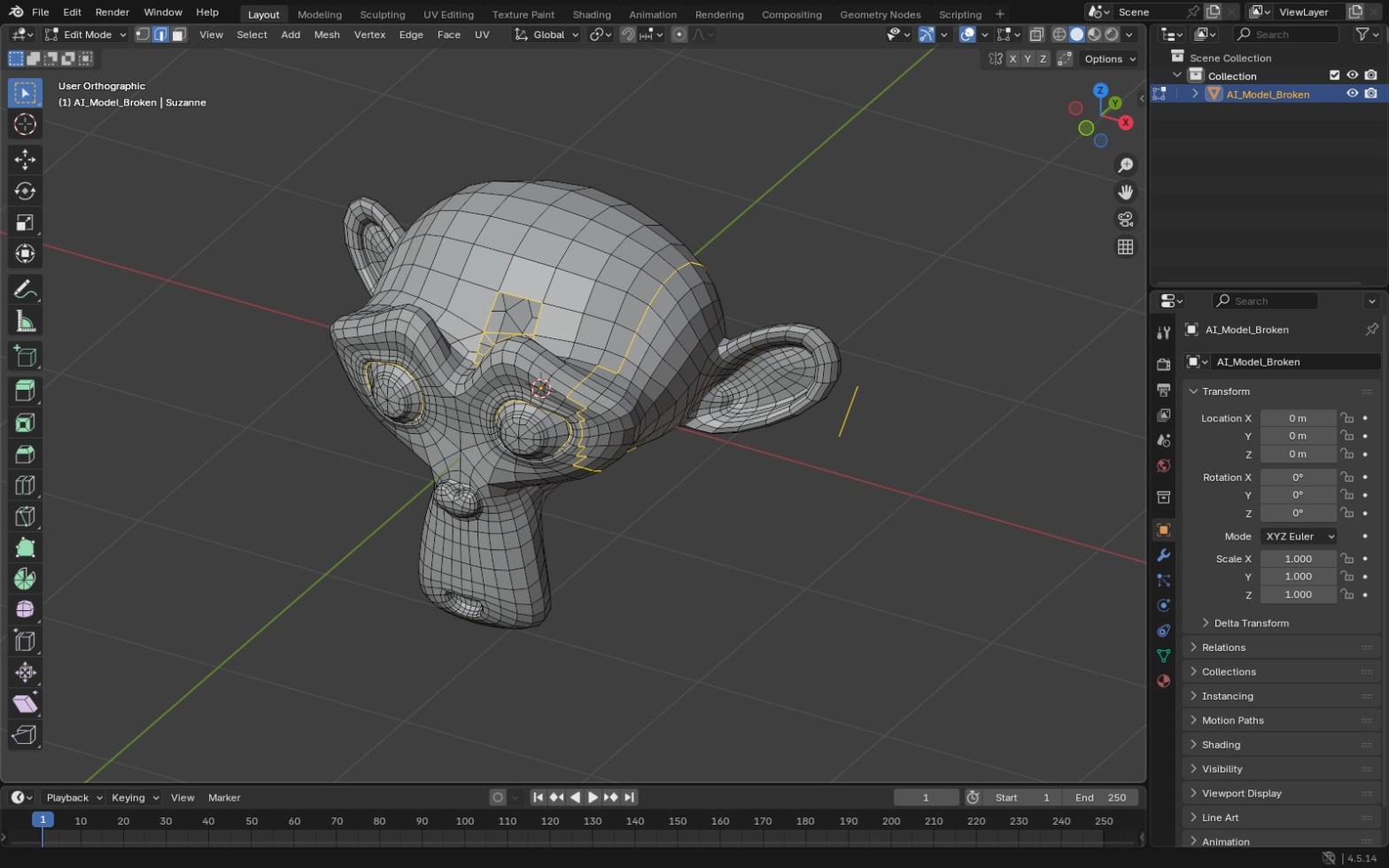
On this page: First look · Fix steps · What each fix solves · For printing · Script it · Limits · FAQ
To fix an AI-generated model in Blender, check its scale and orientation, merge duplicate vertices, recalculate normals, fill the holes until the mesh is manifold, then decimate or remesh it for what you need it for. Printing needs a closed solid. Animation needs new, clean topology. Rendering a still often needs only the first three steps.
Image-to-3D and text-to-3D tools give you a mesh quickly, but rarely a clean one. Expect a dense triangle mesh, doubled vertices, flipped faces, small holes and loose bits floating inside. None of that is hard to fix if you go in order.
What should I check first after importing?
- Import the file (File › Import › glTF, OBJ or FBX, whichever the tool gave you).
- Press N and read Dimensions. AI models arrive at whatever size the tool picked. Scale the model to its real size, then apply scale with Ctrl+A › Scale.
- Check which way is up. Rotate it so it stands on the grid, then apply rotation.
- Look at the face count in the status bar (right-click it and turn on Scene Statistics). Hundreds of thousands of triangles on a simple object is normal for these tools.
- Save a copy of the untouched import before you change anything. You’ll want it if you bake textures later.
How do I clean up the mesh? (step by step)
- Separate the loose parts. In Edit Mode, P › By Loose Parts. Delete the stray fragments you don’t need, then join what’s left.
- Merge by Distance. Select all and use Mesh › Clean Up › Merge by Distance. Start with a very small distance and raise it only if seams stay open.
- Recalculate normals. Mesh › Normals › Recalculate Outside (Shift+N). Turn on Face Orientation in the Overlays menu: blue faces point out, red faces point in.
- Find the holes. Select › Select All by Trait › Non Manifold. Fill small holes with F or Grid Fill. Delete and rebuild areas that are too tangled to fill.
- Reduce or rebuild the topology. A Decimate modifier (Collapse) lowers the face count and keeps the shape. A Remesh modifier (Voxel) rebuilds the whole object as one closed solid, which is often the quickest route to a printable mesh.
- Check again. Run the 3D-Print Toolbox Solid check, or Select Non Manifold, until nothing is selected.
What does each fix solve?
| Problem you see | Fix in Blender | Keeps textures? |
|---|---|---|
| Wrong size or lying on its side | Scale/rotate, then Ctrl+A | Yes |
| Seams, shading streaks | Merge by Distance | Usually |
| Dark or see-through patches | Recalculate Outside | Yes |
| Holes, open edges | Select Non Manifold, then fill | Mostly, new faces have no UVs |
| Too many triangles | Decimate (Collapse) | Mostly, check the UVs |
| Messy, broken surface | Remesh (Voxel) | No, needs a bake |
Voxel Remesh throws away the UVs, so the texture the AI tool made won’t map onto the new mesh. Bake it across from your saved copy (Cycles, Bake › Selected to Active) or retexture it.
How do I make an AI model printable?
After the steps above, treat it like any other print: millimetre units, scale applied, manifold, walls thick enough for your printer, then STL at Scale 1.000 with Scene Unit off. Voxel Remesh helps a lot here because it closes the surface in one go. Pick a voxel size small enough to keep the detail you care about.
The thin walls guide covers the Thickness check, and Blender units and scale for STL export covers the size problems.
Full course
Fix AI 3D Models in Blender: Repair for 3D Printing & Games
Every lecture comes with a Blender file holding a broken model to repair, and the course ends with a 13-step production checklist.
Can I script the cleanup?
If you fix a lot of models, the repetitive part is easy to run with Python. Select the meshes in Object Mode, paste this into the Text Editor and press Run Script:
import bpy, bmeshfor ob in bpy.context.selected_objects: if ob.type != 'MESH': continue bm = bmesh.new() bm.from_mesh(ob.data) bmesh.ops.remove_doubles(bm, verts=bm.verts, dist=0.0001) bmesh.ops.recalc_face_normals(bm, faces=bm.faces) bm.to_mesh(ob.data) bm.free() ob.data.update()
It merges vertices closer than 0.0001 units and points the normals outwards on every selected mesh. Holes and topology still need you.

Course
Python Scripting in Blender with Practical Projects
Write scripts that do the repetitive parts of a Blender job for you, built through practical projects.
What can’t you fix quickly?
- Animation-ready topology. A remeshed AI model won’t deform well. For rigging, plan on retopology (Remesh › QuadriFlow in Object Data properties is a start, manual retopology gives the best result).
- Hidden detail. The tool guessed the back and the underside. If they’re wrong, you’re modelling, not fixing.
- Exact dimensions. AI models are not measured. If a part has to fit something real, model the fitting faces yourself.
Frequently asked questions
Why does my AI-generated model look patchy in Blender?
Usually flipped normals or doubled vertices. Merge by Distance, then Recalculate Outside, and check with the Face Orientation overlay.
Should I decimate or remesh an AI model?
Decimate when you want to keep the texture and only need fewer faces. Remesh when the surface is broken or you need a closed solid for printing.
How do I make an AI model watertight?
Select Non Manifold, fill the holes, or apply a Voxel Remesh. Then confirm with the 3D-Print Toolbox Solid check.
Can I rig an AI-generated character straight away?
Not well. The triangle mesh needs retopology first, or it will fold and stretch at the joints.
Does the model keep its texture after cleanup?
After Merge by Distance and normal fixes, usually yes. After Voxel Remesh, no. Bake the texture from the original.
Keep reading
3D printing
How to 3D print something you made in Blender
Units, scale, the Solid check and the STL export settings, in order.
3D printing
Find the thin walls in Blender before your slicer does
The Thickness check and how to fix only the faces it flags.
