
On this page: Steps · Units · Manifold check · STL export · Wrong size · FAQ · Course
To 3D print something you made in Blender, model it in millimetres, apply its scale, check it is a closed solid with the 3D Print Toolbox, then use File, Export, STL (.stl) with Scale left at 1.0 and Scene Unit off. Open the STL in your slicer (Cura, PrusaSlicer or similar), check the size, slice it and print the G-code.
Screenshots from Blender 4.5 LTS (4.5.15) with the 3D Print Toolbox extension 1.5.0 and PrusaSlicer 2.9.1. STL export defaults also tested in Blender 4.2 LTS and 5.1.
Blender does not print anything itself. It makes the shape. A slicer turns that shape into the layer-by-layer instructions your printer runs. The STL file is the hand-off between the two, and most first-print problems happen at that hand-off: the wrong size, holes in the mesh, or an export setting that changed the numbers.
This is the whole route from a finished model to a file your printer can use, in the order I do it. The example part is the Grip from my 3D Printing course: 38.4 x 38.4 x 34.1 mm, modelled in a millimetre scene with one Subdivision Surface modifier.
How do I 3D print a Blender model, step by step?
- Set the scene to millimetres: Scene Properties, Units, Unit System Metric, Unit Scale 0.001, Length Millimeters.
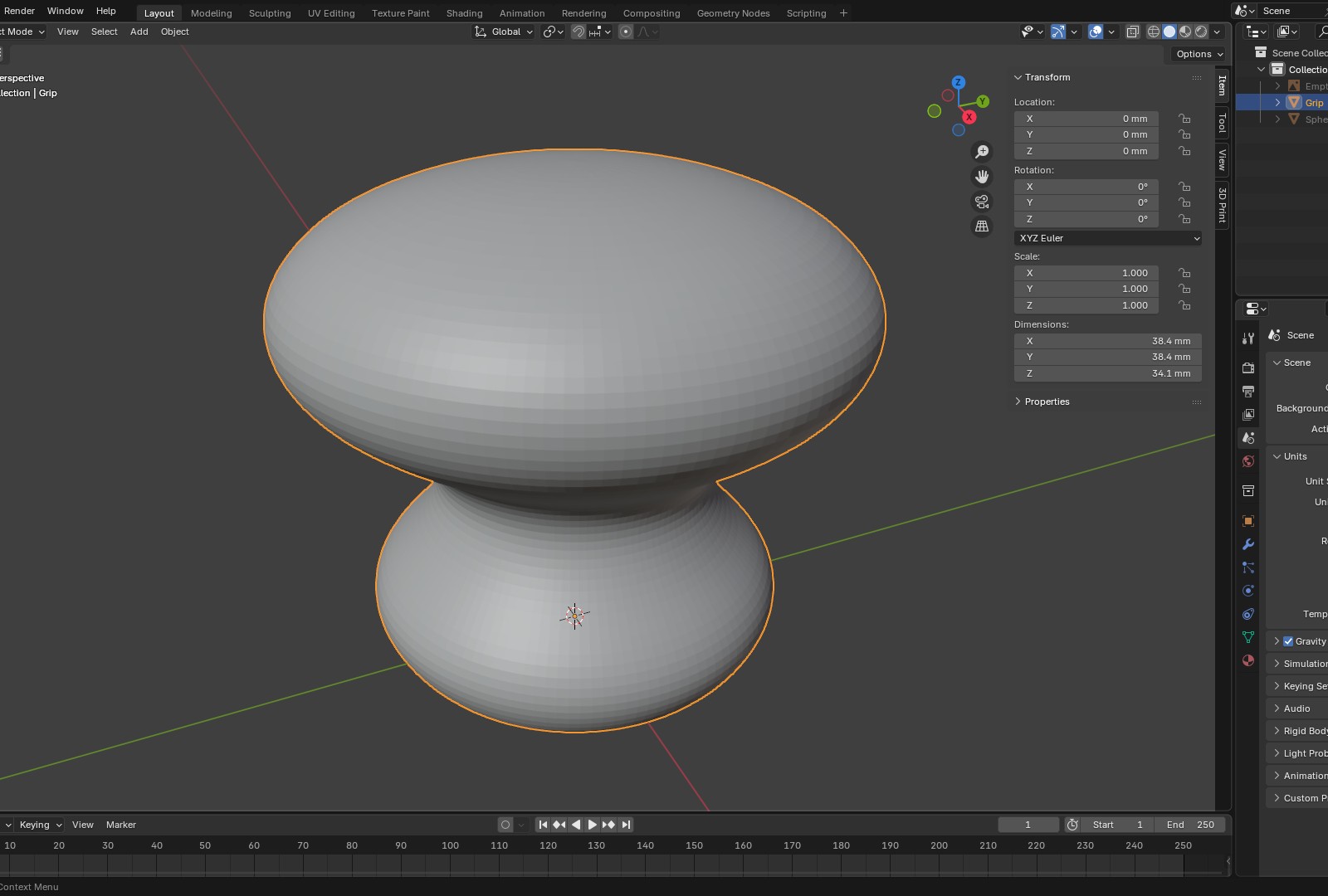
- Check the size. Select the object, press N and read Dimensions in the Item tab. The Grip reads 38.4 x 38.4 x 34.1 mm, which is its real size.
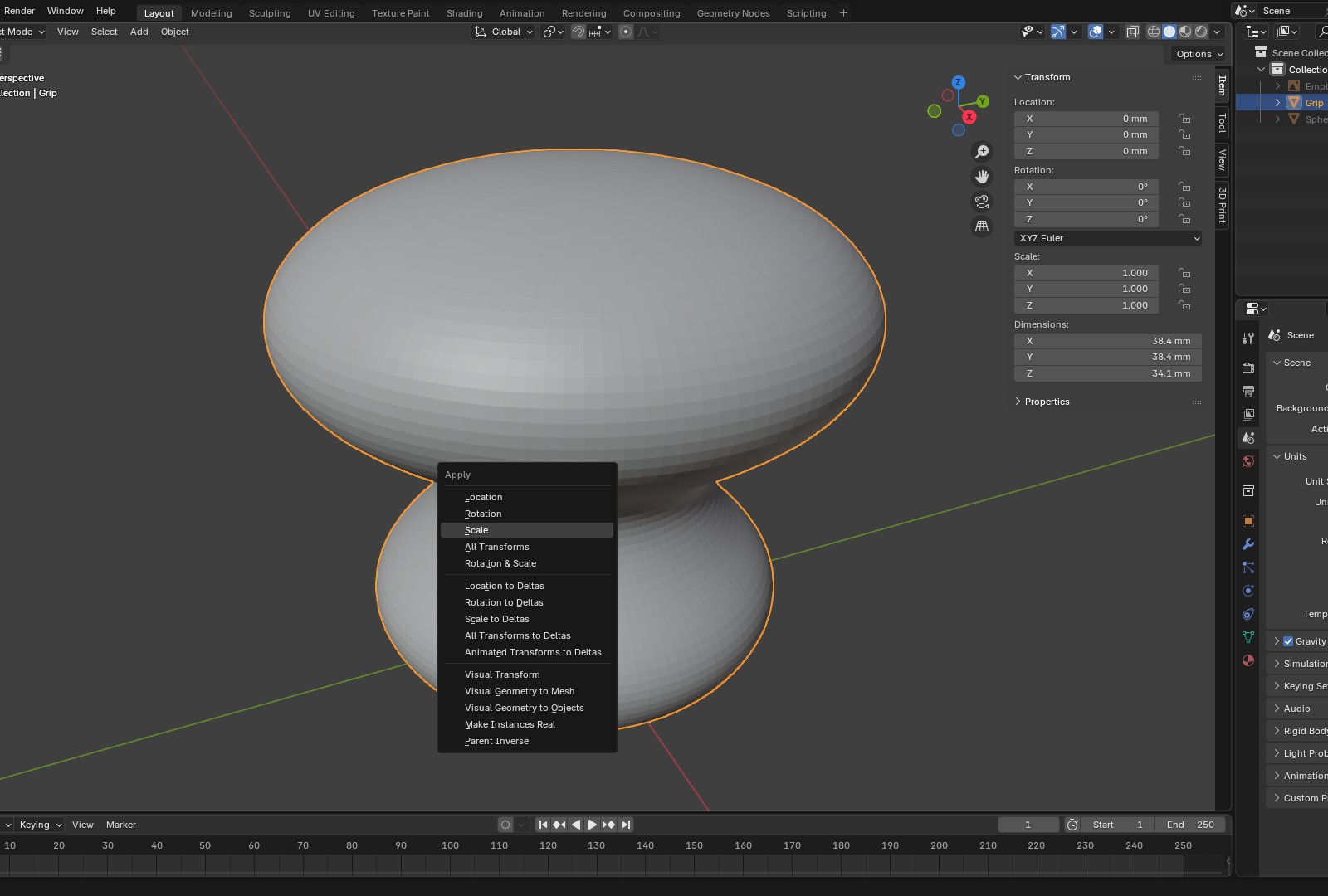
- Apply scale. Press Ctrl+A and choose Scale, so Scale reads 1.000 on all three axes.
- Apply or check your modifiers. The STL exporter applies them by default, so what you see is what gets exported.
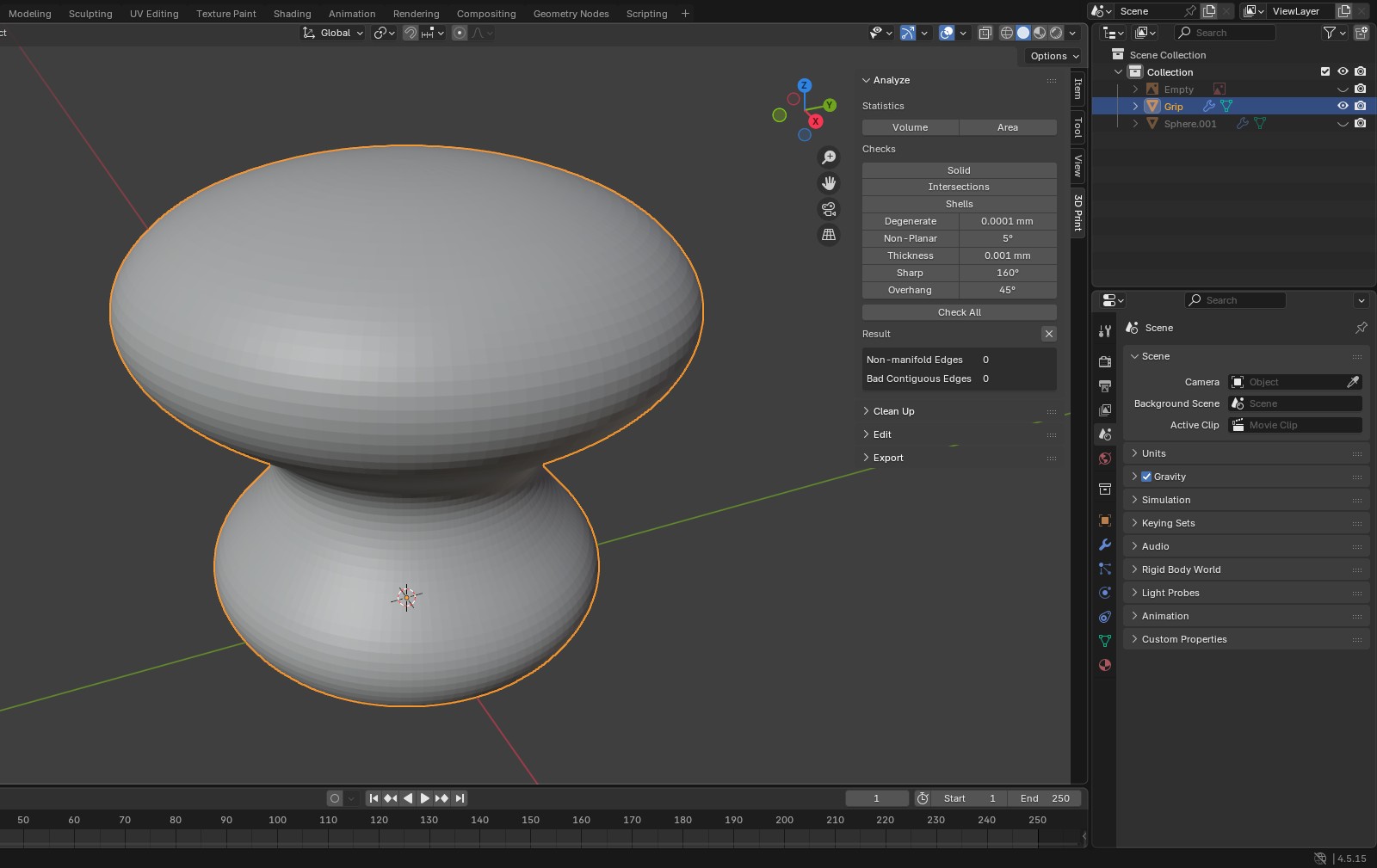
- Run the 3D Print Toolbox checks: Solid first, then Thickness. Fix anything it finds and run it again until the result is zero.
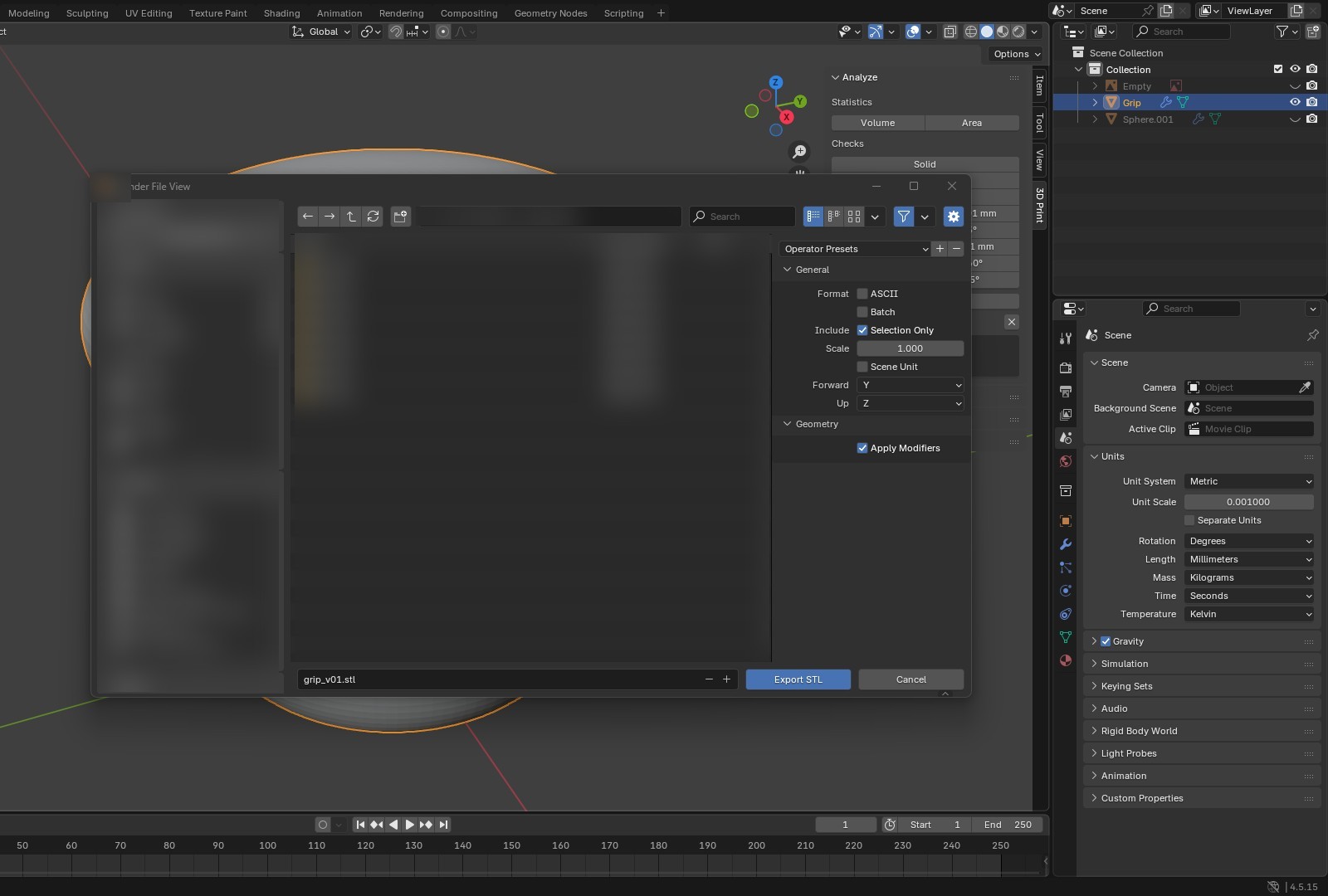
- Export: File, Export, STL (.stl). Tick Selection Only, leave Scale at 1.0, leave Scene Unit unticked, leave Apply Modifiers ticked.
- Open the STL in your slicer, confirm the size matches Blender, pick your printer and material profile, and slice.
- Send the G-code to the printer, or send the STL itself if you use a print service.
What unit settings should I use before I print?
Use Metric, Unit Scale 0.001 and Length Millimeters. With that setup one Blender unit is shown as one millimetre, and that matches how slicers read an STL.
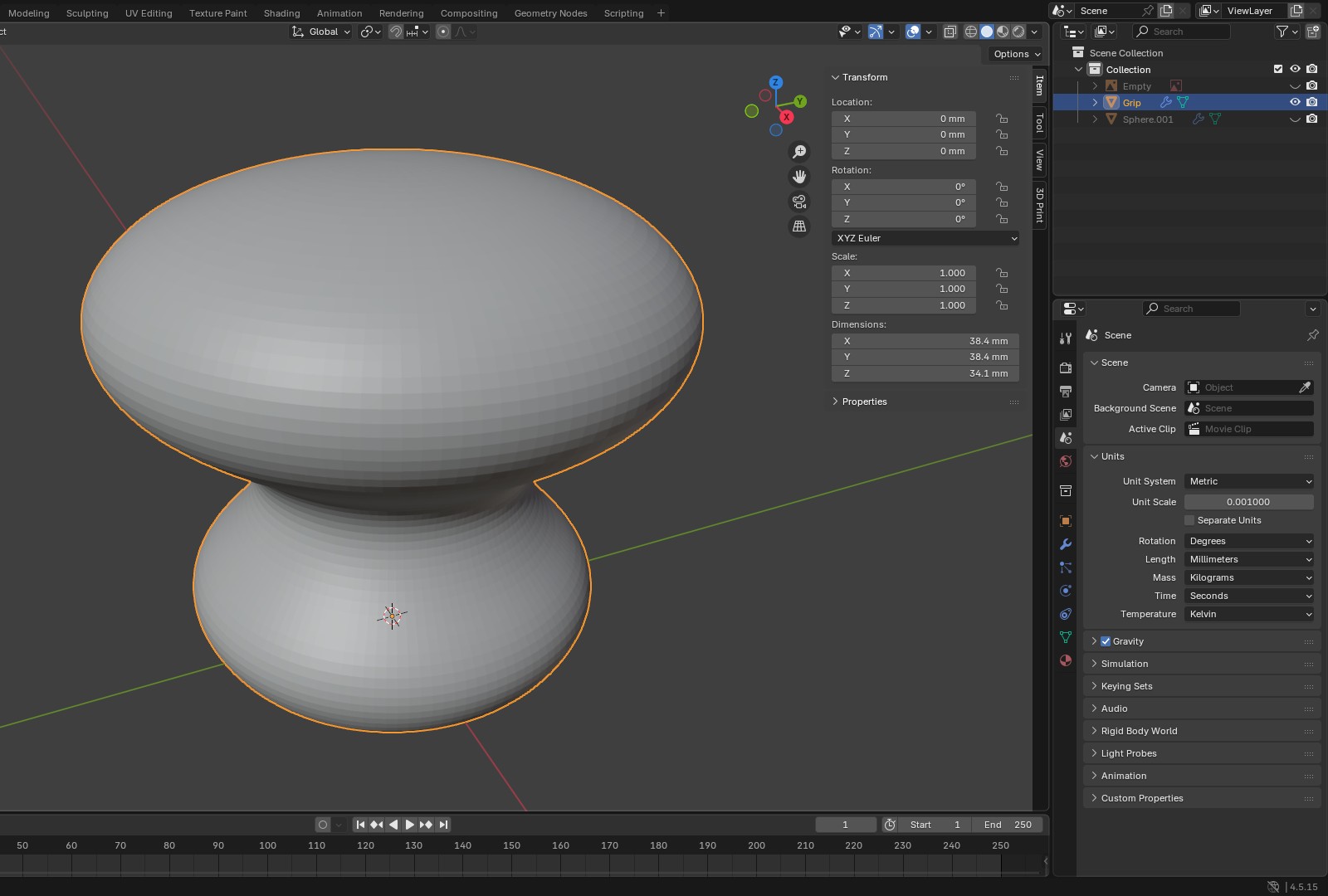
Changing Unit Scale only changes how numbers are displayed. It does not resize anything already in the scene. If you switch an existing file, check the Dimensions afterwards and resize the part to its real size. The units and scale guide goes through this setup in detail, including why house models and printable parts should not share one file.
Why do I need to apply scale before export?
If you resized the object in Object Mode, Blender stores that as a scale value on the object rather than changing the mesh. The STL exporter still writes the size you see. Modifiers such as Solidify and Bevel work in the object’s own space, though, so on an object scaled by 2 a 2 mm Solidify comes out 4 mm thick. Press Ctrl+A, Scale before you check and before you export, and those numbers stay honest.
How do I check my model is printable with the 3D Print Toolbox?
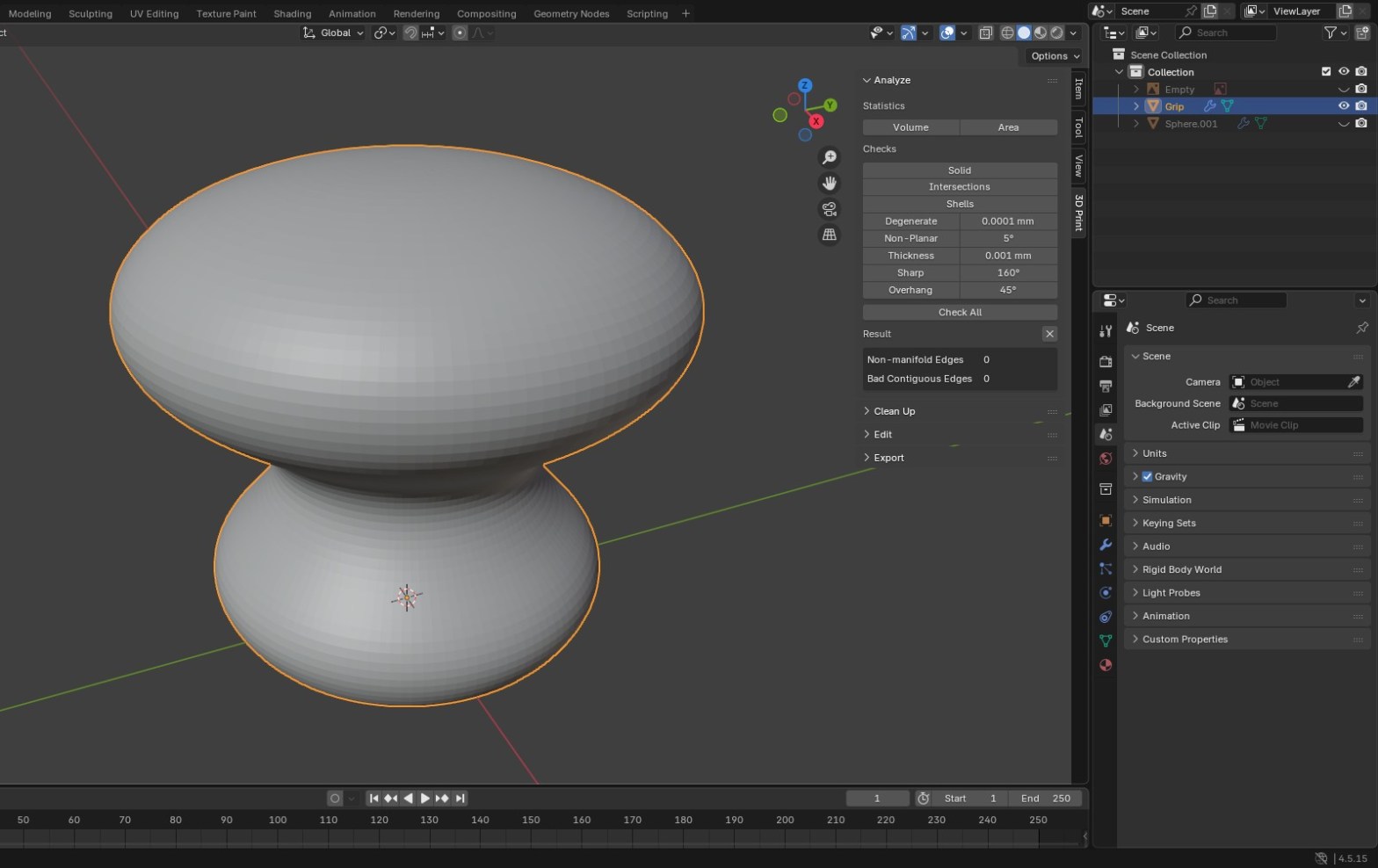
Install the 3D Print Toolbox, then run the Solid check. Solid finds non-manifold edges (holes or edges shared by more than two faces) and faces whose normals point the wrong way. A slicer needs a closed, watertight surface to know what is inside the part.
In Blender 4.2 and newer the toolbox is an extension. Go to Edit, Preferences, Get Extensions, search for 3D Print Toolbox and install it. Then press N in the viewport and open the 3D Print tab.
| Check | What it finds | Usual fix |
|---|---|---|
| Solid | Holes and flipped faces (non-manifold or bad contiguous edges) | Make Manifold in the Clean Up section, or fill the hole and recalculate normals by hand |
| Intersections | Faces that cut through each other, for example two overlapping objects | A Boolean union. Some slicers cope with this, so it is not always required |
| Degenerate | Faces or edges with zero area or length | Merge by Distance |
| Thickness | Walls thinner than the value you set | Solidify, or push the faces out (see the thin walls guide) |
| Overhang | Undersides steeper than the angle you set | Reorient the part or plan supports in the slicer |
Click a result in Edit Mode and Blender selects the problem geometry for you. Fix it, run the check again, and move on only when Solid reports zero.
Which STL export settings should I use?
Go to File, Export, STL (.stl). The exporter built into Blender since 4.1 is the one you want. The old Python STL add-on is no longer bundled from 4.2 onwards. In the export dialog, Selection Only sits in the General panel on the row labelled Include.
| Setting | Use | Why |
|---|---|---|
| Selection Only | On | Otherwise every object in the scene goes into one file, including reference and helper objects |
| Scale | 1.0 | A value of 1.0 writes the numbers you see in millimetres straight to the file |
| Scene Unit | Off | With Unit Scale 0.001 this multiplies everything by 0.001, so a 20 mm cube is written as 0.02 and arrives in the slicer as a speck |
| Forward / Up | Y Forward, Z Up (defaults) | Most slicers place Z up, so the part lands the way it sits in Blender |
| Apply Modifiers | On (default) | Exports the mesh after Subdivision Surface, Solidify, Bevel, Mirror and so on. On the Grip this means the smooth subdivided shape is what gets exported |
| ASCII | Off | Binary STL is smaller. Slicers read both |
Why is my Blender STL the wrong size in the slicer?
Because STL stores plain numbers with no unit, and slicers read those numbers as millimetres. If Blender wrote 0.02 for a 20 mm part, the slicer shows a 0.02 mm part. The size in Blender has to be right in millimetres before export, and the export Scale has to stay at 1.0.
| What you see in the slicer | Likely cause in Blender | Fix |
|---|---|---|
| Tiny, about 1000 times too small | Modelled in metres with Unit Scale 1.0, or Scene Unit ticked on export with Unit Scale 0.001 | Set Unit Scale 0.001 and millimetres, resize the part, untick Scene Unit, export again |
| Huge, about 1000 times too big | The part was sized as if it were metres, for example a 60 m object that should be 60 mm | Check Dimensions, scale it down and apply scale |
| Off by a factor you typed | Export Scale is not 1.0 | Set Scale back to 1.0 |
| Slicer asks about inches or meters | PrusaSlicer thinks the part is too small to be millimetres | Fix the size in Blender rather than accepting the conversion |
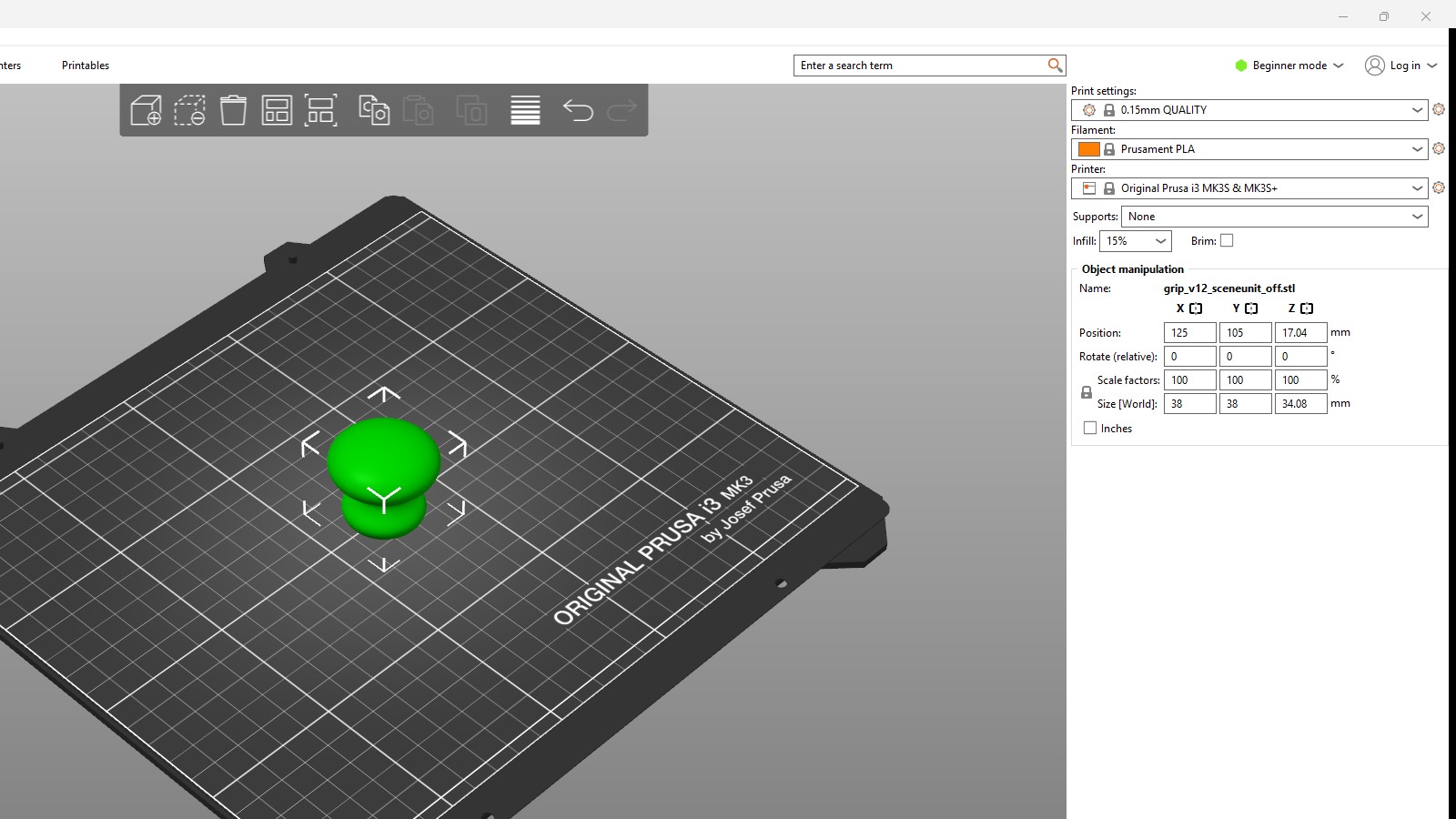
For the Grip, PrusaSlicer 2.9.1 reads the exported STL as 38 x 38 x 34.08 mm, in millimetres and at the size it was modelled, not 1000 times off.
Some slicers try to rescue a tiny part. PrusaSlicer offers to treat it as inches or metres, and Cura has a “Scale extremely small models” preference. Both are guesses. Fix the size in Blender so the file is right for every slicer and every print service.
Frequently asked questions
Can Blender send a model straight to my printer?
No. Blender exports the mesh. A slicer such as Cura or PrusaSlicer turns it into G-code for the printer. Print services usually want the STL itself.
Does STL store units?
No. It stores coordinates only. Slicers treat them as millimetres, which is why the size has to be right in Blender before export.
Should I tick Scene Unit when exporting an STL?
Not with the millimetre setup above. With Unit Scale 0.001, Scene Unit converts the numbers to metres and the part arrives 1000 times too small.
Do I need the 3D Print Toolbox?
It is not required to export, but it is the quickest way to find holes, flipped faces and thin walls before the slicer does. It is a free extension for Blender 4.2 and newer.
My model looks solid but the slicer shows gaps. Why?
Usually holes in the mesh, flipped normals or walls thinner than your nozzle can print. Run Solid and Thickness in the 3D Print Toolbox, fix what they select, and export again.
Can I export several parts as separate STL files?
Yes. Tick Batch in the STL export dialog and Blender writes each object to its own file. Each part still needs its scale applied and a clean Solid check.
Print it right the first time
The full workflow, from modelling for FDM and resin to export and slicing, with real projects such as a door grip, a vase and a phone stand, is in my 3D Printing from Zero to Hero in Blender course on Udemy:
3D Printing from Zero to Hero in Blender
FDM & MSLA · real projects end to end · 10.5 hours of video.
Keep reading
3D Printing
Blender Units and Scale for STL Export
The unit settings behind a correctly sized STL, and why houses and printable parts should not share one file.
3D Printing
Find the thin walls in Blender before your slicer does
Use the Thickness check to find walls your nozzle cannot print, then fix only those faces.
