
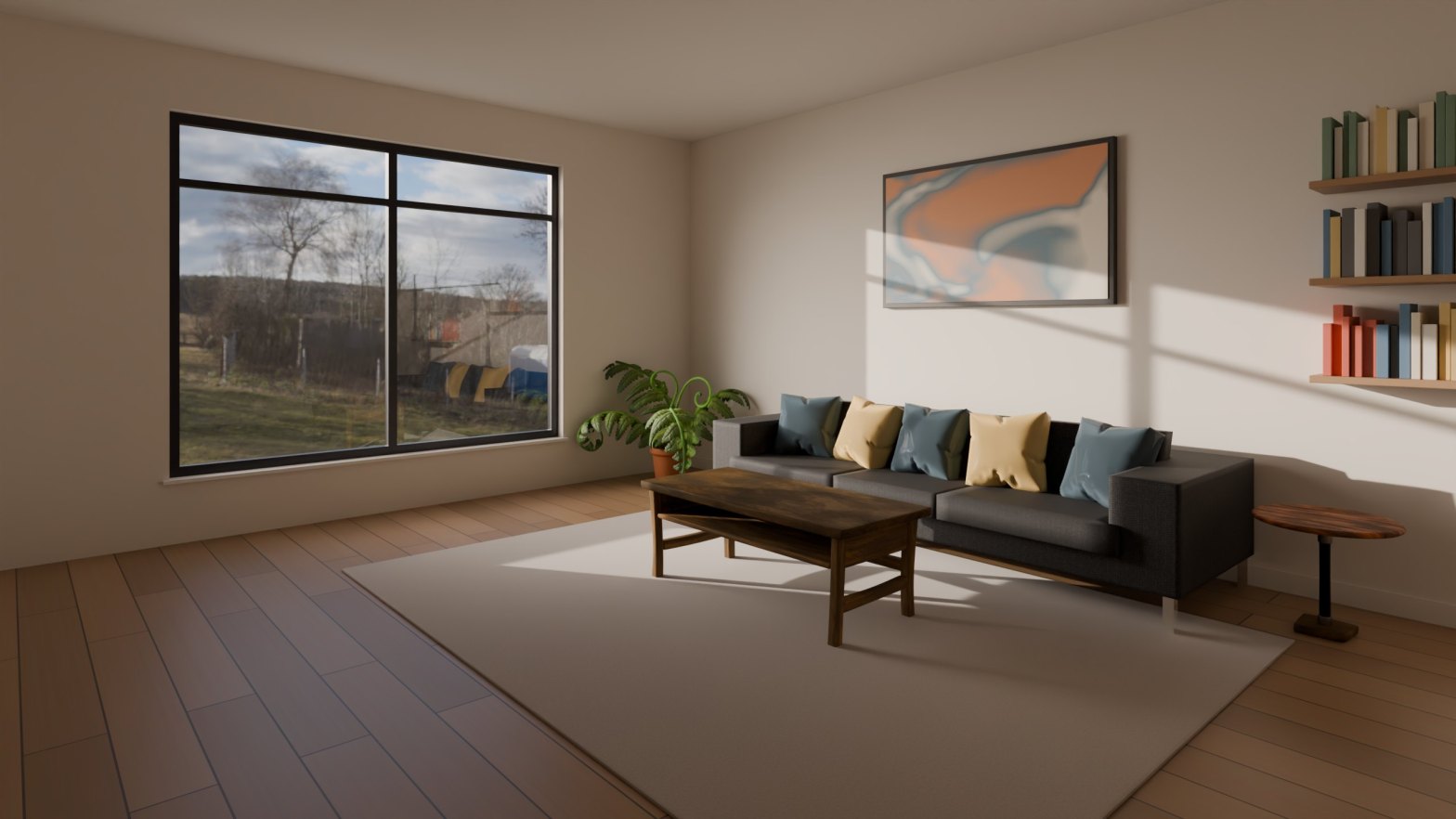
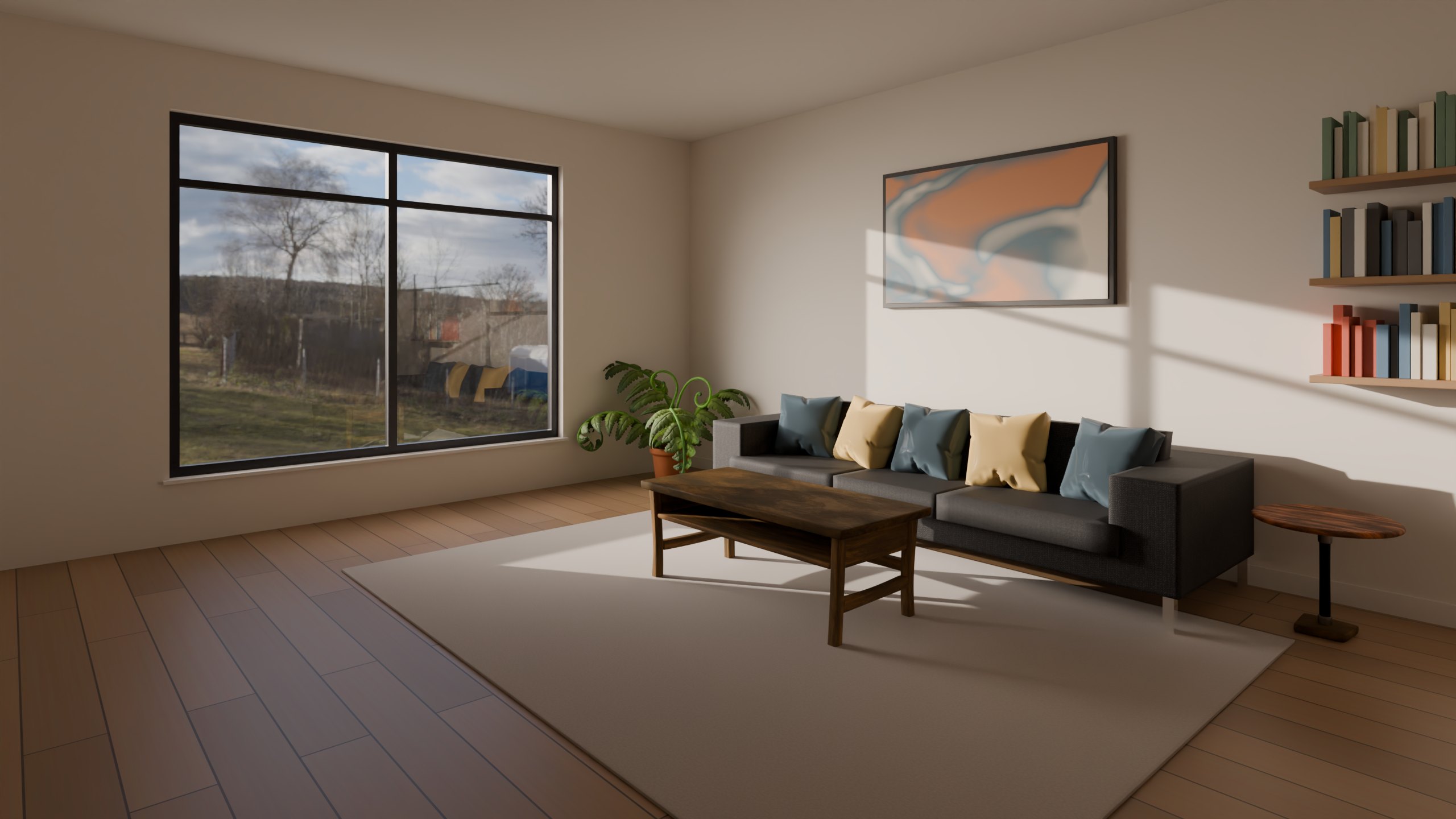
Interior lighting is where a lot of people get stuck. They add five lights, the render is still grey and noisy, so they add five more. For a daylit room you rarely need any of that. One HDRI for the sky and a light portal in the window gets you most of the way there, and the setup takes about ten minutes.
This is the setup I start every daylit room with. By the end you’ll have a room lit only by an HDRI, with sunlight falling through the window, clean shadows and a sensible exposure. The screenshots use the living room from the house scene in my architectural visualisation course, in Blender 4.5 LTS. The render at the top is a different room lit the same way, made in Blender 5.2 LTS. The steps work the same on any room with a window, though menus and panels may sit slightly differently in newer versions.
Before you start
- A room with real openings in the walls. If the window is only a texture or a solid block, no light gets in.
- An HDRI. I’m using Oberer Kuhberg from Poly Haven, which is free and has a low sun that suits interiors.
- Any lights you added earlier switched off or deleted, so you can see what the sky is doing on its own.
Step 1: Switch to Cycles
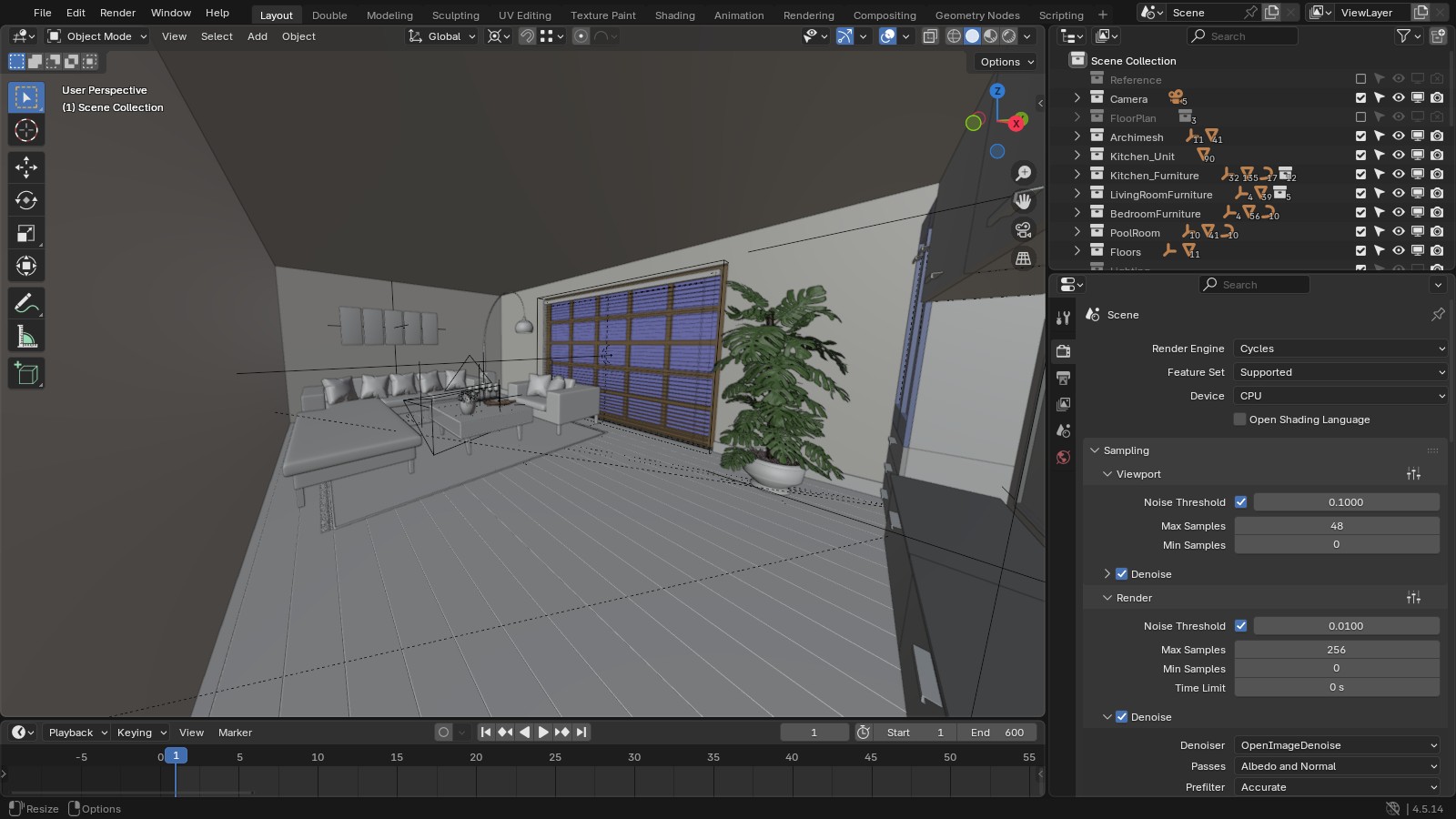
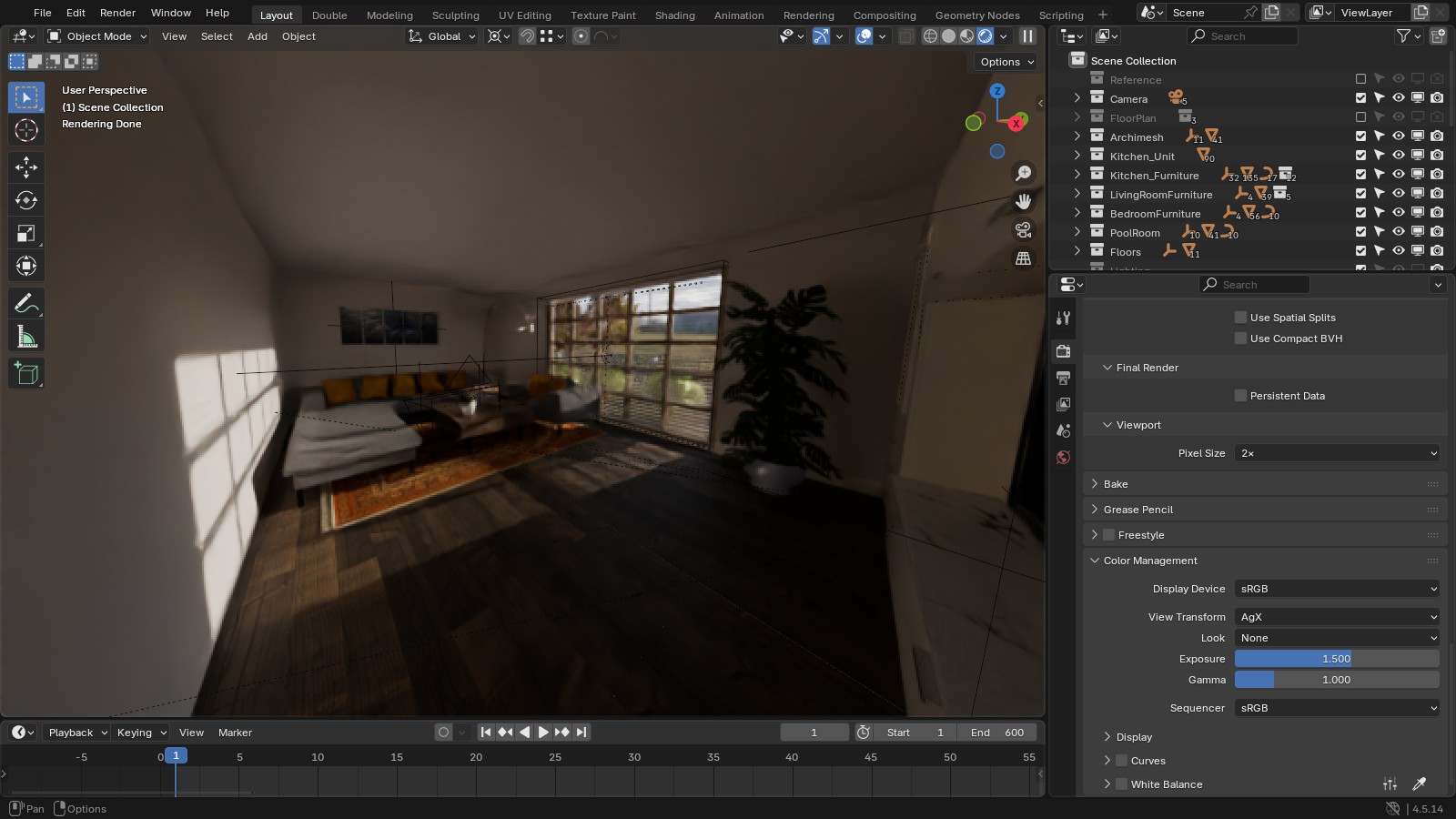
In the Properties editor, open the Render tab and set Render Engine to Cycles. Light portals only work in Cycles, and Cycles handles light bouncing around a room much better for this kind of shot. Device is your choice. CPU works on any machine, and it is what the screenshots show. If you have a supported graphics card, GPU Compute is usually much faster.
Step 2: Load the HDRI
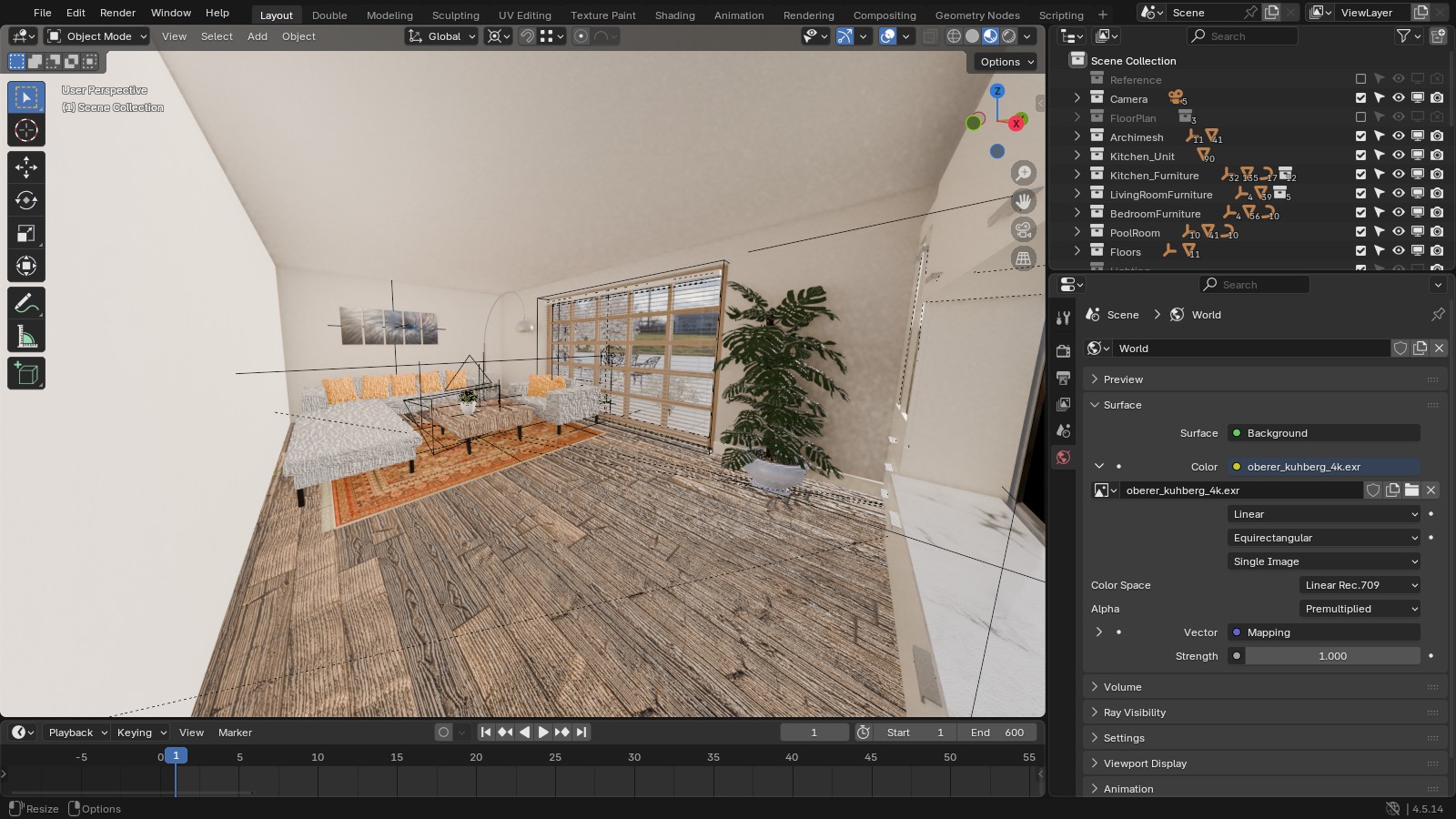
- Open the World tab in the Properties editor.
- In the Surface panel, click the small dot next to Color and choose Environment Texture.
- Click Open and pick your HDRI. A daytime sky with a visible sun works best for a bright room.
- Leave Strength at 1.0 for now. You’ll control brightness with exposure later.
Switch the viewport to Material Preview and turn on Scene World in the shading popover if you want to see the HDRI through the window straight away.
Step 3: Rotate the sky so the sun comes through the window
The sun in the HDRI won’t line up with your window by chance, so add a rotation control:
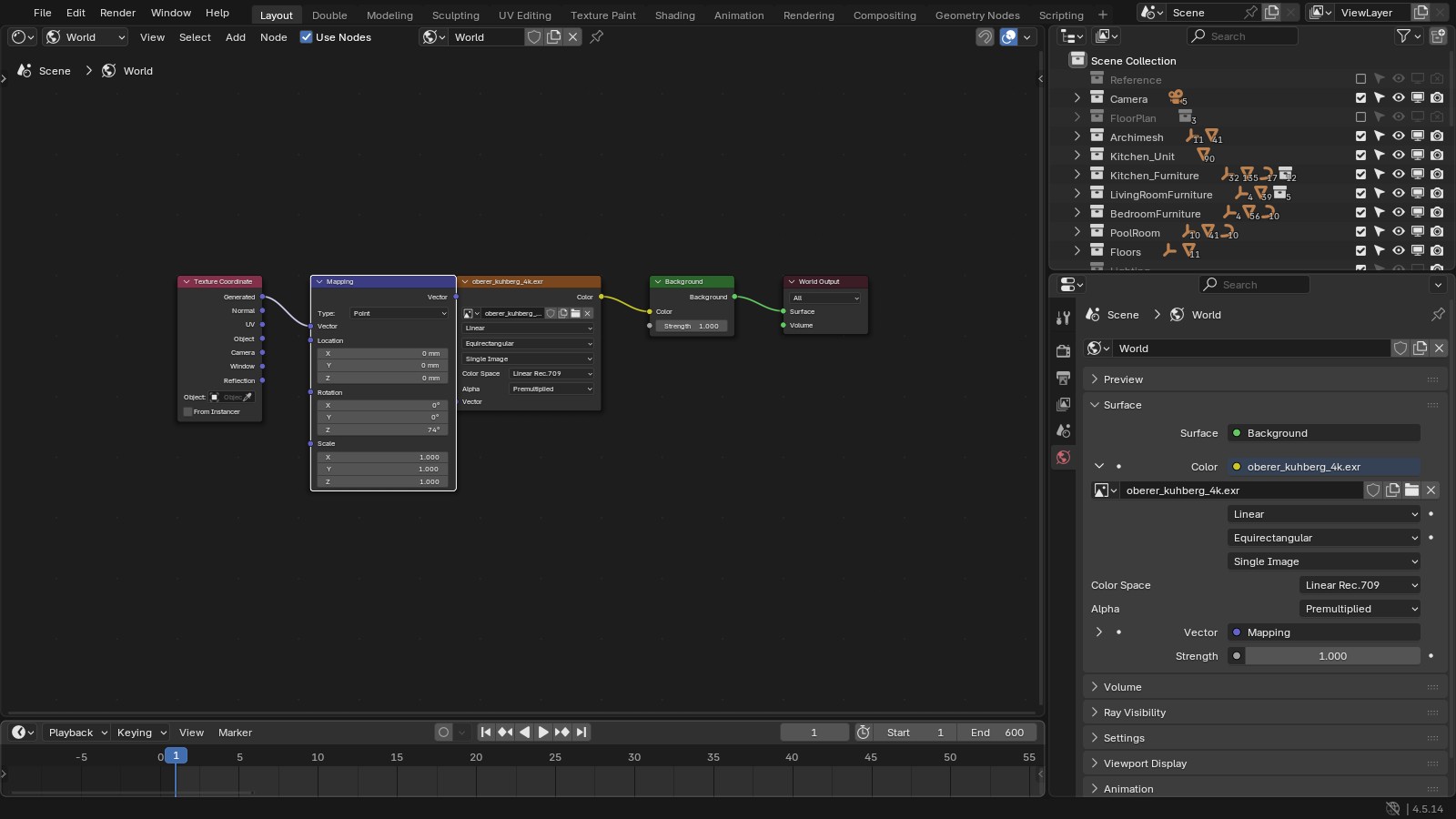
- Open a Shader Editor and change the dropdown in its header from Object to World.
- Select the Environment Texture node and press Ctrl+T. With the Node Wrangler add-on enabled, this adds a Texture Coordinate and a Mapping node for you. Without it, add them from Add > Input > Texture Coordinate and Add > Vector > Mapping.
- If you added the nodes by hand, connect Texture Coordinate Generated to the Mapping Vector input, and the Mapping Vector output to the Environment Texture Vector input. Ctrl+T does this for you.
- Change the Mapping node’s Rotation Z until the sun shines through the window. Watch the viewport in Rendered mode while you drag. In this room, 74° puts the sun on the floor in front of the window.
Step 4: Put a portal in the window
Inside a closed room, most of the rays Cycles traces never find the small window opening, and that is why interiors come out noisy. A portal tells Cycles where the light comes in.
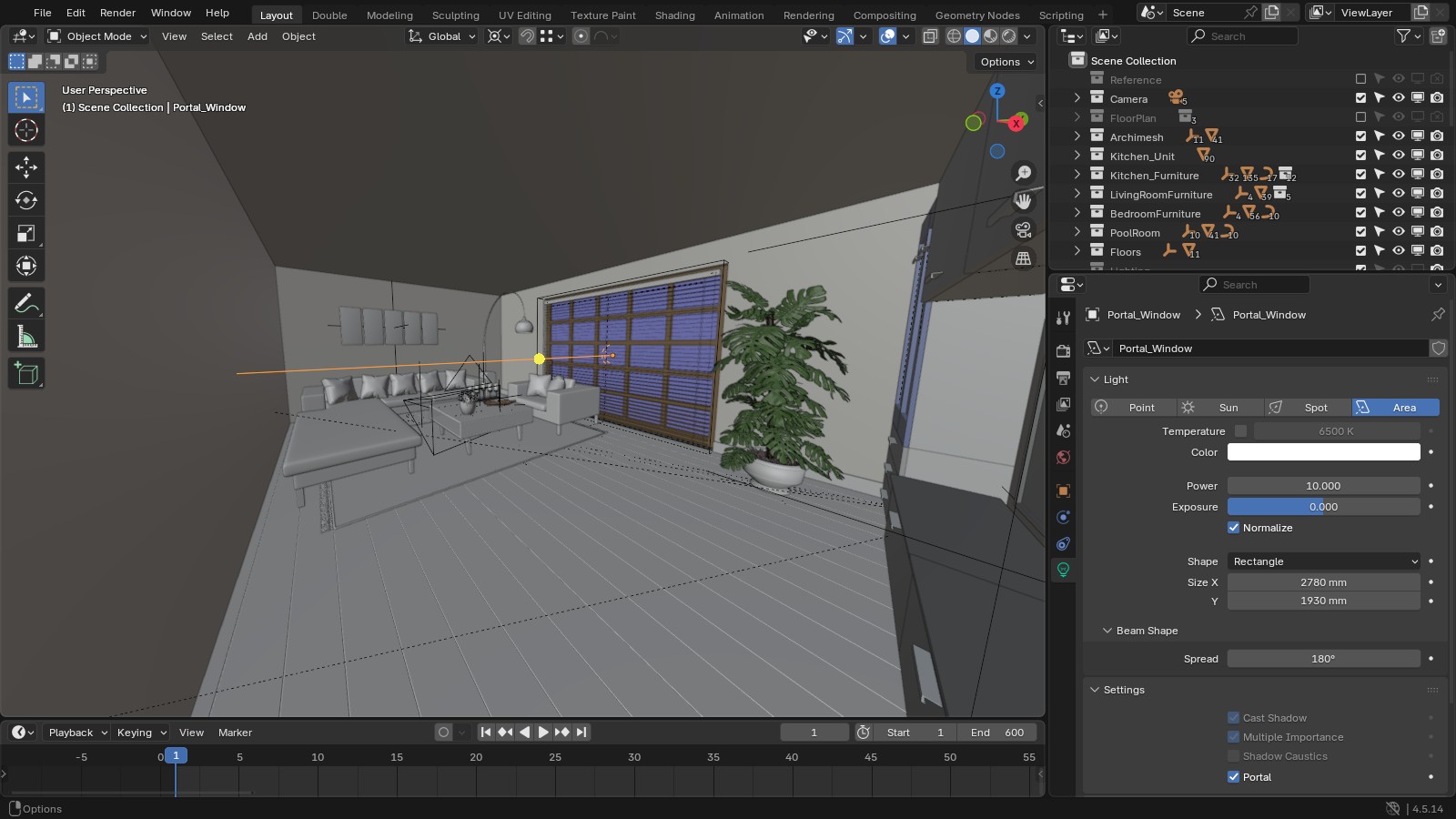
- Add > Light > Area.
- In the Light properties (the green bulb icon), set Shape to Rectangle and set Size X and Y to match the window opening.
- Place the light in the window frame, or just outside it, and rotate it so it faces into the room. An area light shines along its local negative Z axis, and the line it draws in the viewport should point into the room.
- Expand the Settings panel at the bottom of the Light properties and tick Portal.
Once Portal is ticked, the area light stops giving off light of its own. It only guides Cycles towards the HDRI, so the brightness still comes from the World. If the room has more than one window, give each window its own portal.
The panel will still show Power, Normalize and a Beam Shape section. A portal ignores all of them, so you can leave them as they are.
Step 5: Let the light through the glass
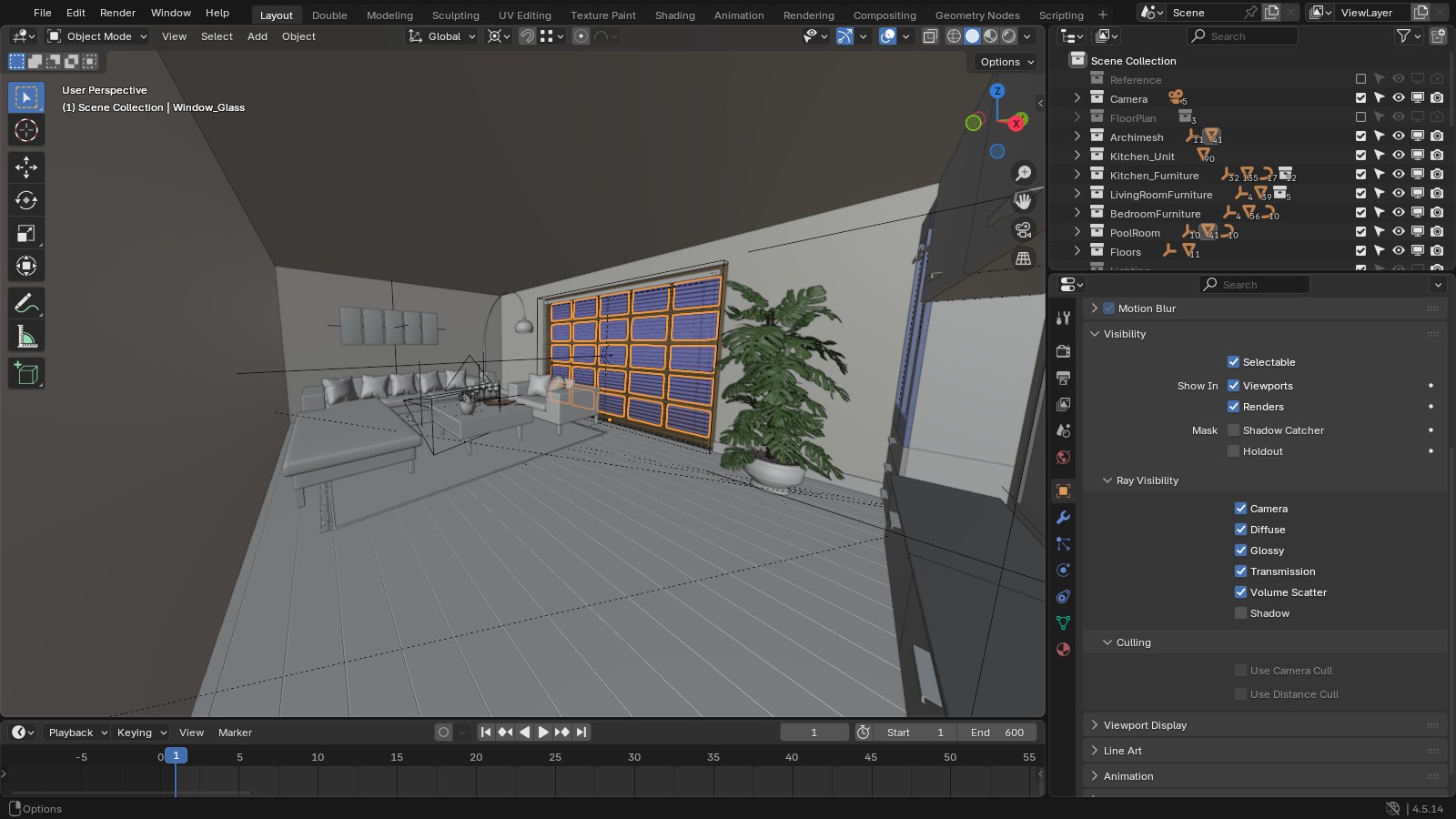
Glass in a window can block a lot of the daylight. Select the glass, open the Object properties (orange square), expand Visibility > Ray Visibility and untick Shadow. The glass still shows in the camera and in reflections, but light passes straight through it.
If the glass is part of the same mesh as the frame, as it was in my window, separate it first. Select the window, press Tab, choose the glass material in the Material properties and click Select, then press P > Selection. Now the glass is its own object and the frame still casts shadows.
Step 6: Samples, denoising and clamping
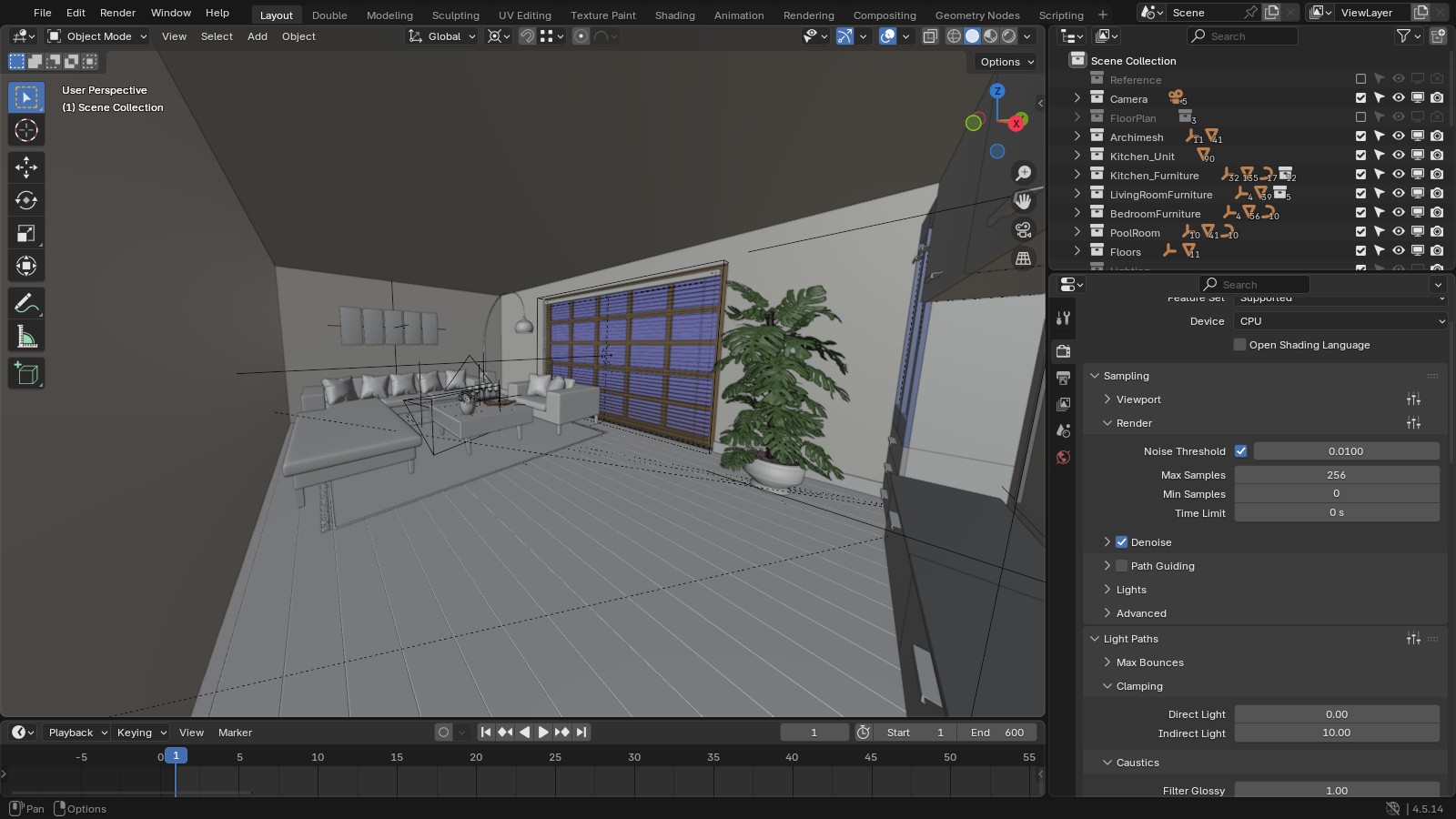
- In the Render tab under Sampling > Render, keep Denoise ticked. I start with Max Samples at 256 and only go higher if the shadows are still blotchy.
- Under Light Paths > Clamping, Indirect Light is 10 by default in Blender 4.5. That removes most fireflies without flattening the light. If you still see bright speckles, lower it a little.
- There is a separate, lower sample count under Sampling > Viewport (48 in my file). That only affects the preview in Rendered shading, so it can stay low. The Render count is the one used when you press F12.
Step 7: Set the exposure, then render
In the Render tab, open Color Management. Keep View Transform on AgX and raise Exposure to brighten the room, rather than turning up the HDRI Strength until the sky outside burns out. I ended at 1.5 for this room. Look is left at None in the screenshot. You can try a contrast Look such as Base Contrast later if the image feels flat.
Switch the viewport to Rendered shading and look at it for a minute before you commit to a full render. When it looks right, press F12.
Common problems
- The room is still dark. Check that the window is a real hole in the wall, that the glass has Shadow unticked, and that the portal faces into the room. A portal pointing outwards does nothing.
- No sunlight patch on the floor. The sun in the HDRI is behind the house. Turn the Mapping Rotation Z until it comes through the window.
- The sky outside is white. You raised the HDRI Strength too far. Set it back to 1.0 and use Exposure instead.
- The back of the room is dark. That is how real rooms look. Add a bit of exposure before you reach for a fill light, and only add lamps when the shot actually needs them.
- Still noisy. Raise Max Samples, and add a portal to every window, not just the main one.
Take it further
If you want to go from a single room to full house scenes with materials, furniture and camera work, my architectural visualisation course on Udemy covers the whole process.
