You don’t need a unit scale of 0.001, but it helps. An STL file stores bare numbers with no unit, and most slicers read those numbers as millimetres. Setting Blender’s Unit Scale to 0.001 with Length in Millimeters makes one Blender unit one millimetre, so a part that reads 20 mm in Blender exports as 20 and arrives in the slicer as 20 mm.
I’m Tom McDonald and I teach this in my Udemy course Learn 3D Printing with Blender. This post is the short version, checked in Blender 4.5.
Why STL size goes wrong
An STL file is a list of triangles. Each triangle has three corner points and a normal, and each point is just three numbers. There is no field that says whether 20 means 20 millimetres, 20 metres or 20 inches. The program that opens the file decides.
Blender’s default scene uses metres. A 20 mm part modelled at real size in a default scene is 0.02 units, and the STL exporter writes 0.02. A slicer that reads millimetres then shows a part 0.02 mm across, too small to see. Go the other way, model it as 20 units in metres, and the slicer gets 20 mm, but your Blender scene says 20 m and any size you type, like a bevel width or wall thickness, is in the wrong unit. Matching Blender’s units to the slicer’s removes that guesswork.
1. Set the scene units
Open the Properties editor, go to the Scene tab and expand Units. There are three settings that matter:
- Unit System: None, Metric or Imperial. The default is Metric.
- Unit Scale: how many metres one Blender unit is. The default is 1.0, so one unit is one metre.
- Length: the unit Blender shows lengths in. The default is Meters.
For printing in millimetres, set Unit System to Metric, Unit Scale to 0.001 and Length to Millimeters.
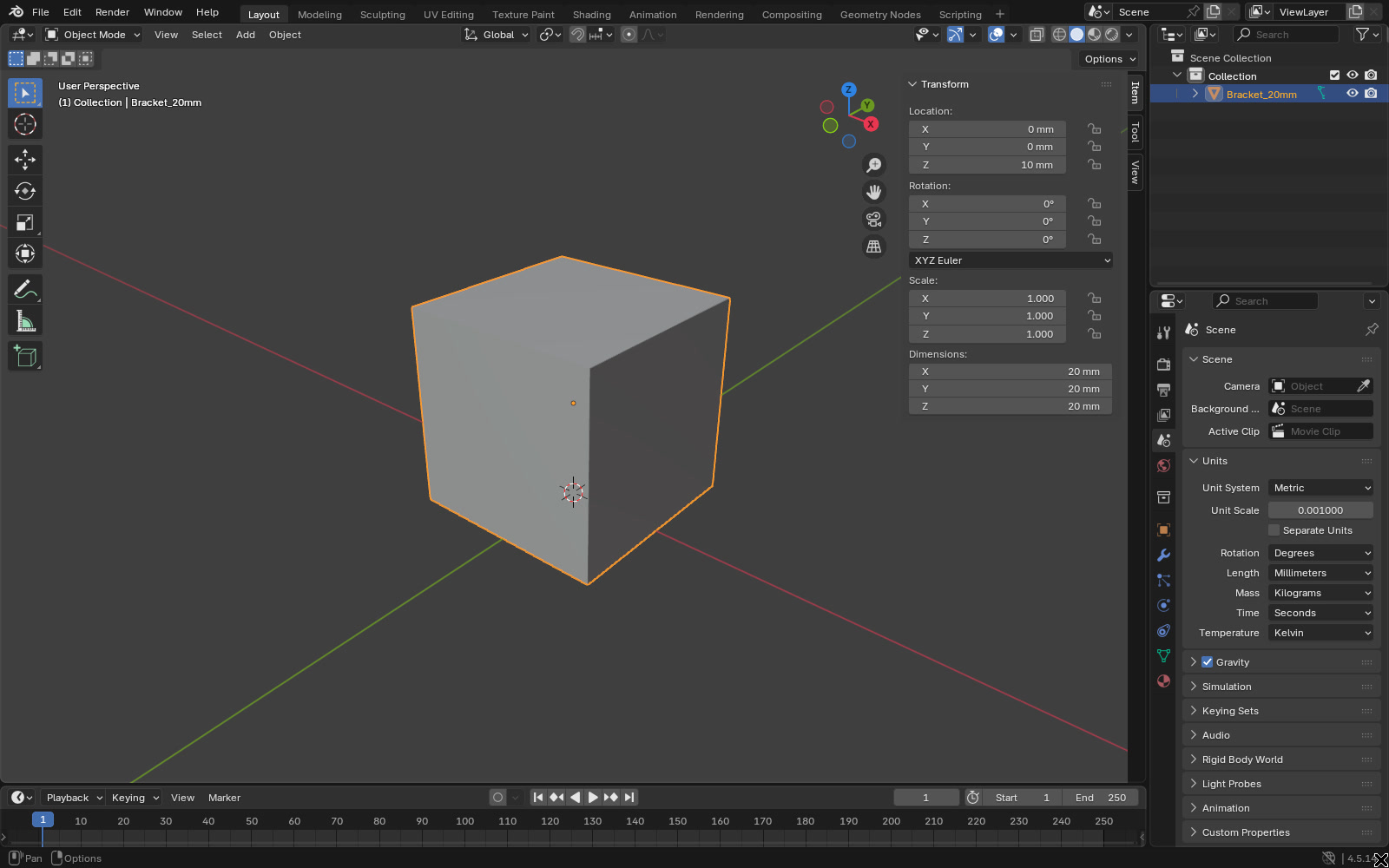
Changing Length alone only changes the display. With Unit Scale left at 1.0 and Length on Millimeters, a 2 unit cube shows as 2000 mm and still exports as 2. Unit Scale is the setting that makes one unit a millimetre.
2. Know when 0.001 helps
Use it when you’re modelling a part from scratch to a drawing in millimetres. You type 20 and get 20 mm, the numbers in the sidebar match your calipers, and the export needs no conversion.
It helps less when you bring in a model made at another scale, such as an AI-generated model, a game asset or a file from a metre-based scene. Changing Unit Scale doesn’t resize anything. It changes what the existing numbers mean. Scale the model to the size you want after you set the units, then check the Dimensions in the sidebar (N, Item tab).
3. Use the right STL export settings
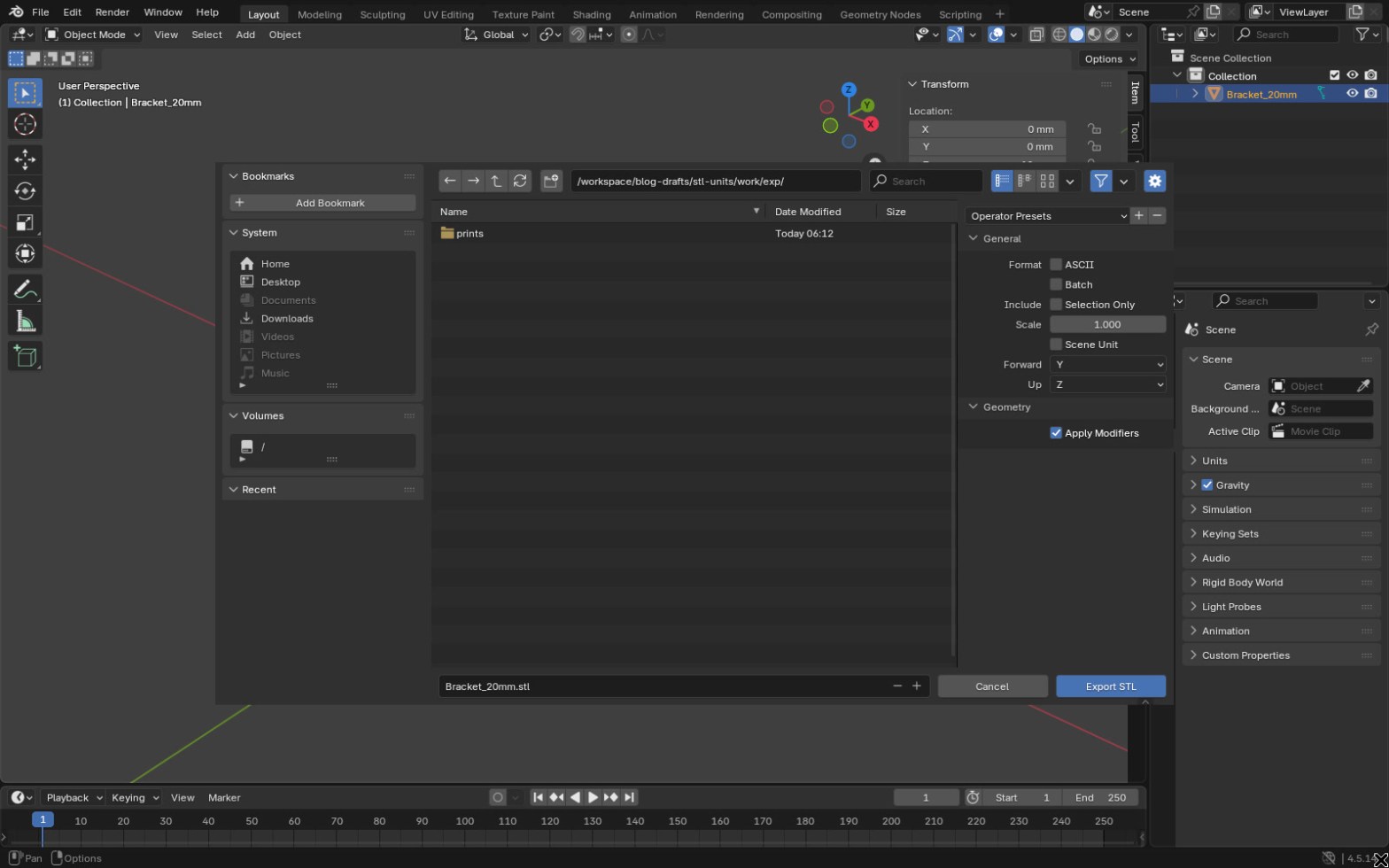
Use File > Export > STL (.stl). In Blender 4.5 this is the built-in STL exporter. The old STL add-on is not bundled, so its options may differ from older tutorials. The 4.5 exporter has ASCII, Batch, Selection Only, Scale, Scene Unit, Forward and Up axes, and Apply Modifiers.
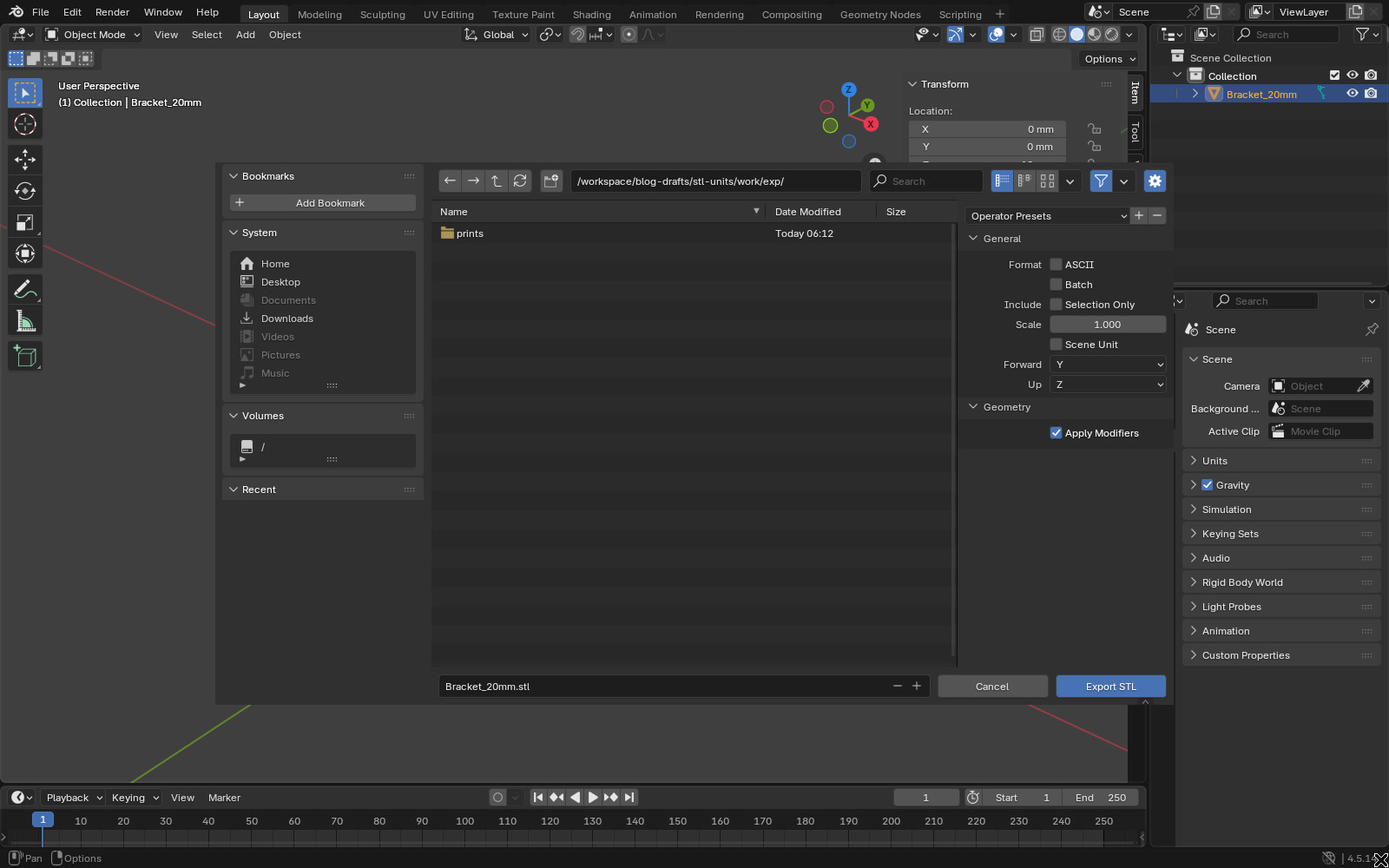
I tested what each one writes into the file, using a 2 unit cube:
- Default scene (metres, Unit Scale 1.0), any settings: the file holds 2.
- Unit Scale 0.001, Millimeters, Scene Unit off: the file holds 2, so the slicer shows 2 mm, which is what Blender shows.
- Unit Scale 0.001, Millimeters, Scene Unit on: the file holds 0.002, so the slicer shows a part one thousand times too small.
- Scale 10: the file holds 20. Scale multiplies everything.
So with the 0.001 millimetre setup, leave Scene Unit off and Scale at 1.0. Scene Unit converts the numbers to metres, which is the opposite of what a slicer expects. If you prefer to keep a metre scene and model at real size, export with Scale 1000 instead.
4. Apply the scale
If you resized the model in Object Mode, its Scale values in the sidebar are no longer 1.000. The STL exporter in 4.5 includes that scale, so a 2 unit cube scaled by 3 exports as 6. The problem is everything else. Modifier values work in the object’s own space, so a Solidify of 2 mm on an object scaled by 2 gives a 4 mm wall. Apply it with Ctrl+A > Scale so the Scale reads 1.000 and the Dimensions are the real size.
5. Check the size in the slicer
Import the STL into your slicer and read the size it reports. Compare it with the Dimensions in Blender. If it’s 1000 times too small, Scene Unit was on or the model was built in metres. If it’s 1000 times too big, the model was built as millimetre numbers and something scaled it again. Some slicers offer to convert a model they think is in metres or inches. Read that prompt before you click yes.
Once the size is right, check the walls are thick enough to print. I covered that in Find the thin walls in Blender before your slicer does.
Quick checklist
- Unit System Metric, Unit Scale 0.001, Length Millimeters
- Model scaled to the real size after setting units
- Dimensions checked in the sidebar
- Scale applied, reading 1.000
- STL export: Scale 1.0, Scene Unit off
- Size checked in the slicer
FAQ
Does STL have units?
No. It stores plain numbers. Most slicers treat them as millimetres, so the numbers in the file need to be millimetre values.
Why is my STL tiny in the slicer?
The numbers in the file are metres. Either the scene was in metres at real size, or Scene Unit was on when exporting with a 0.001 Unit Scale. Re-export with Scale 1000, or turn Scene Unit off.
Should I tick Scene Unit when exporting STL?
Not with the 0.001 millimetre setup. In Blender 4.5 it applies the scene’s Unit Scale to the numbers, which turns 20 mm into 0.02 in the file.
In my course Learn 3D Printing with Blender I go through the full print workflow, from setting up the scene to a model that is ready for the slicer.
If the model came from an AI generator at a random size, Fix AI 3D Models in Blender: Repair for 3D Printing & Games has a lecture on wrong scale and unapplied transforms.
