
When an AI-written Blender script fails, read the error from the bottom up. The last line of the traceback names the type of error and what went wrong, and the line above it tells you which line of your script caused it. Most errors in AI-written Blender scripts come from one of four causes: an API that changed between Blender versions, the wrong context, a wrong object name, or a script that runs but does the wrong thing.
I’m Tom McDonald and I teach this in my Udemy course on Python scripting in Blender. This post is the short version, with the real error messages from Blender 4.5.
Why AI-written scripts break
A chat assistant writes Blender Python from what it has seen before, and much of that was written for older versions of Blender. The Python API changes between releases: properties get renamed or removed, and operators change what they need. The assistant also can’t see your scene. It guesses object names, assumes you’re in the right mode, and expects things to be selected that may not be.
Before you run any script you didn’t write, save your file, work on a copy of it, and read the script first. A script can delete objects or change many things in one go.
1. Find where the error shows up
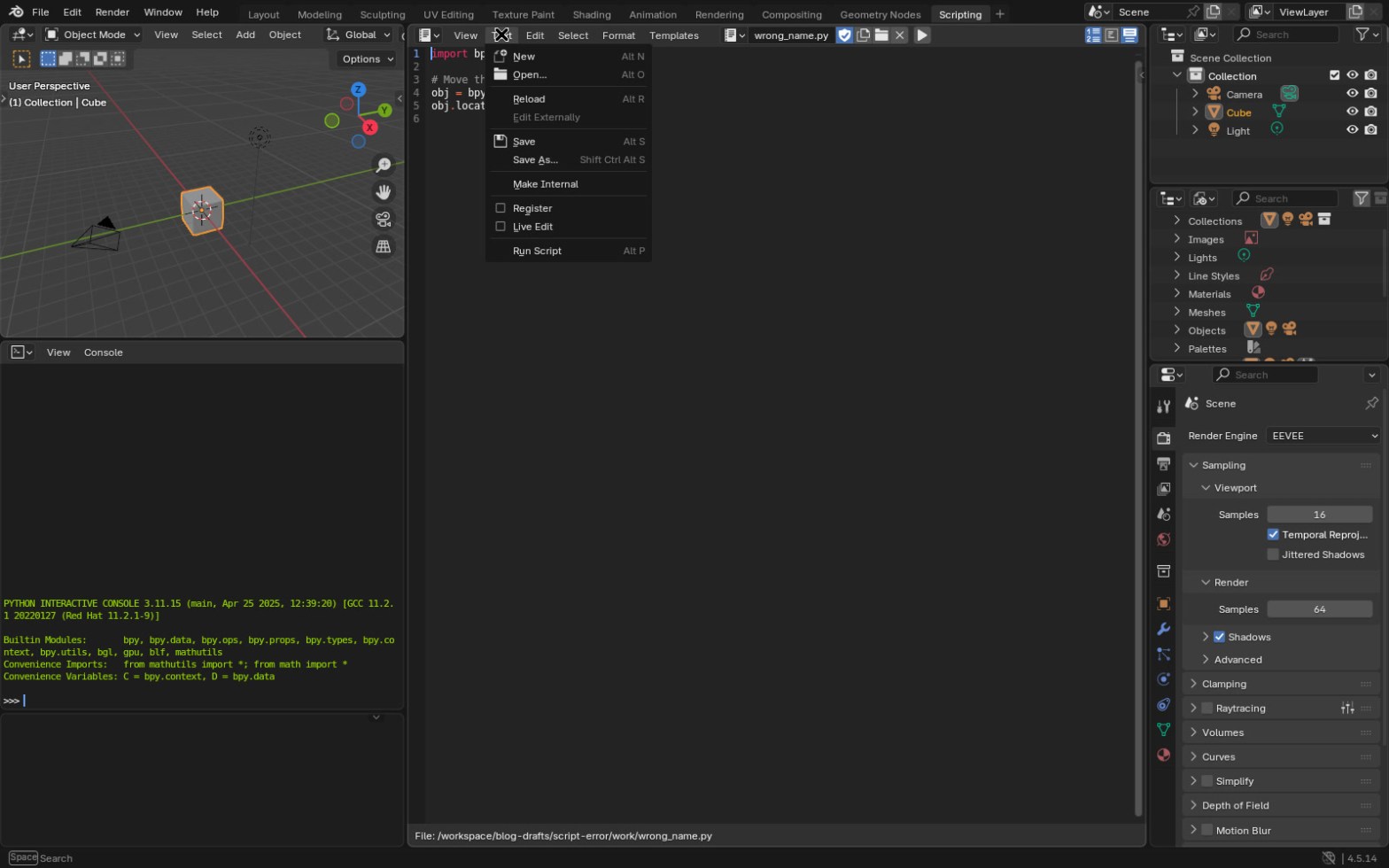
Open the Scripting workspace. It has a Text Editor, a Python Console and an Info editor. Paste the script into a new text in the Text Editor and run it with the play button, Text > Run Script, or Alt+P with the mouse over the editor.
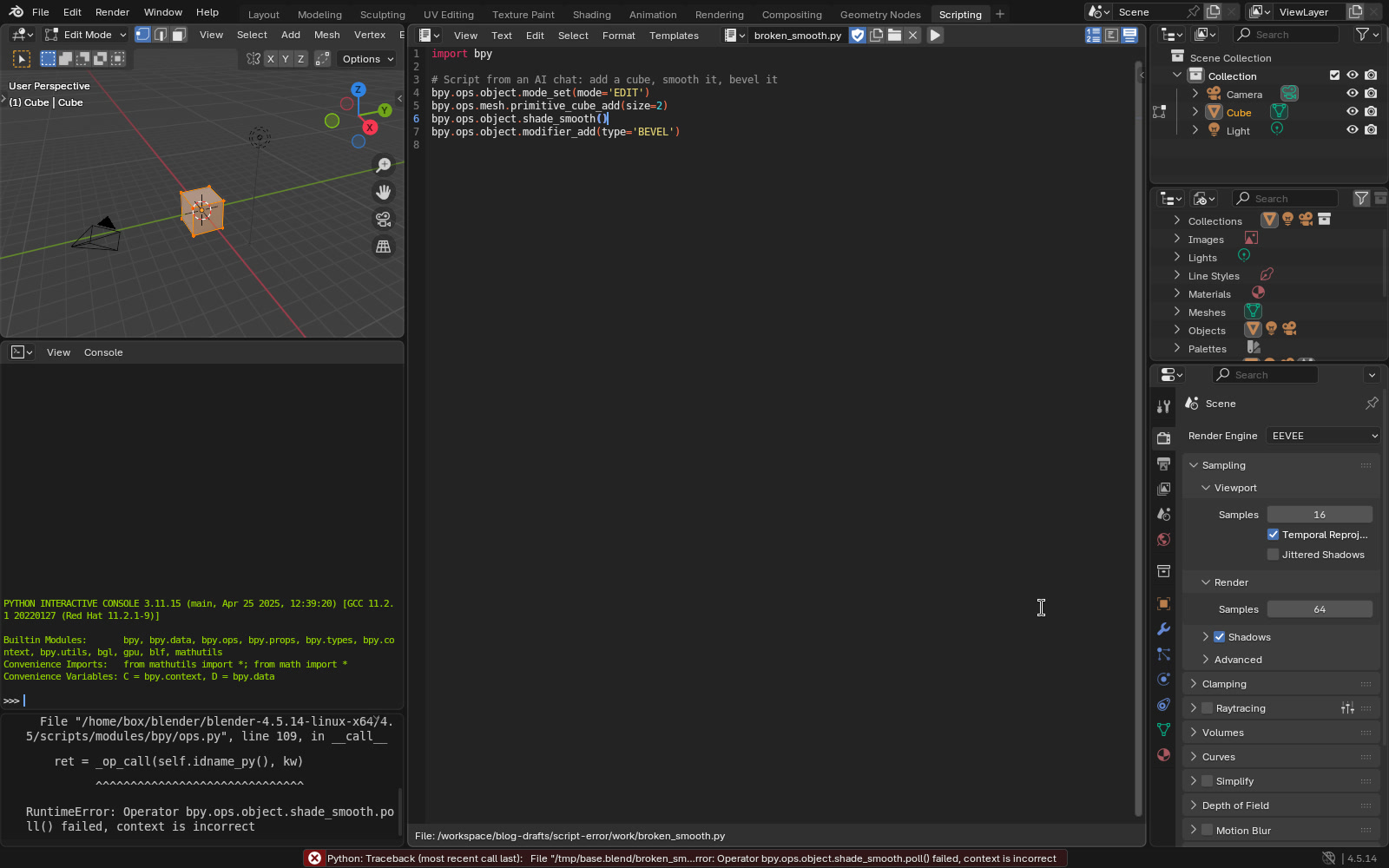
If the script fails, Blender shows a short red message in the status bar, and the Info editor shows the full traceback. The same traceback is printed to the system console, the terminal Blender was started from. On Windows you open it with Window > Toggle System Console. That menu item only exists on Windows; on Linux and macOS, start Blender from a terminal to see the output.
2. Read the traceback from the last line up
Here is the traceback Blender 4.5 gave for the script in the screenshot (file paths shortened):
Traceback (most recent call last):
  File ".../broken_smooth.py", line 6, in <module>
  File ".../4.5/scripts/modules/bpy/ops.py", line 109, in __call__
    ret = _op_call(self.idname_py(), kw)
          ^^^^^^^^^^^^^^^^^^^^^^^^^^^^^^
RuntimeError: Operator bpy.ops.object.shade_smooth.poll() failed, context is incorrect
Start at the bottom. RuntimeError is the type, and the text after it is the reason. Then go up until you find a line that points at your own script, here line 6. The lines about ops.py are inside Blender and you can skip them. Turn on line numbers in the Text Editor so you can find the line quickly.
3. AttributeError: an API that changed
This is the most common one in AI-written scripts. In Blender 4.5:
AttributeError: 'SceneEEVEE' object has no attribute 'use_ssr'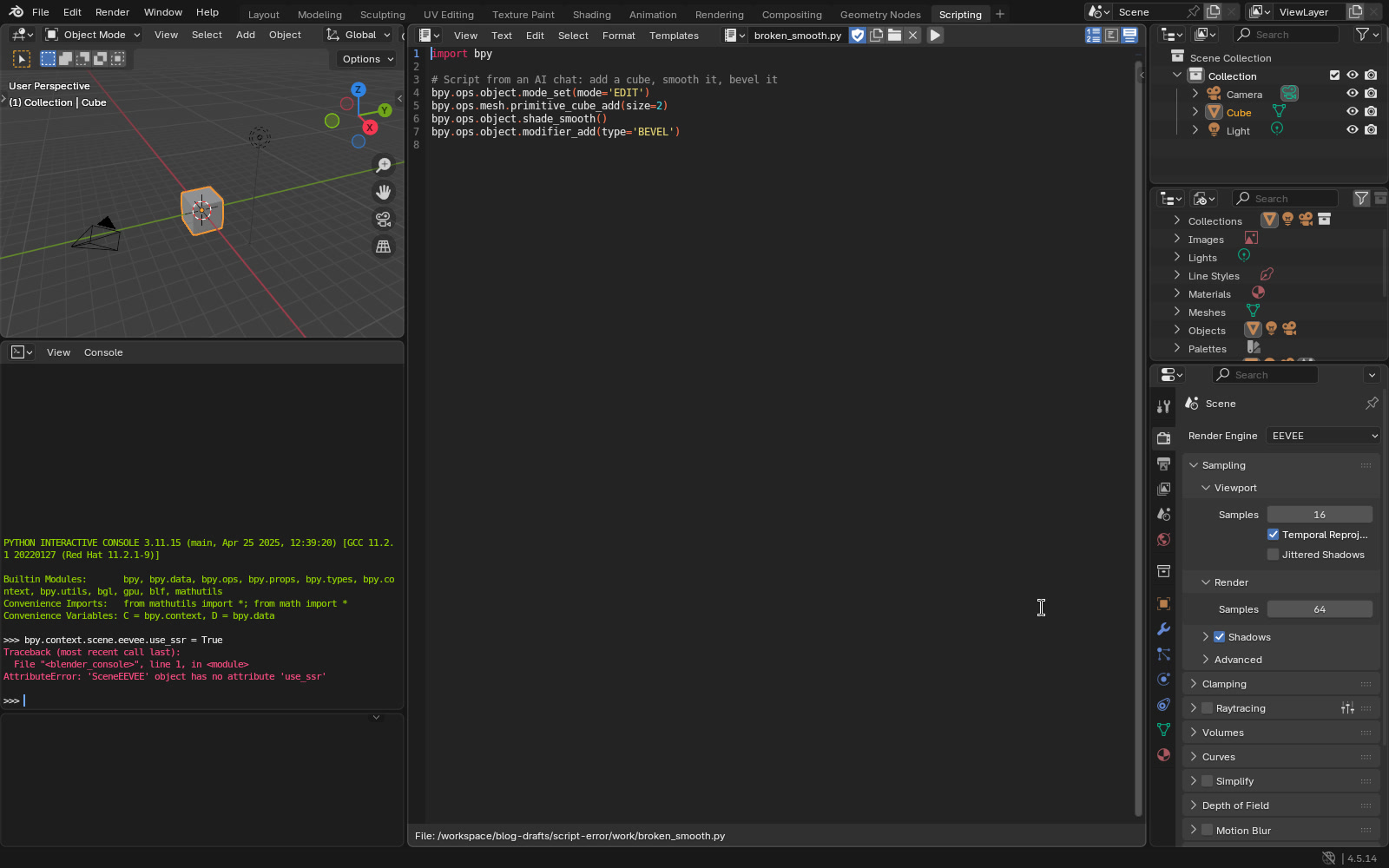
It means the script uses a property or function that doesn’t exist in your version. use_ssr was an EEVEE screen space reflections setting. It is there in Blender 3.6 and 4.2 but not in 4.5. To fix it, look up the class named in the error (here SceneEEVEE) in the Python API docs for your version, or hover over the setting in the interface with Python tooltips turned on in Preferences to see its current name. Tell the assistant your exact Blender version, which you can see in the bottom right of the status bar.
4. poll() failed: the wrong context
Operators, the bpy.ops calls, only run when the context is right: the right mode, the right editor, an active object. When it isn’t, Blender 4.5 gives errors like these:
RuntimeError: Operator bpy.ops.object.shade_smooth.poll() failed, context is incorrect
RuntimeError: Operator bpy.ops.object.mode_set.poll() Context missing active object
RuntimeError: Operator bpy.ops.view3d.view_all.poll() expected a view3d region
The first came from a script that switched to Edit Mode and then called an Object Mode operator. The second came from a script with no active object. The third came from a 3D Viewport operator run where there was no 3D Viewport, in this case Blender in background mode. Fix it by setting the context the script expects: switch mode with bpy.ops.object.mode_set(mode='OBJECT'), set an active object, or better, change the data directly instead of calling an operator, for example obj.location.z += 1.
5. KeyError: a wrong object name
KeyError: 'bpy_prop_collection[key]: key "Cube.001" not found'The script asked for an object by a name that isn’t in your file. The assistant guessed it. Check the real name in the Outliner, names are case-sensitive, and change the script to match. Or use the active object instead: obj = bpy.context.active_object.
6. It runs, but the result is wrong
No error doesn’t mean the script did what you asked. A loop over bpy.data.objects also changes the camera and the light. A size written as 20 may be 20 metres in a scene using metres. An operator may act on the selection instead of the object you meant. Check the result in the viewport and the Properties editor, try the script on a simple test scene first, and add print() lines to see what the script is working on. Output from print() goes to the system console, not the Info editor.
Quick checklist
- File saved, working on a copy
- Script read before running
- Error read from the last line up
- Line number in your script found
- AttributeError: name checked for your Blender version
- poll() failed: mode, active object and editor checked
- KeyError: object names checked in the Outliner
- Result checked even when there’s no error
FAQ
Where do I see the full Python error in Blender?
In the Info editor, which is part of the Scripting workspace, and in the system console. On Windows, open the console with Window > Toggle System Console. On Linux and macOS, start Blender from a terminal.
Why does a script work in an older Blender but not in 4.5?
The Python API changes between versions. A property that was renamed or removed gives an AttributeError. Check the API docs for your version, or give the assistant your exact version and the full error.
What does “context is incorrect” mean?
An operator was called when Blender wasn’t in the state it needs, such as the wrong mode or no active object. Set that state first, or change the data directly without the operator.
In my course Python Scripting in Blender I teach the Blender Python API from the start, so you can read and fix scripts like these yourself.
If the scripts are part of fixing AI-made models, Fix AI 3D Models in Blender: Repair for 3D Printing & Games has two lectures on AI-written scripts: ones that crash and ones that run but give the wrong result.
