
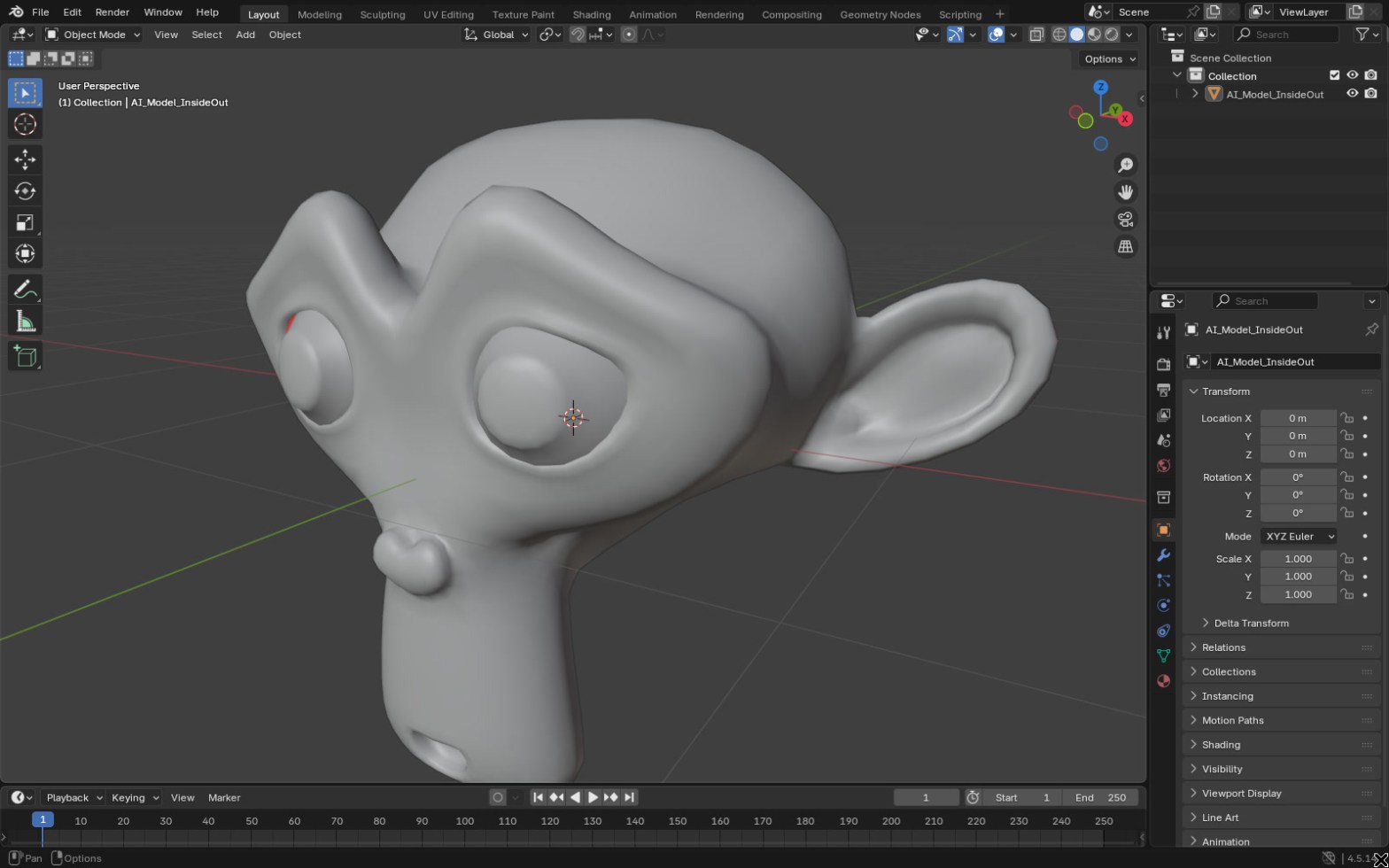
An AI-generated model looks inside out in Blender because some of its faces point the wrong way. Their normals face into the model instead of out, so Blender shades and culls them as if you were looking at the back of the surface. Turn on the Face Orientation overlay to see which faces are wrong, then select everything in Edit Mode and press Shift+N to Recalculate Outside.
I’m Tom McDonald and I teach this in my Udemy course on repairing AI-made models, which has a whole lecture on reversed faces. This post is the short version, using the Blender 4.5 menus.
Why AI models come out inside out
Every face in a mesh has a front and a back. The direction of the front is its normal. Blender works it out from the order of the face’s corners, so if a generator writes some faces with their corners in the opposite order, those faces point inwards. Image-to-3D and text-to-3D tools often stitch a model together from patches, and the patches don’t always agree on which way is out.
In a quick preview you may not notice. In Blender you get dark patches, odd shading where the light seems to come from the wrong side, and parts that vanish when backface culling is on. A game engine usually culls back faces, so the model shows holes. A slicer needs a clear inside and outside, so flipped faces can give it the wrong idea about what is solid.
1. Turn on Face Orientation
In the 3D Viewport header, open the Viewport Overlays drop-down and tick Face Orientation. Back faces show red. With the default theme in Blender 4.5, front faces have no colour, so the model looks normal where it’s right and red where it’s wrong.
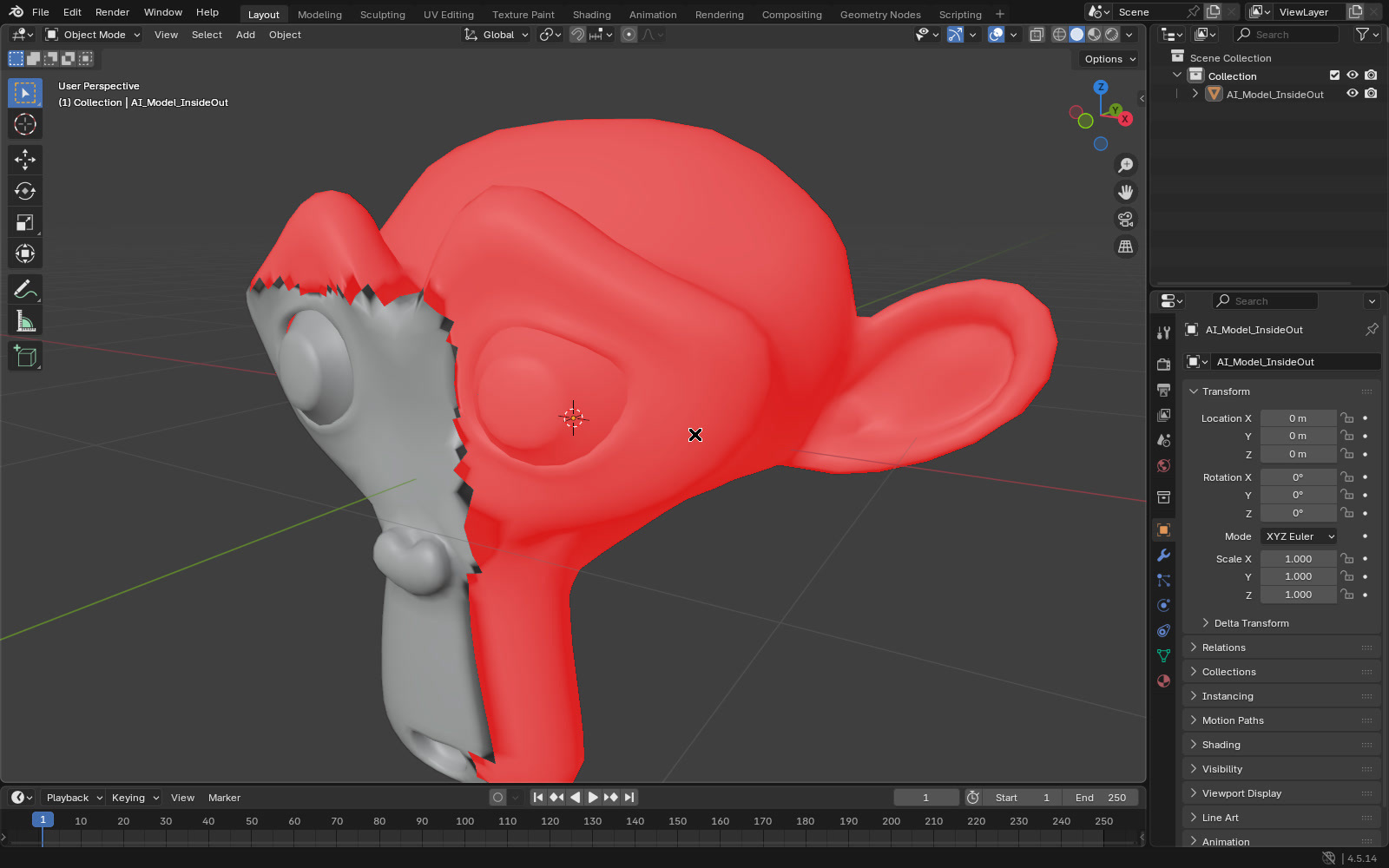
On a closed model you should see no red from the outside at all. Red you can see through a hole is fine, because that is the inside of the surface. If the model is meant to be open, like a single plane for a leaf, red on one side is expected.
2. Recalculate Outside
Select the model, press Tab for Edit Mode and press A to select all. Then use Mesh > Normals > Recalculate Outside, or Shift+N. Blender looks at each connected piece and turns its faces to point outward. The Normals menu is also on Alt+N.
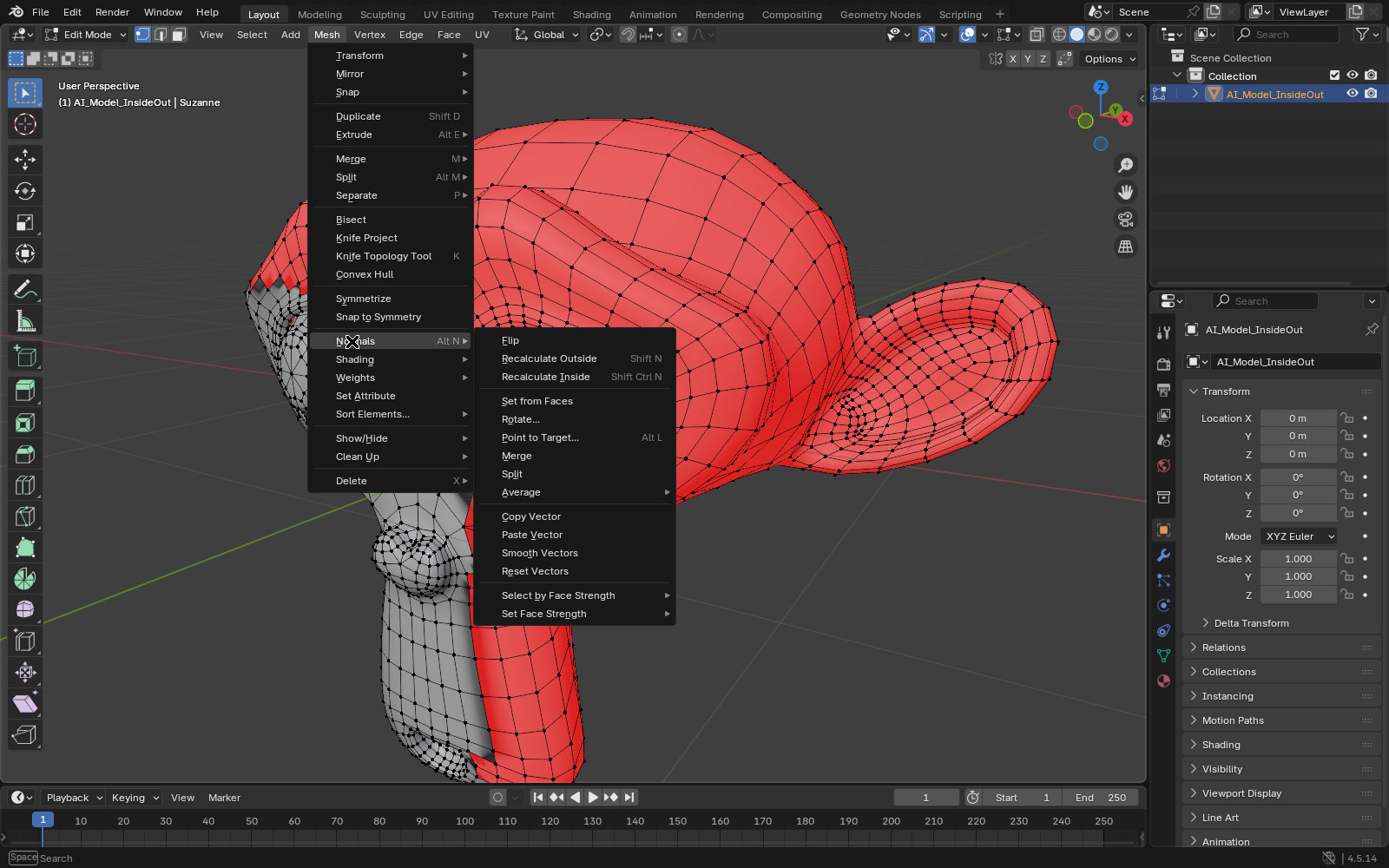
Check Face Orientation again. On most AI models this one step clears the red. Recalculate Inside (Shift+Ctrl+N) does the opposite and is rarely what you want.
3. Use Flip for the faces Recalculate gets wrong
Recalculate works out what is outside from the shape, so it can guess wrong on open meshes, single planes, or models with holes and loose pieces. If a few faces stay red, select just those faces and use Mesh > Normals > Flip. Selecting one face and pressing Ctrl+L picks the rest of its connected piece, which helps when a whole part is backwards.
If Recalculate keeps giving odd results, the mesh usually has other problems first: holes, edges shared by more than two faces, or separate pieces sitting on top of each other. Fix those, then recalculate again.
4. Check with backface culling
Face Orientation shows the problem in red and blue. Backface culling shows what a game engine will do with it. Open the Viewport Shading drop-down in the header (Solid mode) and tick Backface Culling. Blender stops drawing the back of every face, so flipped faces disappear and you can see through the model.
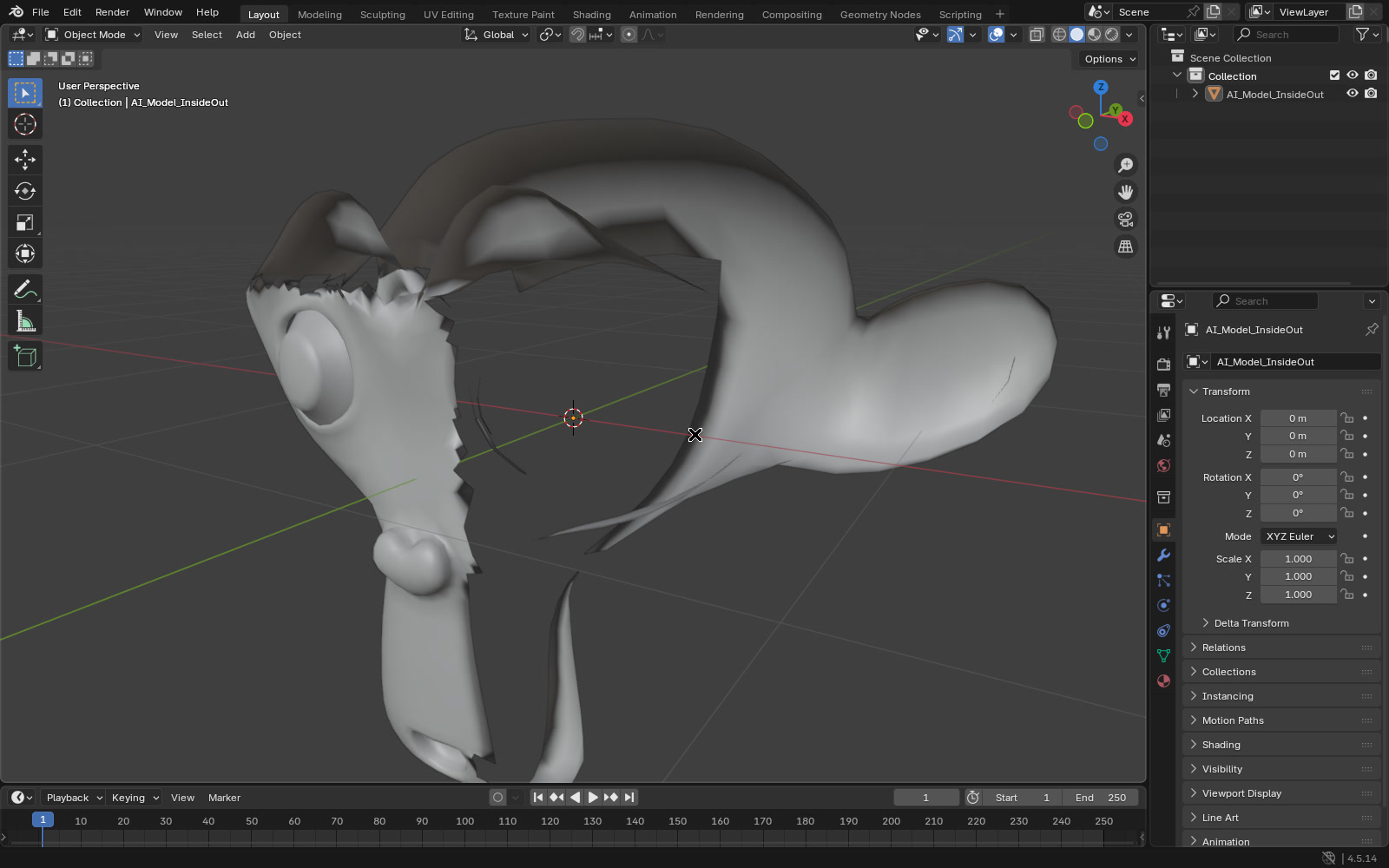
Once the normals are fixed the model should look solid with culling on. Materials have their own Backface Culling setting too, and some exporters and engines read it, so check it if a fixed model still shows holes in the engine.
5. Remove duplicate and stacked faces
Some AI models contain two copies of the same surface on top of each other, one facing out and one facing in. No normal setting fixes that, because whichever face wins the draw, the other is still there. In Edit Mode select all and use Mesh > Merge > By Distance. In a test on Blender 4.5, a cube with a reversed copy of every face went from 12 faces back to 6 after Merge by Distance. Select > Select All by Trait > Interior Faces finds faces trapped inside the model, which you can delete.
6. Export with the normals you want
Recalculating changes the face directions in the mesh itself, so they go out with any format. For games, the export options decide what else is written. The glTF exporter has a Normals option, the OBJ exporter has Export Normals, and the FBX exporter has a Smoothing setting. Keep normals on so the engine shades the model the way it looks in Blender, then check it in the engine with its own culling.
For printing, STL stores a facet normal for each triangle, but slicers rely on a closed, consistent surface. If the slicer shows faces in an odd colour or reports errors, go back and check Face Orientation and the mesh for holes.
Quick checklist
- Face Orientation on, no red from the outside
- Edit Mode, select all, Shift+N (Recalculate Outside)
- Leftover red faces selected and flipped
- Backface Culling on, model still looks solid
- Merge by Distance run, interior faces deleted
- Normals kept on in the export settings
- Model checked in the engine or slicer
FAQ
What do the red faces mean in Blender?
With Face Orientation on, red is the back of a face. On a closed model you should only see the front from outside, so red on the outside means that face is pointing the wrong way.
Why does my model have holes in the game engine but not in Blender?
Blender draws both sides of a face by default, and most game engines don’t. Faces pointing inwards are skipped, so they look like holes. Turn on Backface Culling in Blender to see the same thing before you export.
Should I use Flip or Recalculate Outside?
Start with Recalculate Outside on the whole model. Use Flip only on the faces that are still wrong afterwards, because Flip reverses whatever you select, including faces that were right.
In my course Fix AI 3D Models in Blender: Repair for 3D Printing & Games, every lecture comes with a Blender file holding a broken model to repair, including one on reversed faces, and it ends with a 13-step production checklist.
