
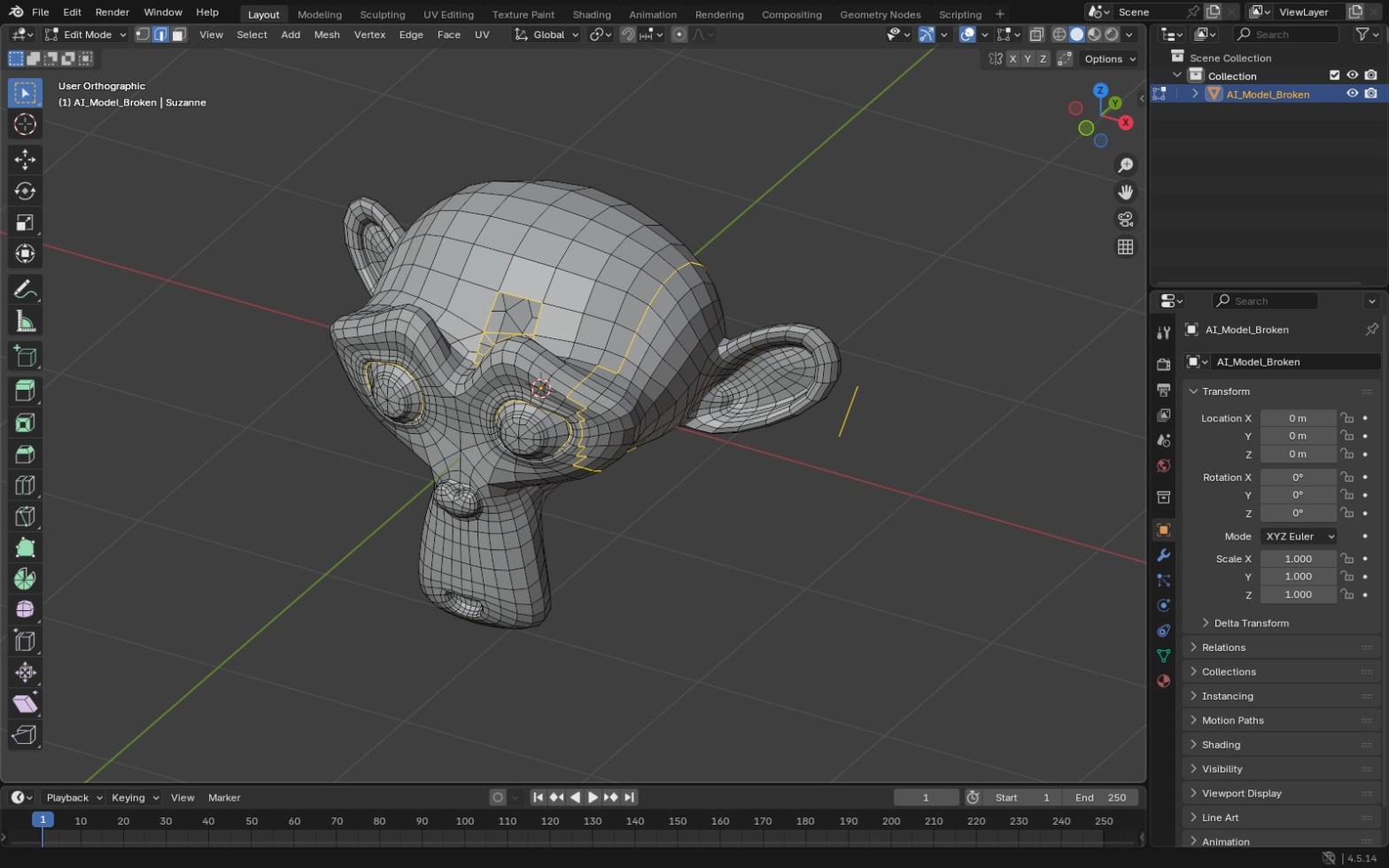
To fix a non-manifold AI 3D model in Blender, go into Edit Mode and use Select > Select All by Trait > Non Manifold to find the problem edges. Then merge duplicate vertices, fill the holes, delete loose parts and recalculate the normals until that selection comes back empty. Apply the scale, export the STL, and the slicer will have a closed surface to work with.
I’m Tom McDonald and I teach this in my Udemy course on repairing AI-made models. This post is the short version, using the Blender 4.5 menus.
Why AI models fail in the slicer
Image-to-3D and text-to-3D tools are built to make a model that looks right in a preview. A slicer needs something else: one closed skin with a clear inside and outside, so it can work out where to put plastic. The preview hides small holes, faces that point the wrong way, stacked duplicate points and bits of floating geometry. The slicer doesn’t hide them, so it reports the model as non-manifold or not watertight.
1. Find the problems with Select All by Trait
Select the model, press Tab for Edit Mode and switch to Edge or Vertex select. Press Alt+A to deselect everything, then go to Select > Select All by Trait > Non Manifold. Whatever lights up is what the slicer is complaining about.
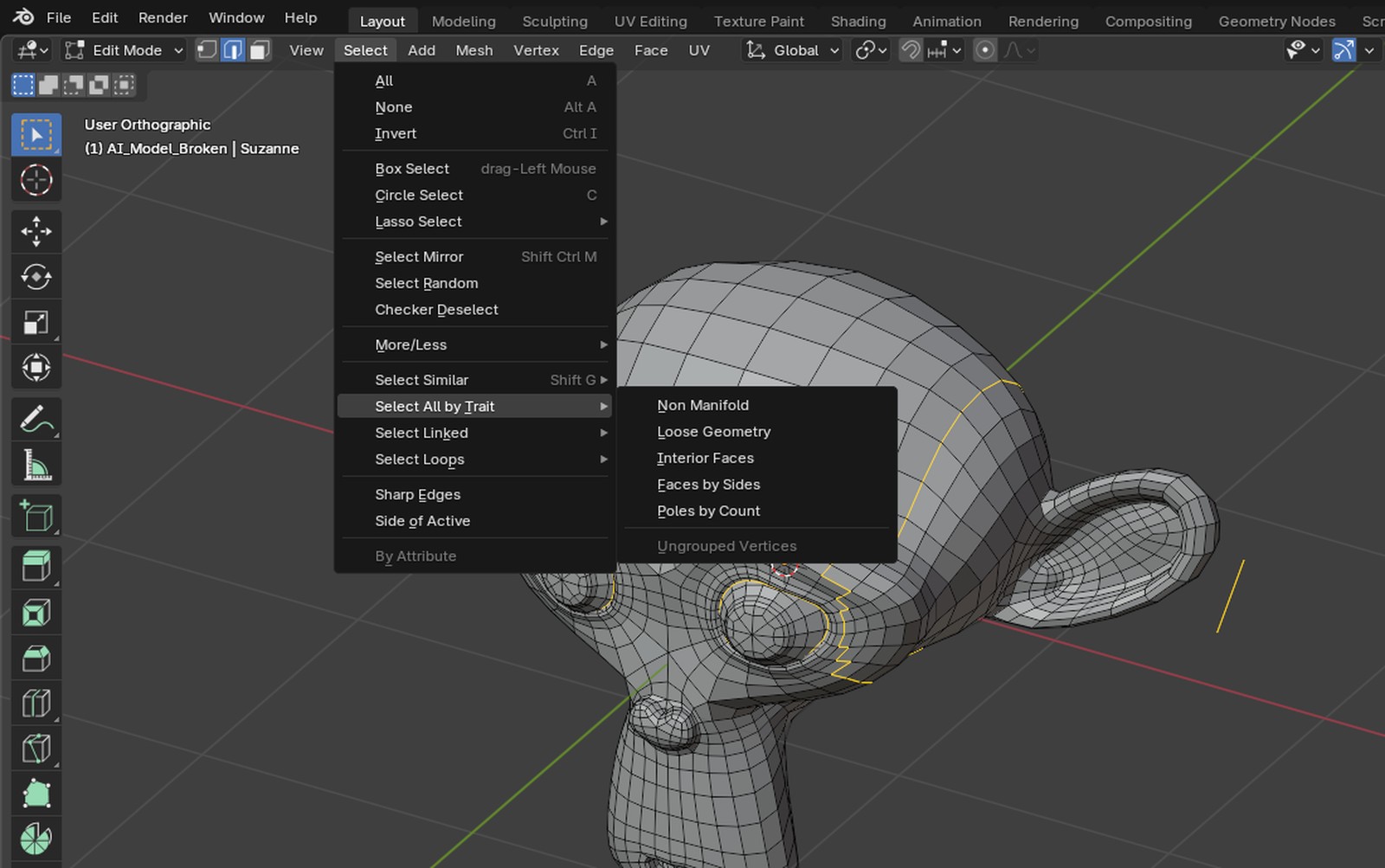
Non Manifold picks up open edges around holes, edges shared by more than two faces, edges between faces that point opposite ways, vertices where two parts only touch at a point, and loose edges or vertices with no face. The same menu has Loose Geometry and Interior Faces as separate checks, and it’s worth running both.
2. Merge by Distance
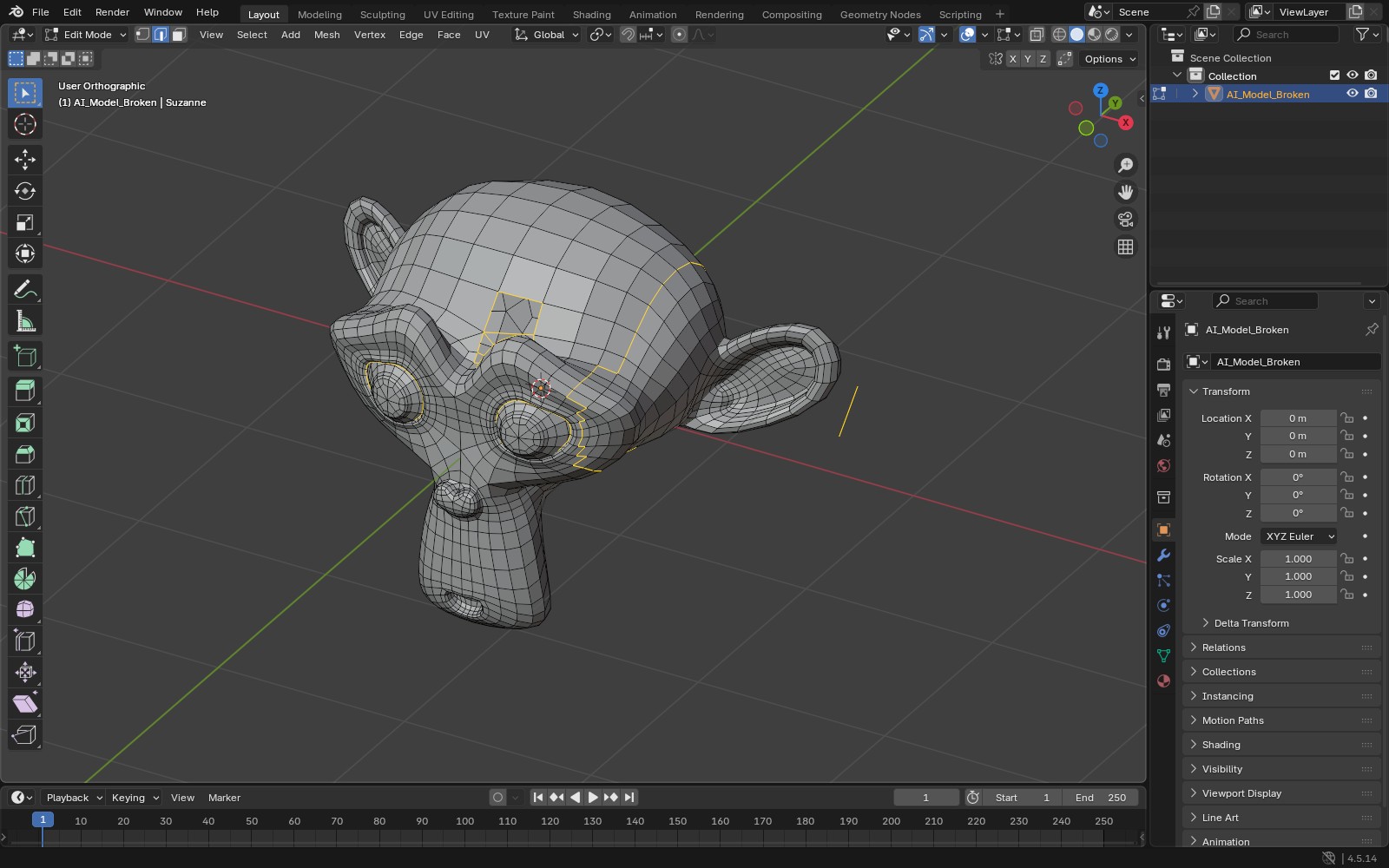
Generators often leave seams where two vertices sit on top of each other but aren’t joined. Select all with A, then use Mesh > Merge > By Distance (or M > By Distance). Blender reports how many vertices it removed. Keep the distance small so you don’t weld parts that should stay apart.
3. Delete loose geometry and interior faces
With everything selected, use Mesh > Clean Up > Delete Loose to remove vertices and edges that aren’t part of a face. For floating chunks that do have faces, hover over a piece and press L to select it, then delete it. Run Select All by Trait > Interior Faces and delete any faces it finds inside the model.
4. Fill the holes
Select the open edge loop around a hole (Alt+click an edge on the border) and press F to make a face, or Alt+F to fill it with triangles. For lots of small holes, Mesh > Clean Up > Fill Holes works on the whole selection. If a filled face is badly bent, Mesh > Clean Up > Make Planar Faces can flatten it.
5. Recalculate the normals
Turn on Face Orientation in the Viewport Overlays drop-down. Back faces show red. Any red you can see on the outside of a closed model is a face pointing the wrong way. In Edit Mode, select all and press Shift+N (Mesh > Normals > Recalculate Outside).
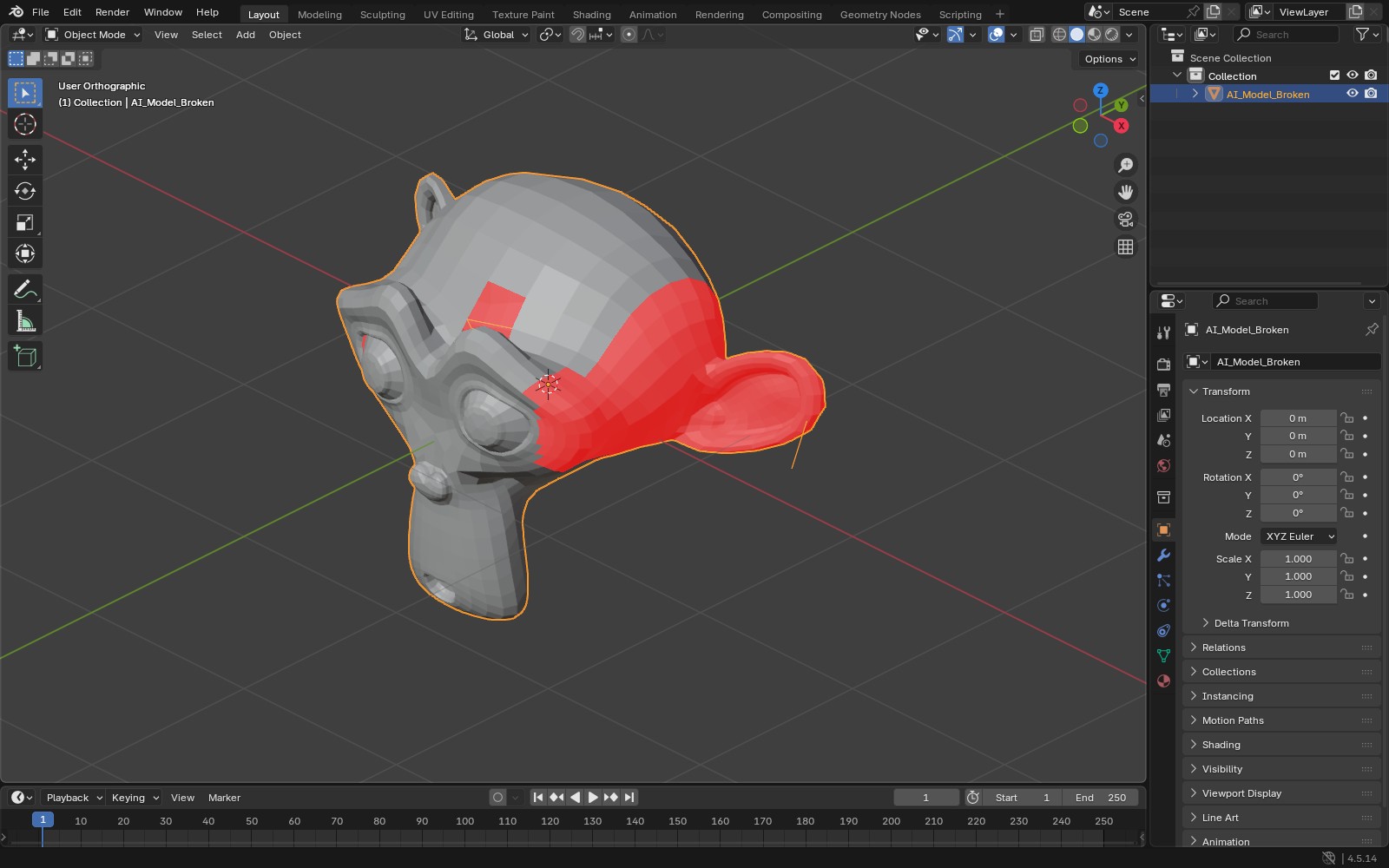
Recalculate only works properly once the holes are closed, which is why it comes after step 4. In recent Blender versions the default theme leaves front faces uncoloured instead of blue, so look for the red.
6. Check again
Deselect all and run Select All by Trait > Non Manifold again. Repeat steps 2 to 5 until nothing is selected. Two parts that only touch at a single vertex or edge still count as non-manifold, so move them apart or join them with real faces.
7. Use the 3D Print Toolbox if you have it
From Blender 4.2 the 3D Print Toolbox is a free extension instead of a built-in add-on. Get it from Edit > Preferences > Get Extensions by searching for “3D Print Toolbox”. Once it’s installed, it adds a panel in the 3D Viewport sidebar (N). Check All lists problems such as non-manifold edges, intersecting faces and thin parts. Make Manifold attempts an automatic repair. Check the result afterwards, because an automatic fix can close a hole you meant to keep.
8. Apply the scale and set the size
AI models often come in at an arbitrary size. Back in Object Mode, scale the model to the real size you want to print, then apply it with Ctrl+A > Scale (or All Transforms). Most slicers read STL numbers as millimetres, so check your Scene units and the export scale, then confirm the size in the slicer before you print.
A sealed model can still fail if some walls are too thin to print. I covered that in Find the thin walls in Blender before your slicer does.
Quick checklist
- Select All by Trait > Non Manifold shows nothing
- Merge by Distance done
- No loose geometry or interior faces
- Holes filled
- No red on the outside with Face Orientation on
- Scale applied and size checked in millimetres
- Walls thick enough for your printer
FAQ
Why does my slicer say non-manifold?
The surface isn’t closed, or it has edges and points that don’t make a clean inside and outside. The slicer can’t tell which side is solid, so it can’t fill the model properly.
What is non-manifold?
Geometry that couldn’t exist as a real solid object: an edge with only one face (a hole), an edge shared by three or more faces, two parts joined at a single point, or loose edges and vertices with no faces.
Do I need the add-on?
No. Every step above uses tools built into Blender. The 3D Print Toolbox saves time by running the checks in one click, and it’s free.
In my course Fix AI 3D Models in Blender: Repair for 3D Printing & Games, every lecture comes with a Blender file holding a broken model to repair, and it ends with a 13-step production checklist.
For the full print workflow from Blender to printer, see Learn 3D Printing with Blender.
