
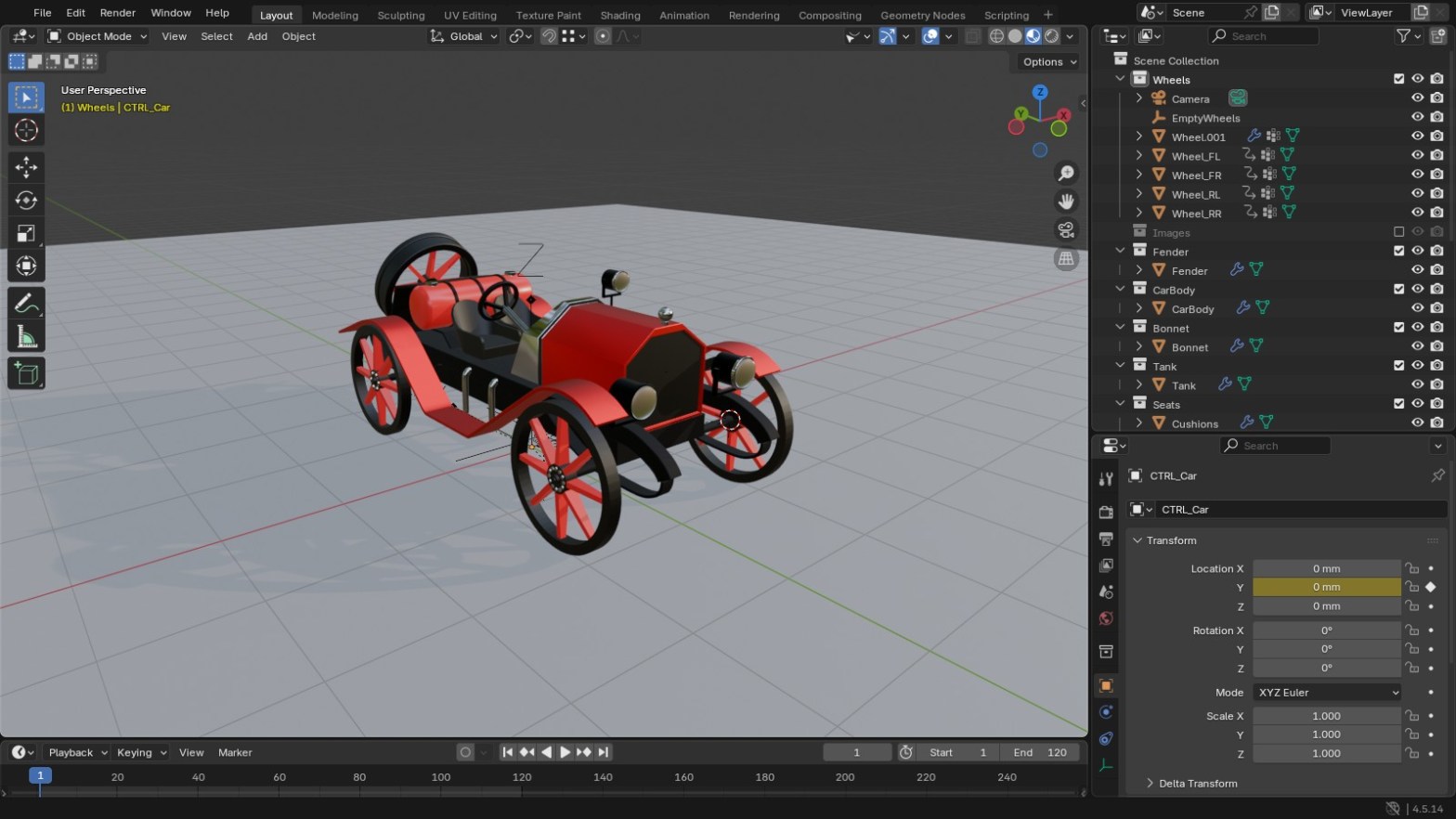
Keyframing wheel rotation by hand never quite works. You move the car, guess how far the wheels should turn, and they end up looking like they’re sliding on ice. A driver fixes that. You move one control object and every wheel turns by exactly the right amount for the distance travelled.
I’m using the vintage car from my 3D modelling and rigging course, in Blender 4.5 LTS. The same steps work on any vehicle with round wheels.
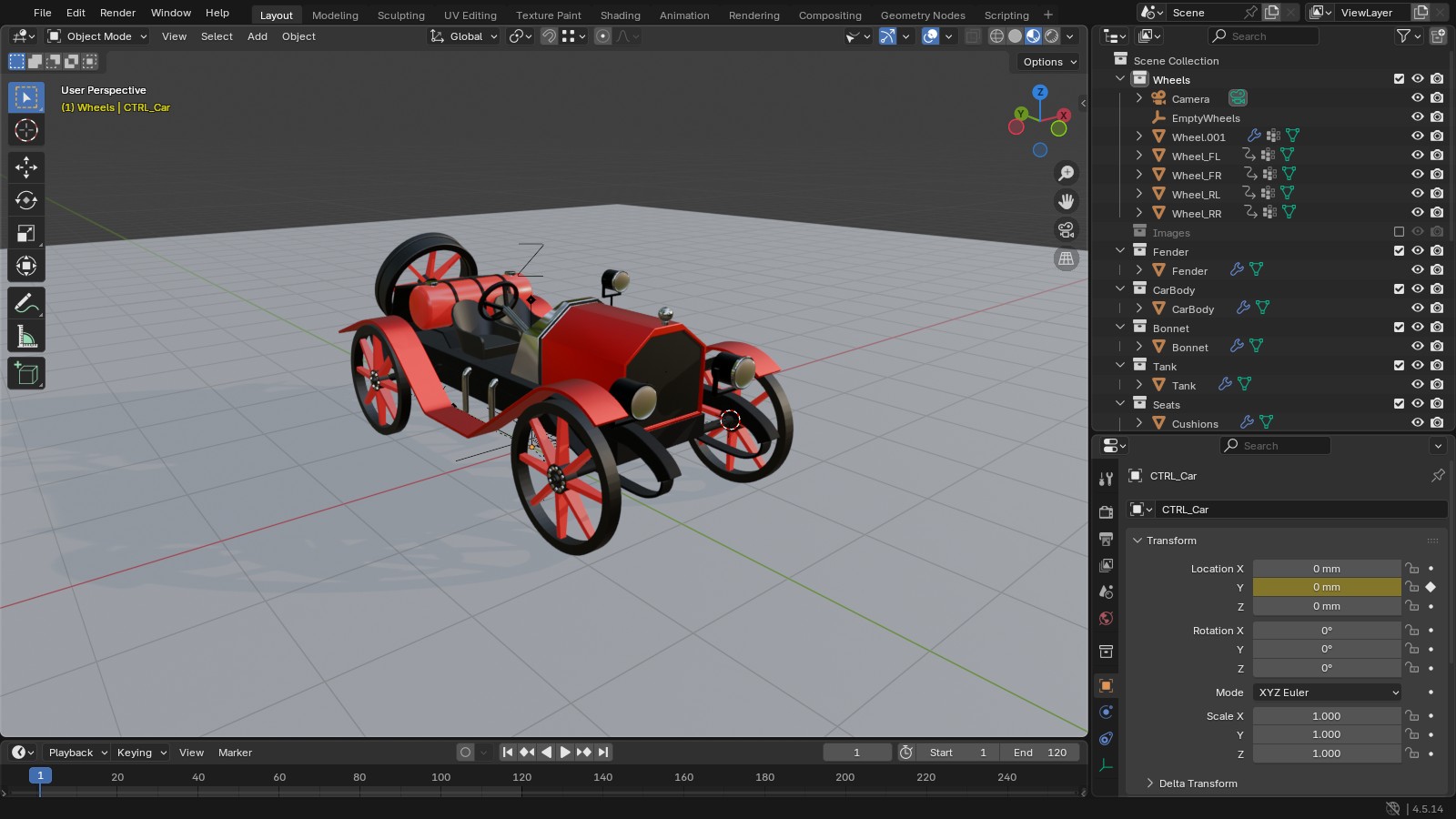
Step 1: Prepare the wheels
- Make each wheel its own object. If your wheels are one mirrored mesh, apply the Mirror modifier, go into Edit Mode and press P > By Loose Parts to split them. I named mine Wheel_FL, Wheel_FR, Wheel_RL and Wheel_RR.
- Put each wheel’s origin in the centre of its hub: select the wheel, then Object > Set Origin > Origin to Geometry.
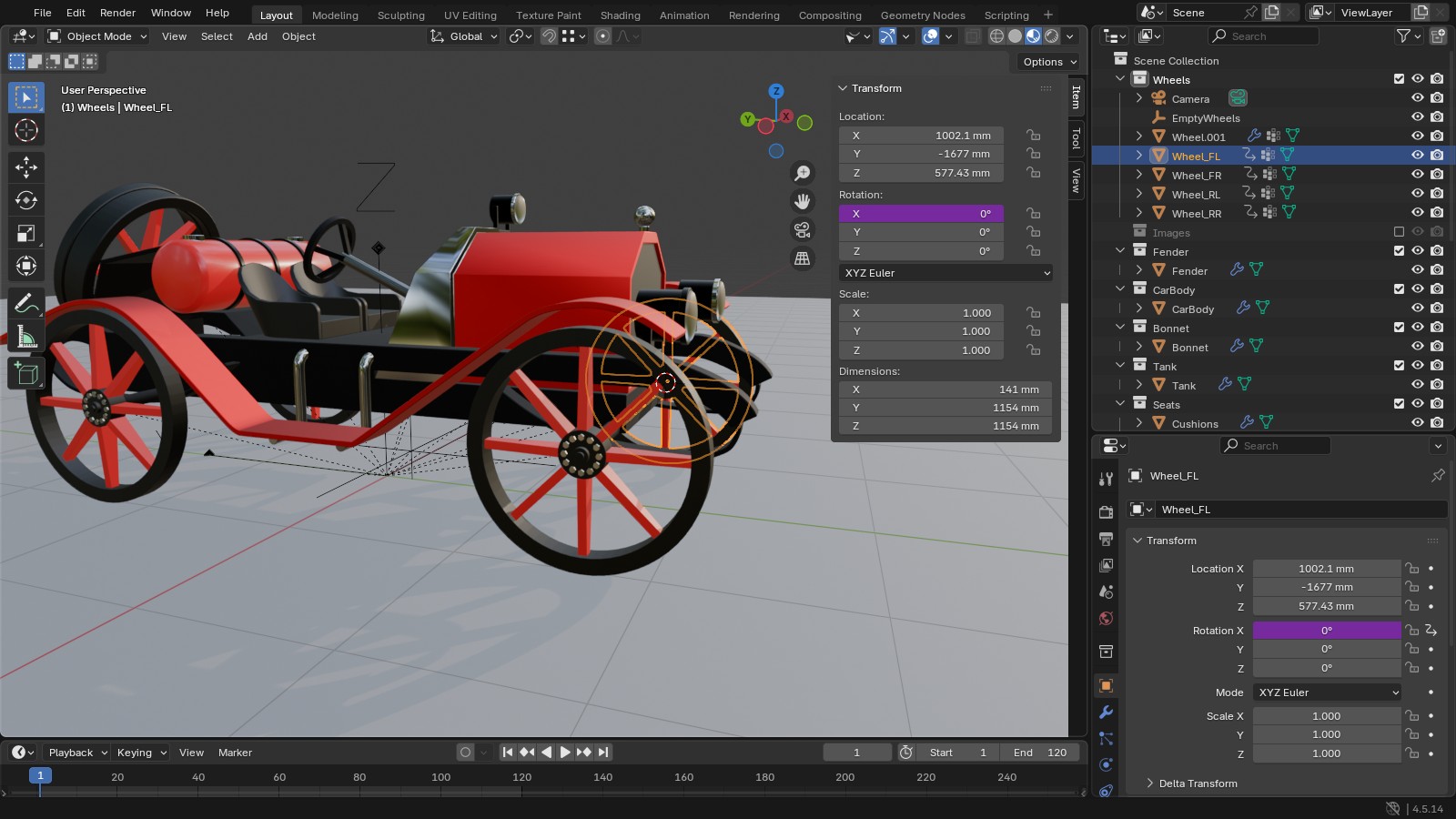
- Apply rotation and scale with Ctrl+A > All Transforms, so the wheel’s local X axis runs along the axle. If you apply location too, the origin jumps back to the world centre, so stick to rotation and scale.
- Press N to open the Sidebar and look at the Item tab. Half of Dimensions Z is the radius. My wheels are 1154 mm tall, so the radius is 577 mm, or 0.577 m.
Step 2: Add one control
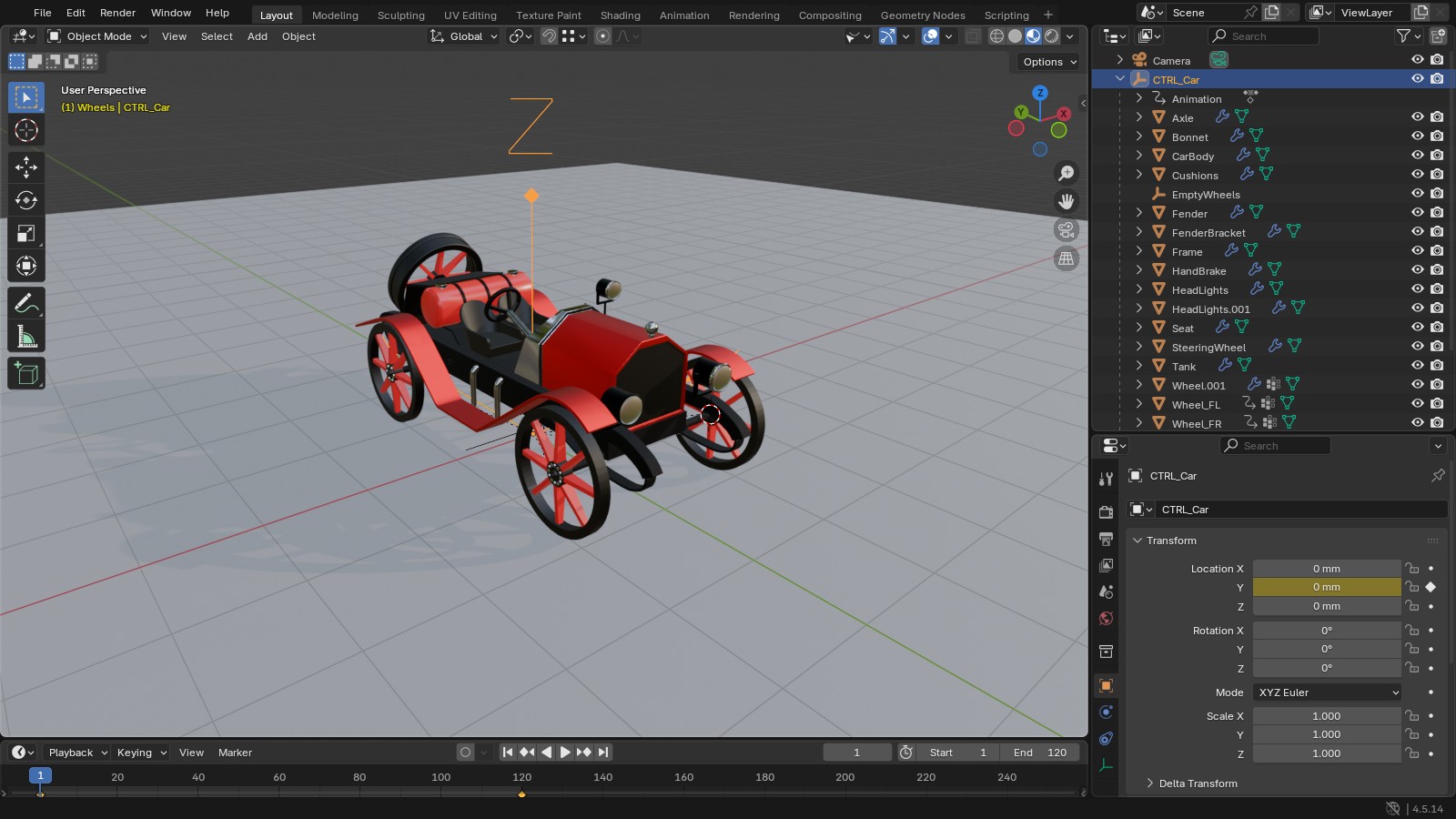
Add > Empty > Arrows (Plain Axes works too) and name it CTRL_Car. Select the body, the wheels and every other part of the car, then Shift-click the empty last so it’s the active object, and press Ctrl+P > Object. Now moving the empty moves the whole car.
My car faces down the negative Y axis, so it drives forward when CTRL_Car moves to negative Y. Check which way yours faces before you write the driver.
Step 3: Add the driver to one wheel
- Select the front left wheel and open the Object tab in the Properties editor.
- Under Transform, right-click the X field of Rotation and choose Add Driver.
- In the popover, leave Type as Scripted Expression.
- In the variable below, change the type from Single Property to Transform Channel.
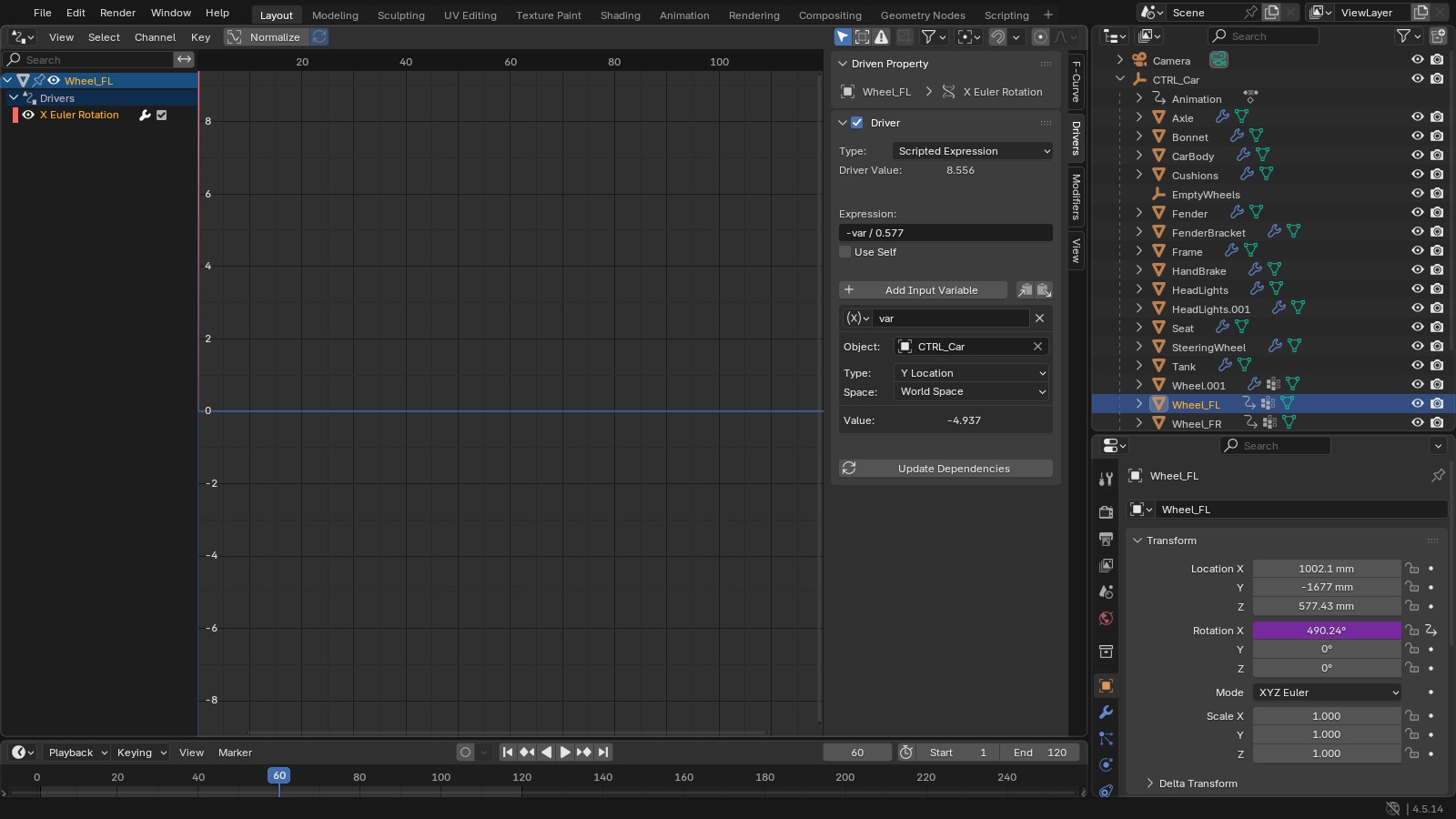
- Set Object to CTRL_Car, Type to Y Location and Space to World Space.
- Set the Expression to
-var / 0.577, using your own wheel radius in metres.
The Rotation X field turns purple to show it’s driven. Move CTRL_Car along Y and the wheel rolls.
Why that expression works
A wheel that rolls without slipping turns by the distance travelled divided by its radius, in radians. Blender stores rotation in radians internally, so dividing by 0.577 gives the exact amount. You can check it in the screenshot above: 4.937 divided by 0.577 is 8.556.
The minus sign sets the direction. With the axle along X, a wheel moving towards negative Y needs a positive X rotation to roll forward, and a negative Y location makes -var positive. The same expression also works if your car faces positive Y. If your wheel spins the wrong way, remove the minus.
It’s also a simple expression, and that matters. Blender evaluates simple maths like this directly, so it works even with Auto Run Python Scripts turned off, and you won’t get a “Slow Python expression” warning.
Step 4: Copy it to the other wheels
Right-click the driven Rotation X field and choose Copy Driver. Select the next wheel, right-click its Rotation X field and choose Paste Driver. Repeat for the other two. If your rear wheels are a different size, right-click > Edit Driver and change the radius.
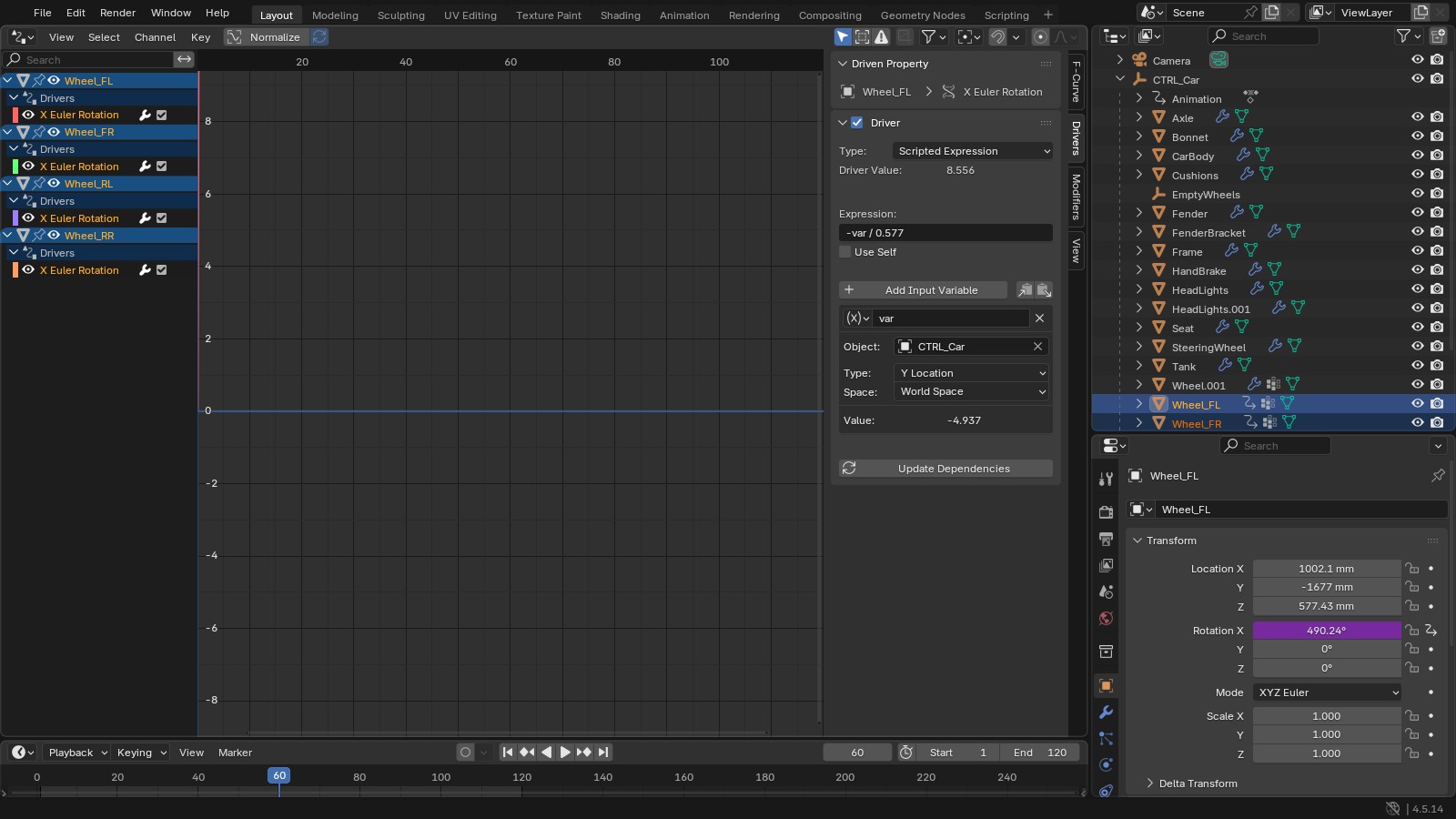
To see them all at once, change any editor to the Drivers editor and select the wheels. Each one gets its own X Euler Rotation channel, and the Sidebar’s Drivers tab shows the settings for whichever channel you click.
Animate the control, not the wheels
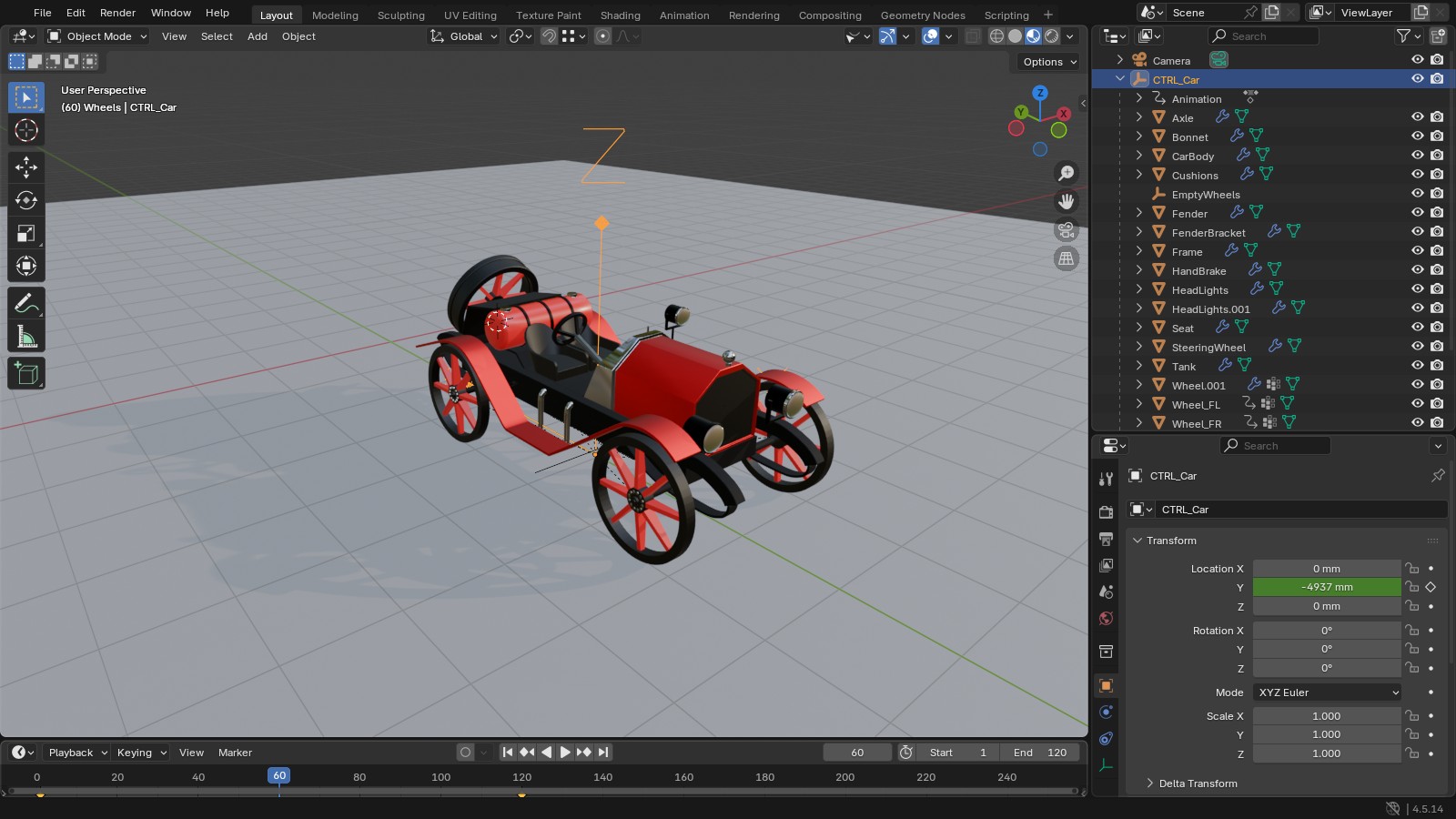
Now you only keyframe CTRL_Car’s location. I keyed it at 0 on frame 1 and at -10 m on frame 120. Speed it up, slow it down or reverse it, and the wheels follow without a single wheel keyframe.
One limit: this version reads world Y only, so it suits straight runs. For a car that turns corners you’d measure distance along a path instead, but this is the version I start every vehicle rig with.
Take it further
If you want to build complete vehicle and character rigs from scratch, my 3D modelling and rigging course on Udemy covers it step by step.
