
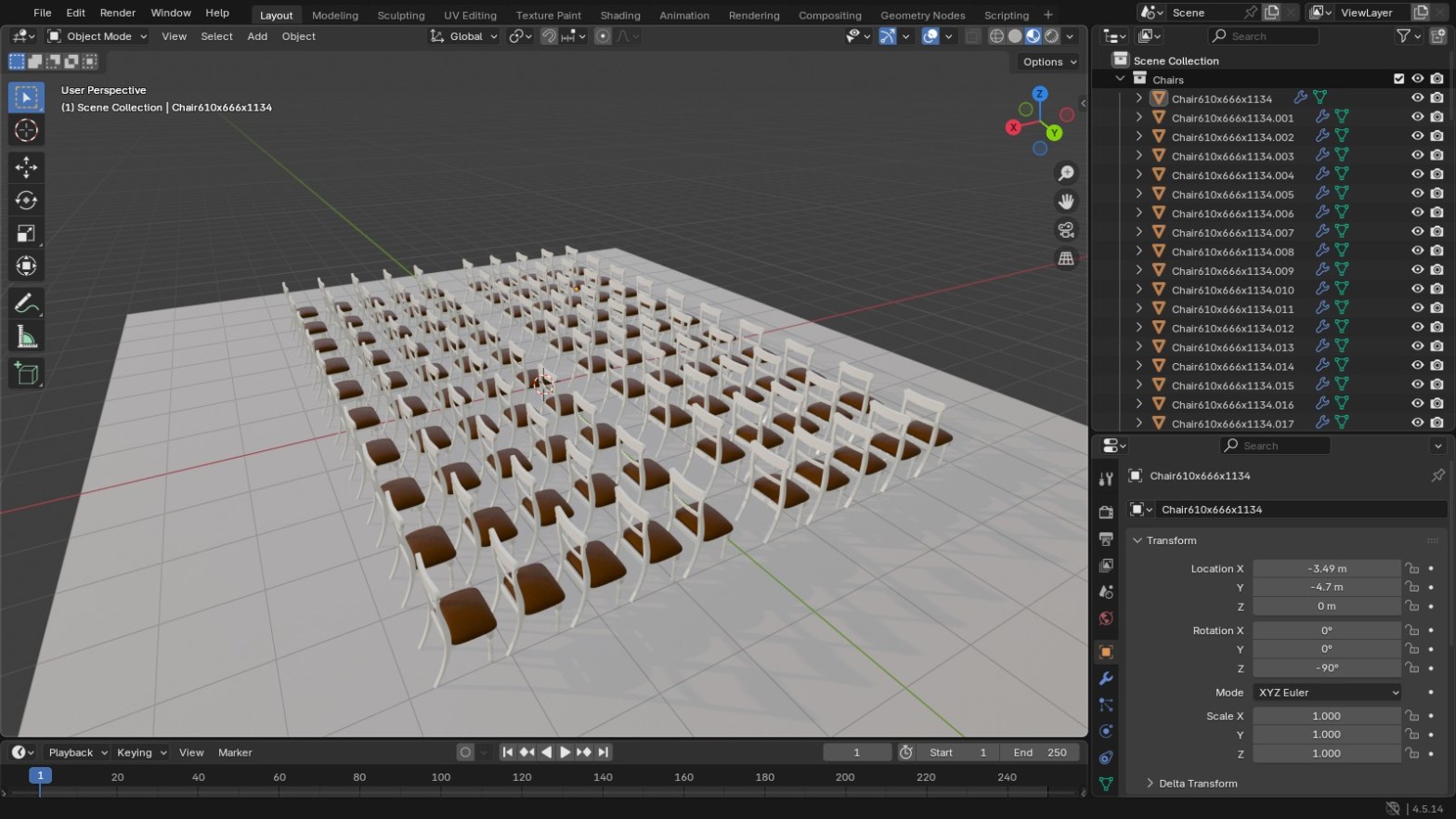
Duplicate a chair 100 times in Blender and the Outliner fills up with names like Chair610x666x1134.001, .002, .003 and on up to .099. That’s fine until you need to find one chair, export the scene to a game engine, or send the file to someone else. Renaming them by hand takes ages. I use five lines of Python instead, and it takes about a minute.
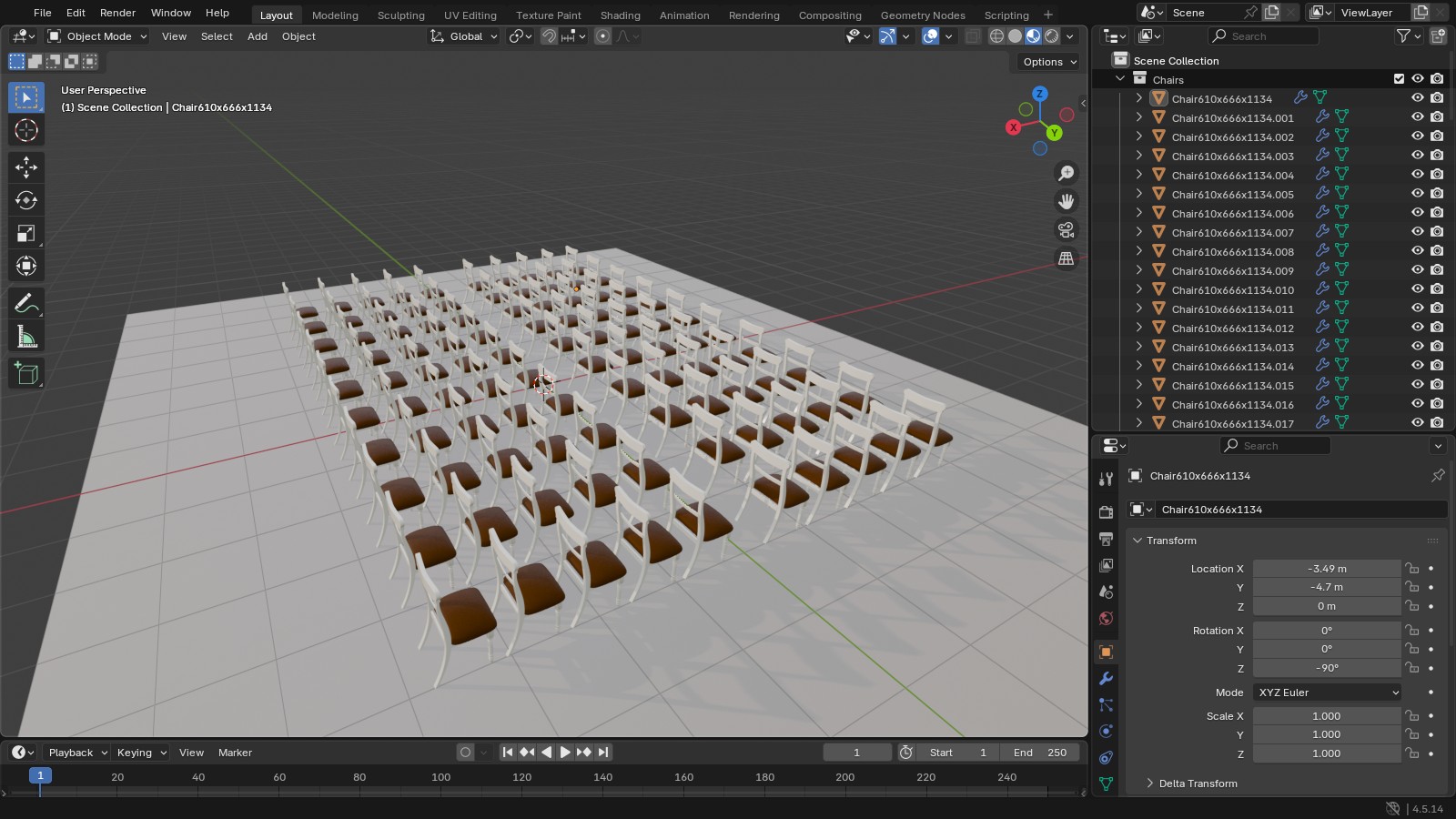
For this post I set up a hall of 100 chairs from my BlenderBlocks furniture sets, in Blender 4.5 LTS. Everything below was run in that file, so the screenshots show exactly what you’ll see.
The script
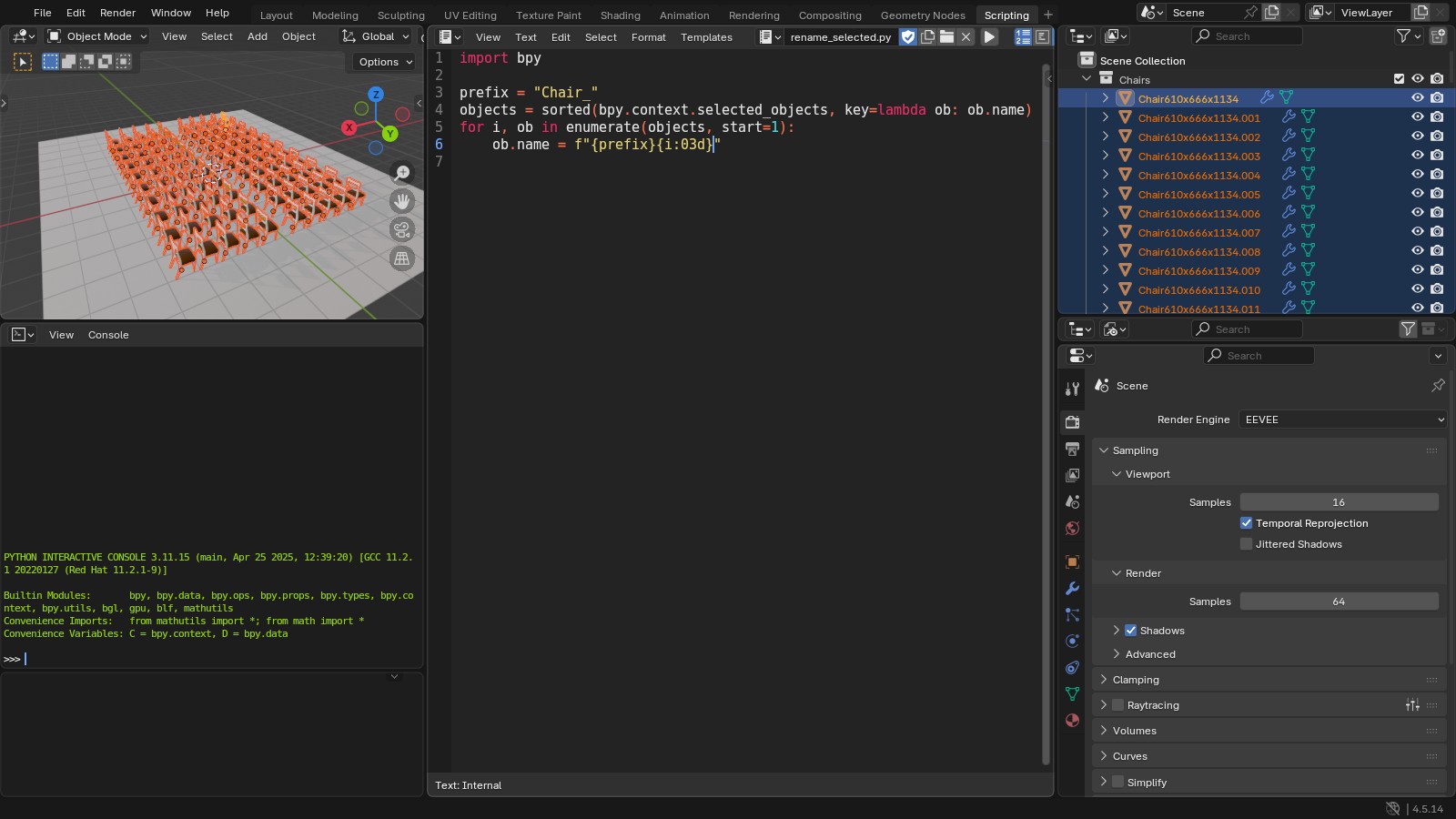
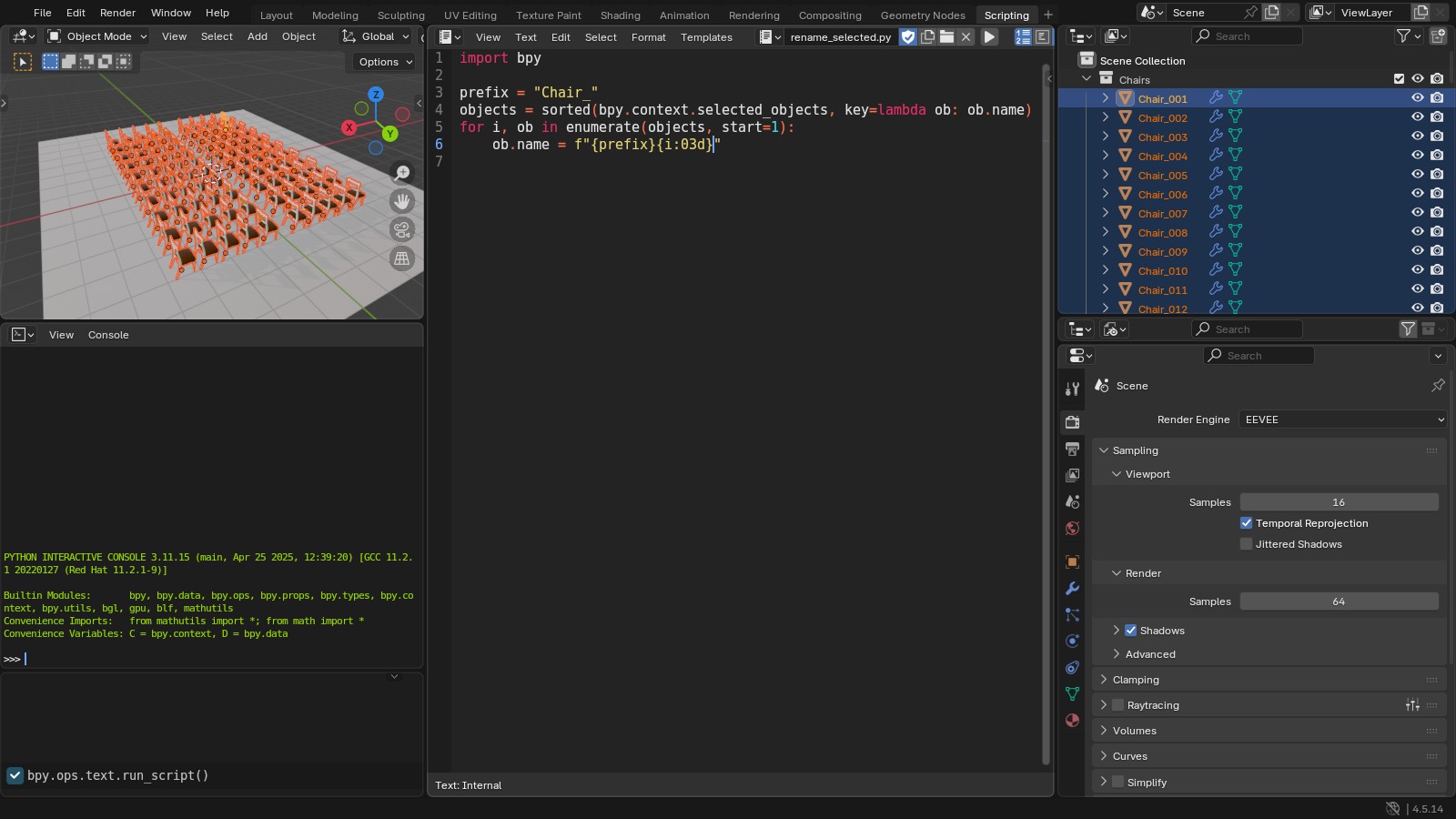
import bpyprefix = "Chair_"objects = sorted(bpy.context.selected_objects, key=lambda ob: ob.name)for i, ob in enumerate(objects, start=1): ob.name = f"{prefix}{i:03d}"
Here’s what each part does:
import bpygives the script access to Blender’s data.prefixis the new base name. Change it to whatever you need, like Table_ or Light_.- The
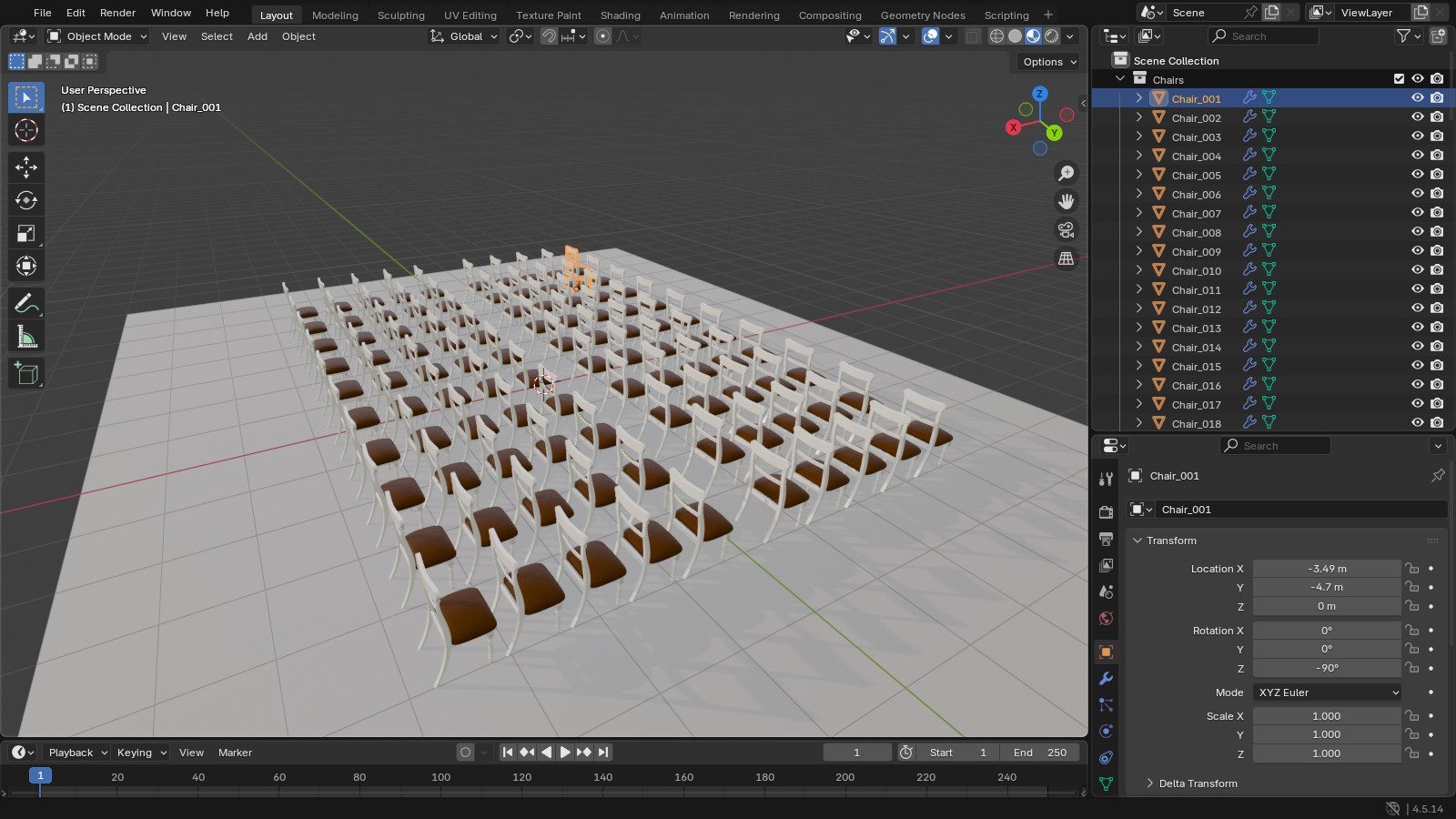
sorted(...)line collects every selected object and sorts it by its current name, so the new numbers follow the old order. enumerate(..., start=1)counts from 1 instead of 0.- The last line sets each name with the number padded to three digits: Chair_001, Chair_002 and so on. The padding keeps them in order in the Outliner, so Chair_010 doesn’t land between Chair_001 and Chair_002.
How to run it
Don’t paste this into the Python Console. The console runs one line at a time, and the indented line inside the loop will trip it up. Use the Text Editor.
- Click the Scripting tab at the top of the window. You can also switch any editor to the Text Editor.
- Click New in the Text Editor header to make a blank text block. I named mine rename_selected.py.
- Paste the script in. Check that the last line is indented with four spaces.
- In the 3D Viewport, select the objects you want to rename. I pressed A to select all 100 chairs.
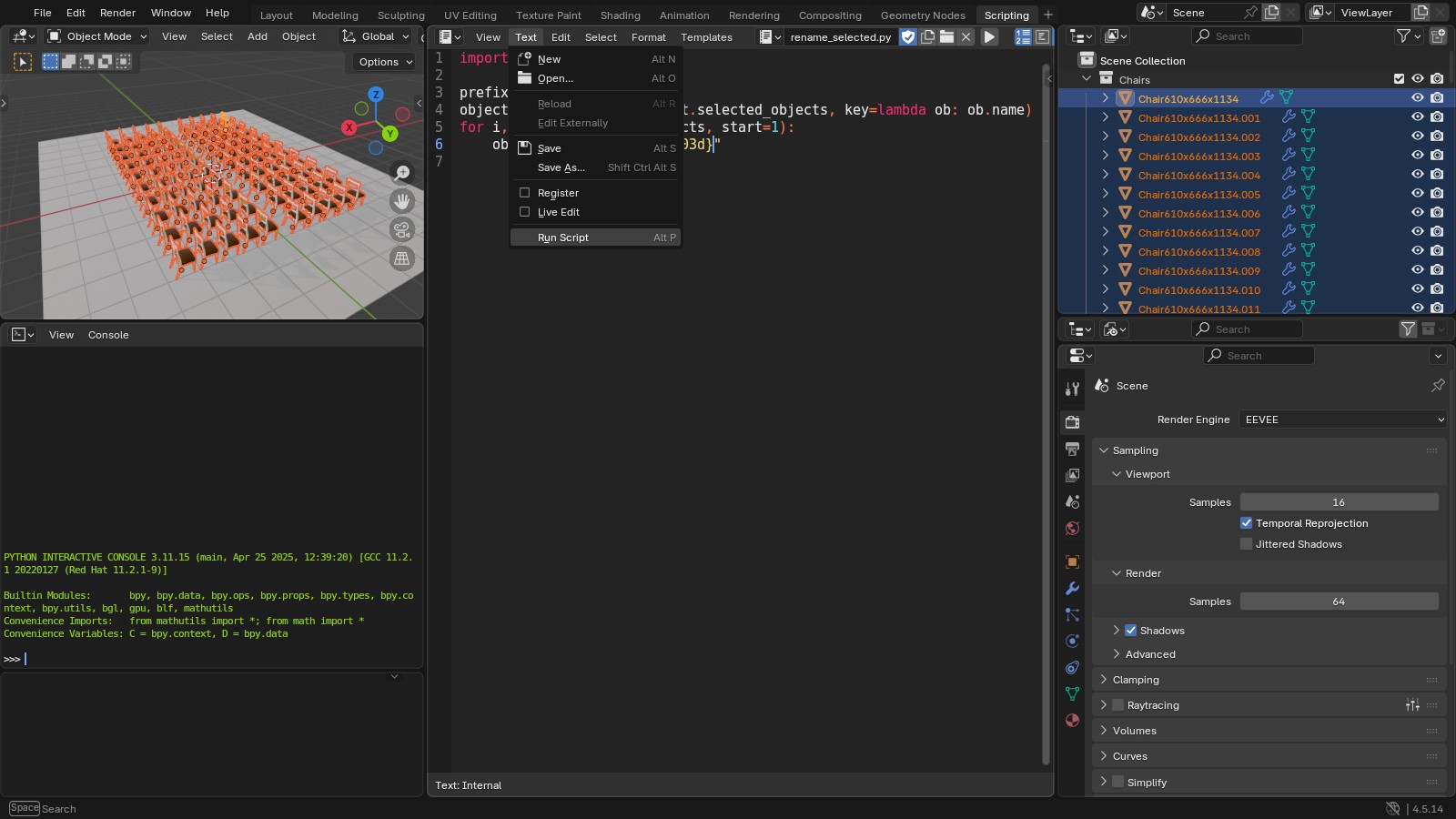
- Back in the Text Editor, choose Text > Run Script, or hover over the text and press Alt+P.
The Outliner updates straight away. The Info editor at the bottom left of the Scripting workspace logs the run, and that’s also where any error shows up. If nothing happens, check that you actually had objects selected. If you get an error, it’s nearly always the indentation on the last line.
Things to know
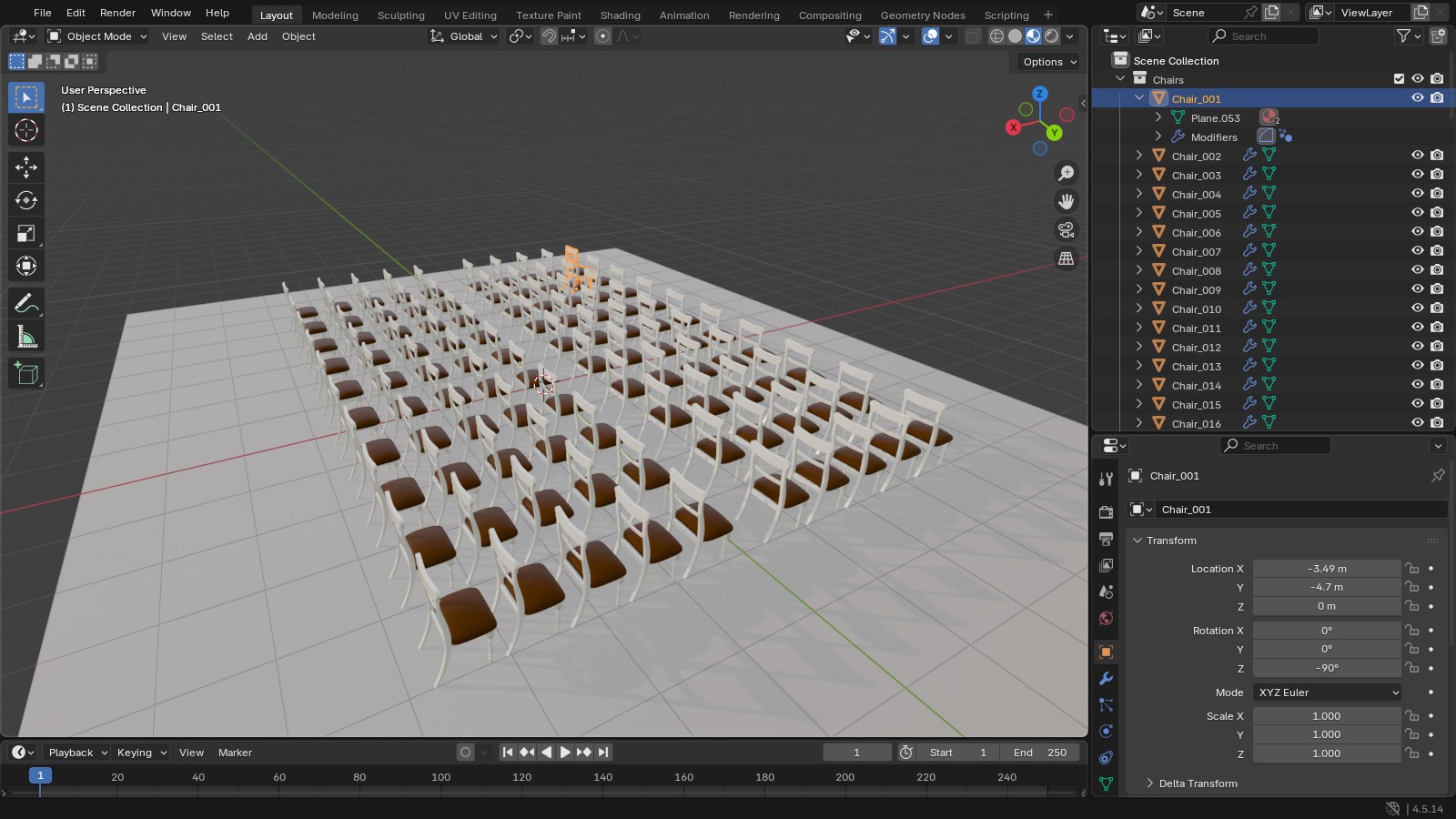
- It renames objects, not their mesh data. Expand an object in the Outliner and you’ll see the mesh keeps its old name. Chair_001 still uses a mesh called Plane.053 here. That’s usually fine, but it’s worth knowing if you export by mesh name.
- If a name you’re assigning already belongs to an object you didn’t select, Blender won’t allow two objects with the same name and adds .001 to the new one. Pick a prefix nothing else in the file uses.
- Ctrl+Z undoes the whole rename in one step if you get it wrong.
- The text block saves inside your .blend file. Next time, open it in the Text Editor, change the prefix and run it again.
What about Batch Rename?
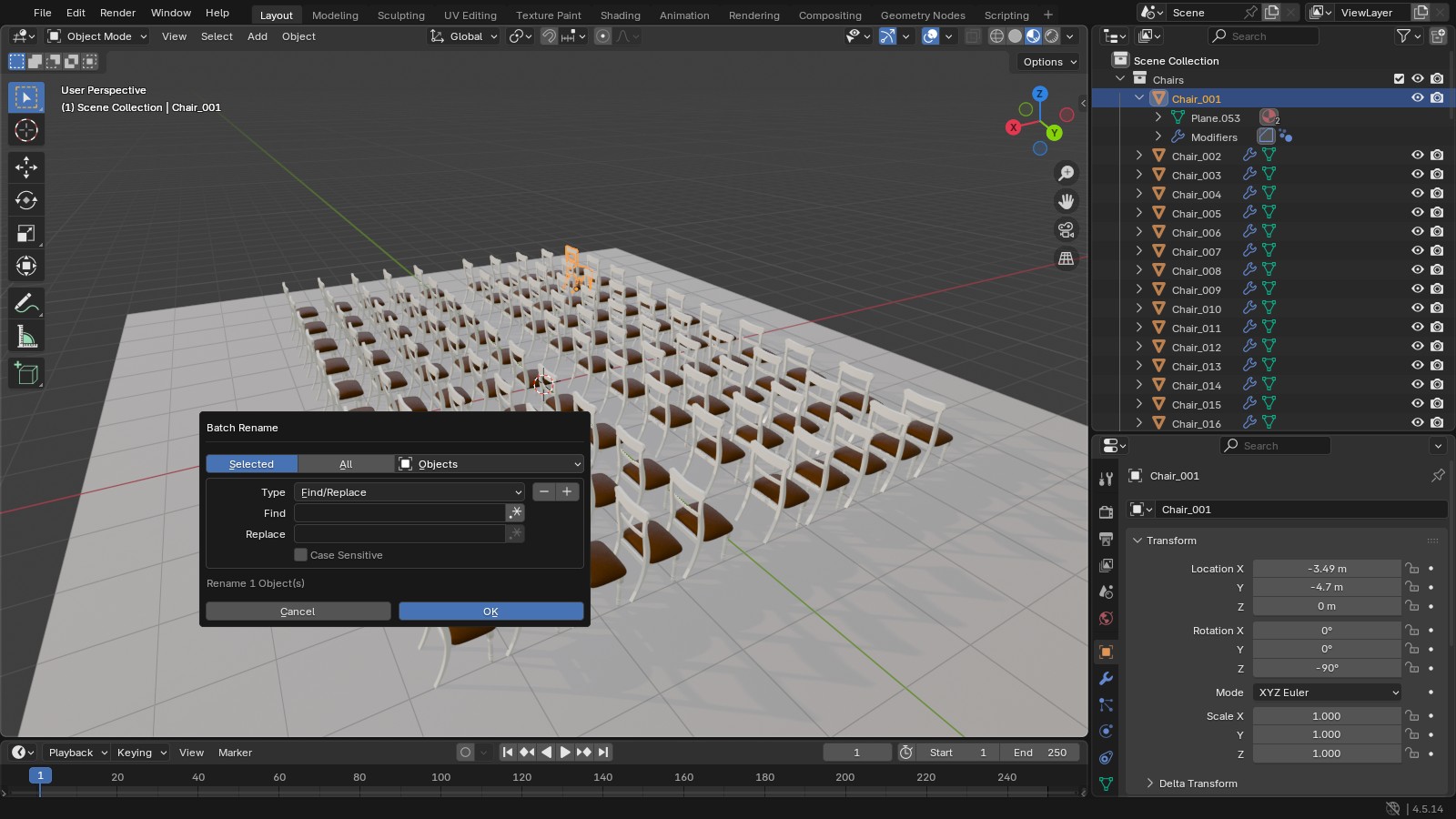
Blender has a built-in Batch Rename under Edit > Batch Rename, or Ctrl+F2. It’s good for find-and-replace jobs, like swapping Chair for Stool across a selection. I still use the script when I want clean sequential numbers, because I can see exactly what it does and change it in seconds.
Five lines is a small script, but once you’ve watched 100 objects rename themselves, the next script feels a lot less intimidating.
Take it further
If you want to go from small scripts like this to building your own tools, my Python scripting in Blender course on Udemy builds up through practical projects.
