
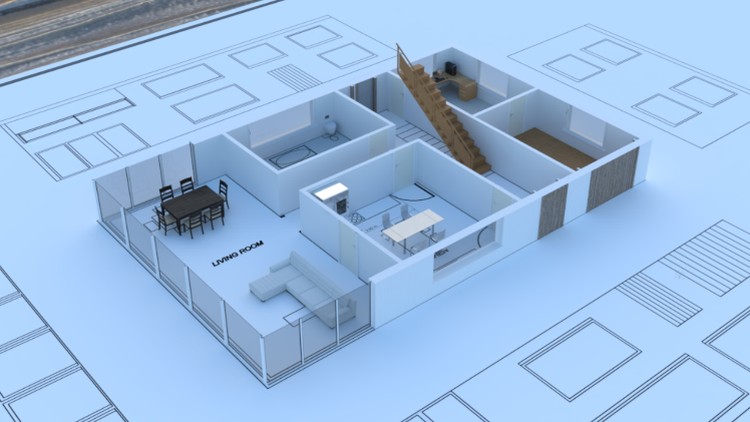
You mark a chair as an asset, save, open a new room file, and the Asset Browser is empty. Nothing is broken. Marking a chair as an asset only flags it inside the file you have open. Other files can only see it once that file sits in a folder Blender knows is an asset library. Here’s the setup I use, done once, so every room after that is drag and drop.
1. Make a folder for your assets
Make a plain folder on your drive, something like blender-assets. Inside it, save a new blend file for your furniture, for example chairs.blend. One file for seating is plenty to start. You don’t need catalogues on day one.
2. Register the folder, not the file
Open Edit > Preferences > File Paths and find Asset Libraries. Click the +, pick your blender-assets folder, and give it a name you’ll recognise, like My Furniture. Point it at the folder, not at chairs.blend. Blender reads every blend file inside that folder.
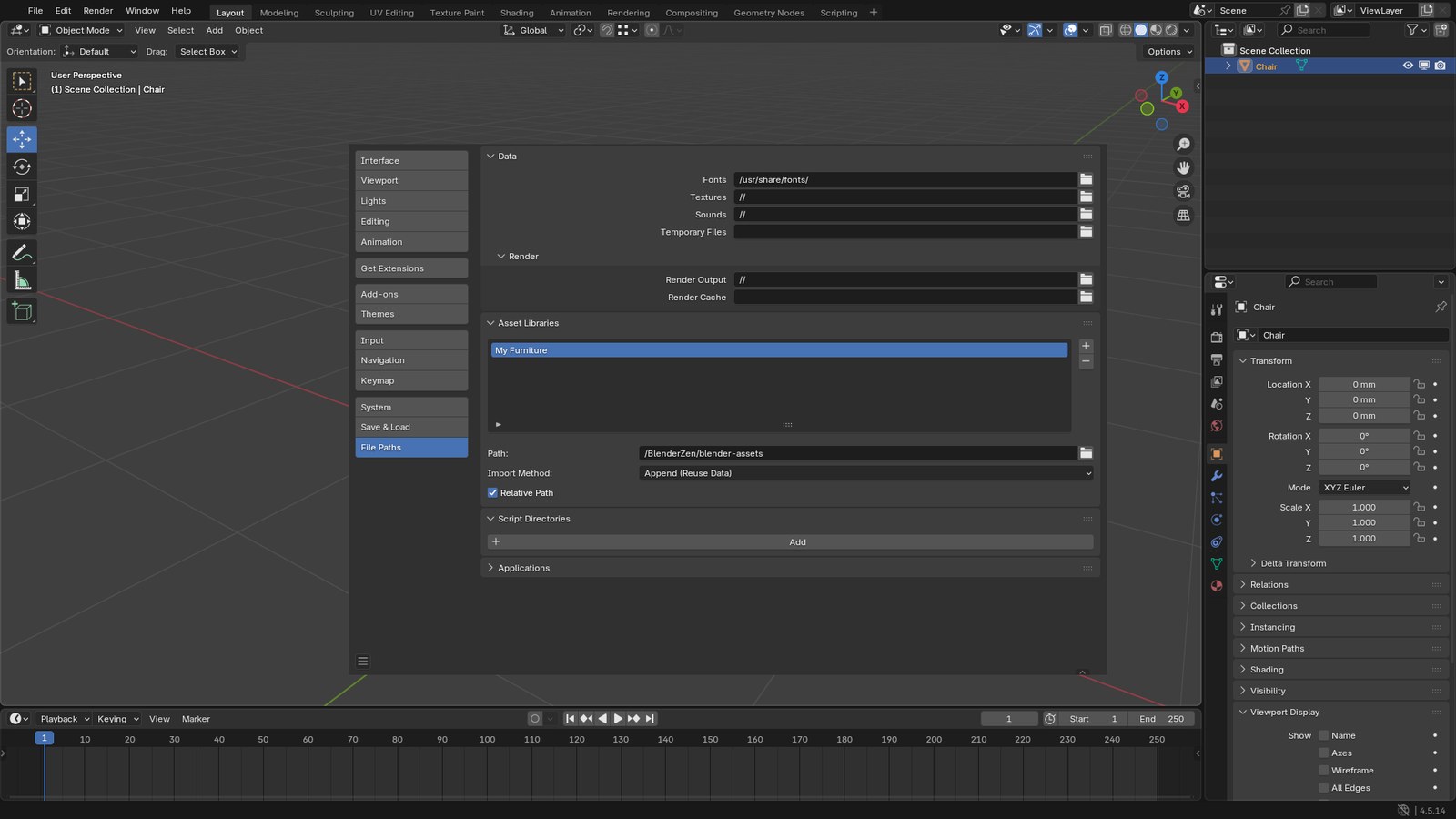
If Preferences doesn’t auto-save on your setup, save them from the menu in the bottom left of the Preferences window. Otherwise the library is gone next time you open Blender.
3. Mark the chair and save the file
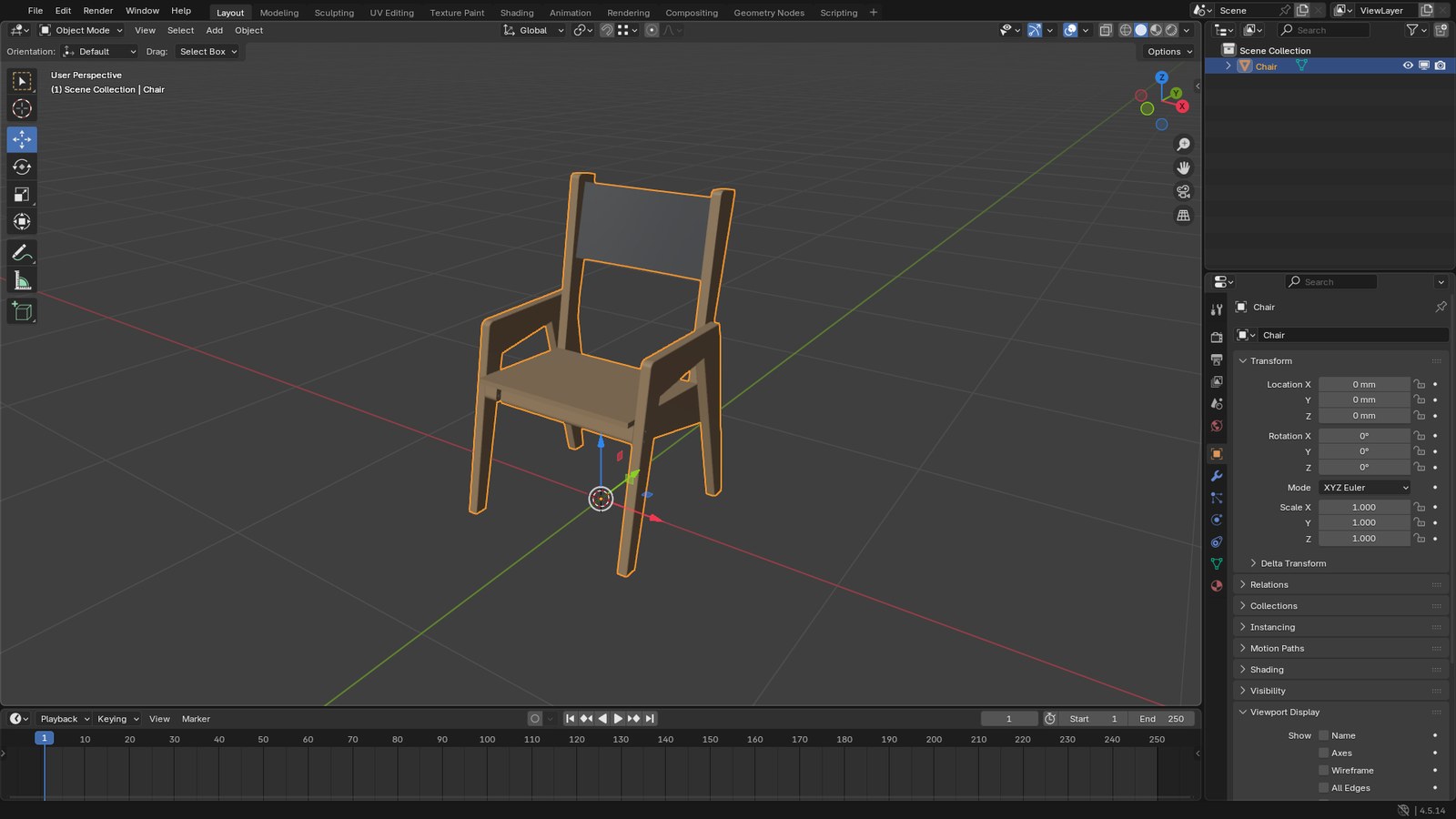
In chairs.blend, right-click the chair in the Outliner and choose Mark as Asset (or use Object > Asset > Mark as Asset in the 3D Viewport). Rename it to Dining Chair, not Cube.014, because that name is what you’ll search for later.
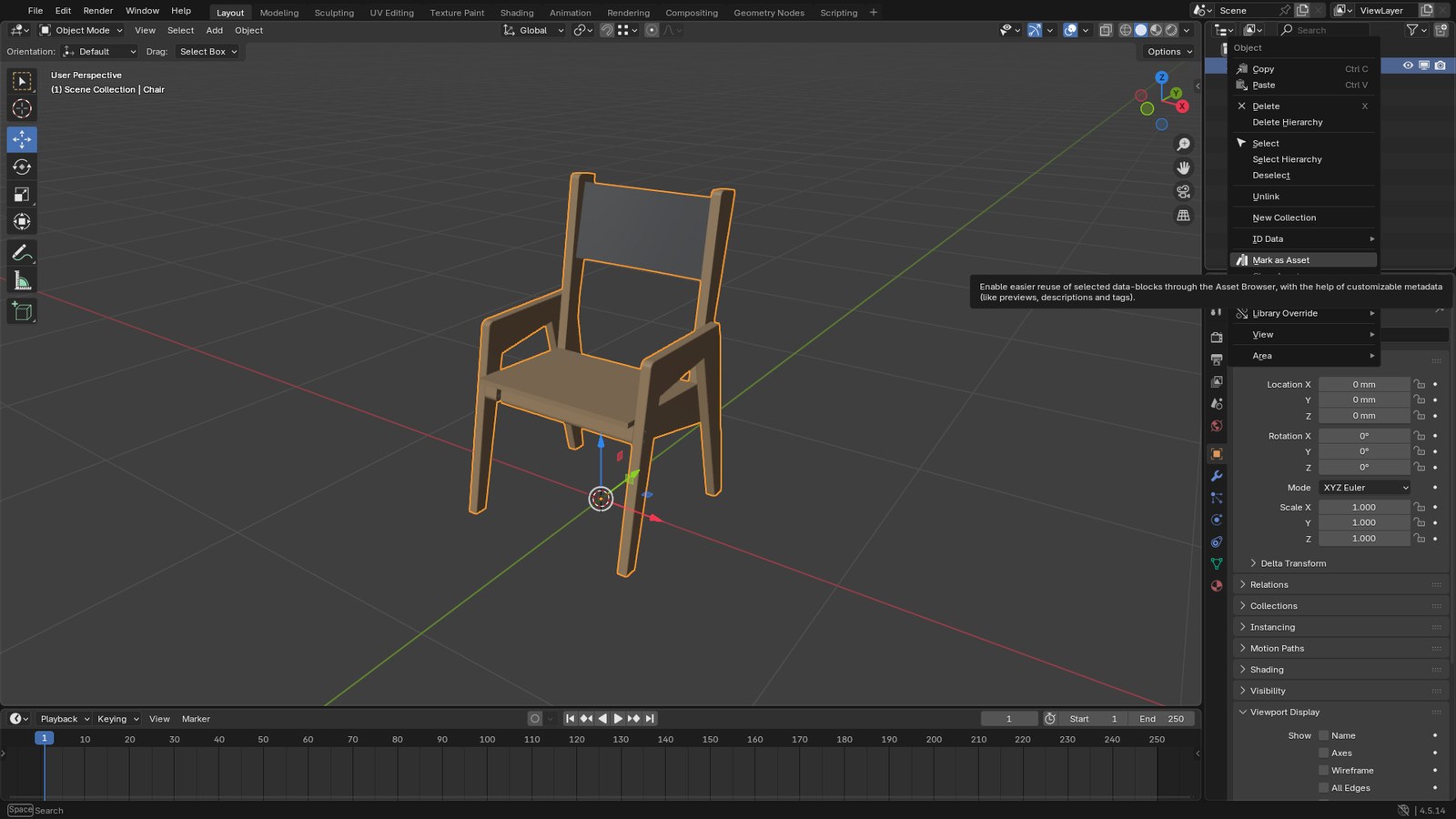
Then save the file. This is the step people skip. If you don’t save, the asset mark is lost when you close Blender.
4. Check scale and textures before you rely on it
Two problems show up in every room file if you don’t fix them at the source:
- Scale. Press N and check the chair’s dimensions in the sidebar. A dining chair seat is roughly 45 cm off the floor. If yours is 4.5 m or 4.5 mm, fix it here and apply the scale (Ctrl+A > Scale), then save again. Don’t rescale a copy in every room. If your file works in millimetres, Dimensions will read in mm. This chair, for example, is 1,250 mm tall overall.
- Textures. Images that use a path only your old project had will come in pink. In
chairs.blenduse File > External Data > Pack Resources, or keep the textures in a folder next to the blend file, then save.
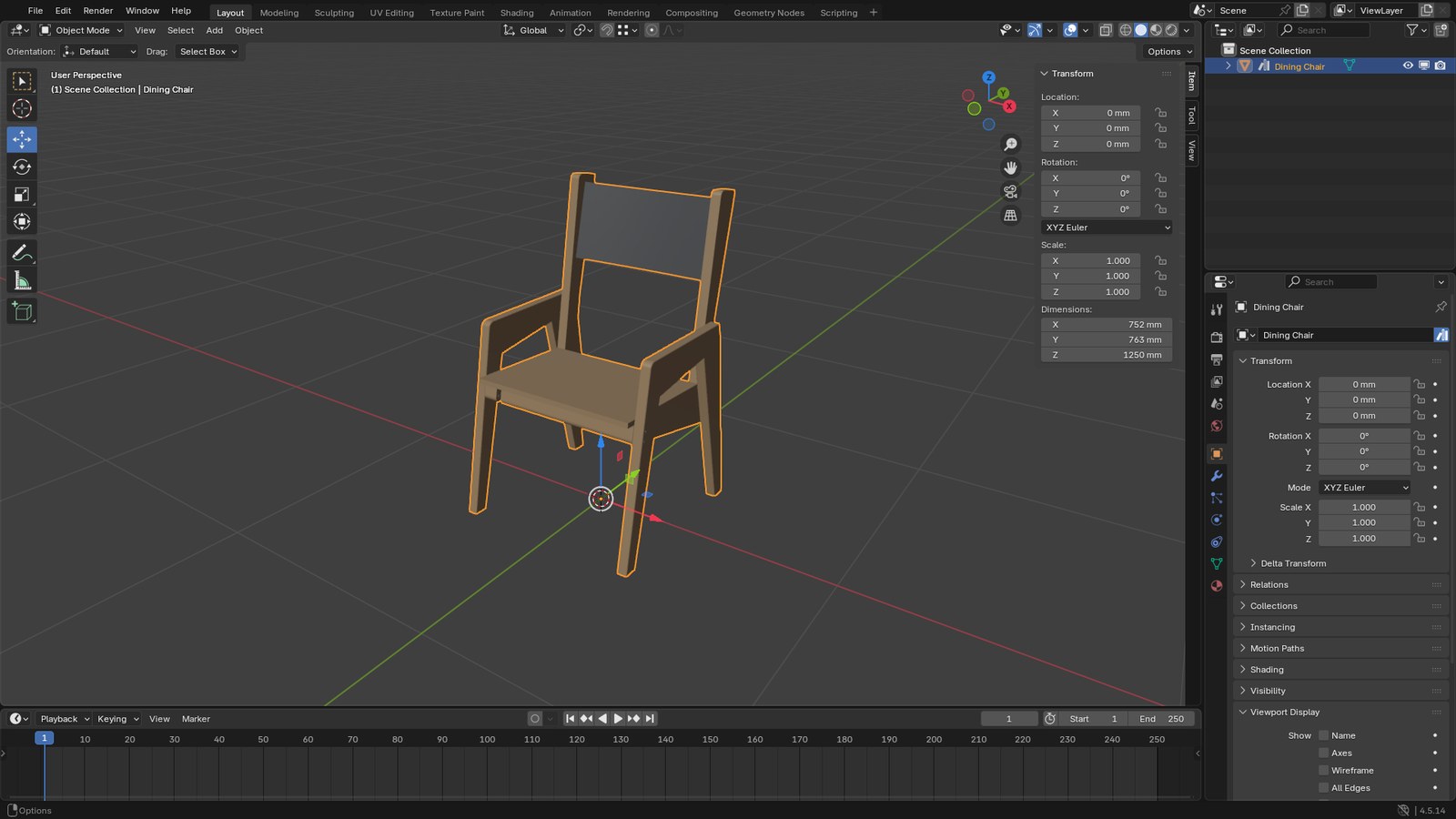
5. Drag it into a room
Open your room file. Change any editor to the Asset Browser. The library dropdown in the top left starts on All Libraries. Switch it to My Furniture. Current File only lists assets saved in the room file itself, which is the other reason the browser can look empty.
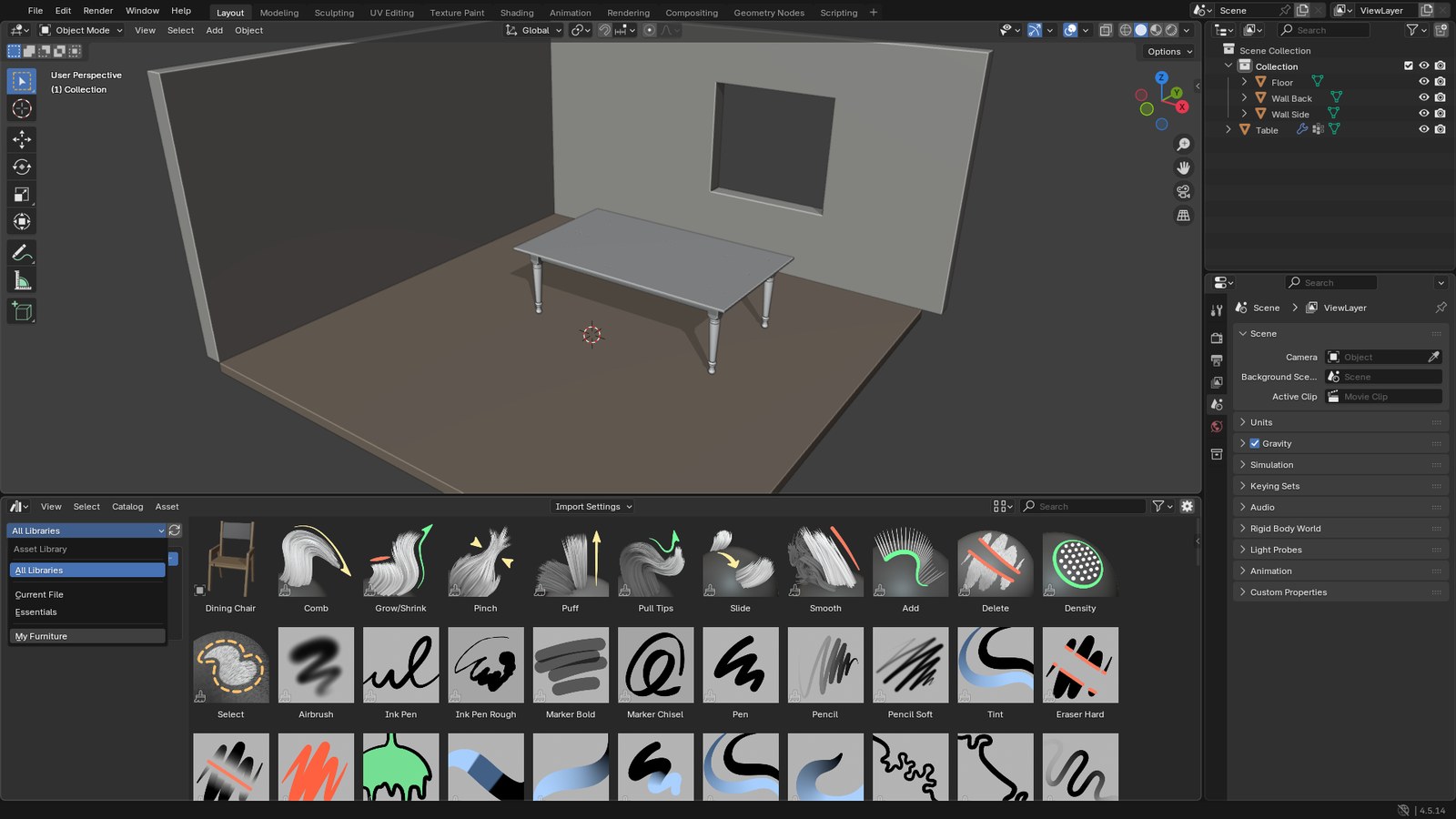
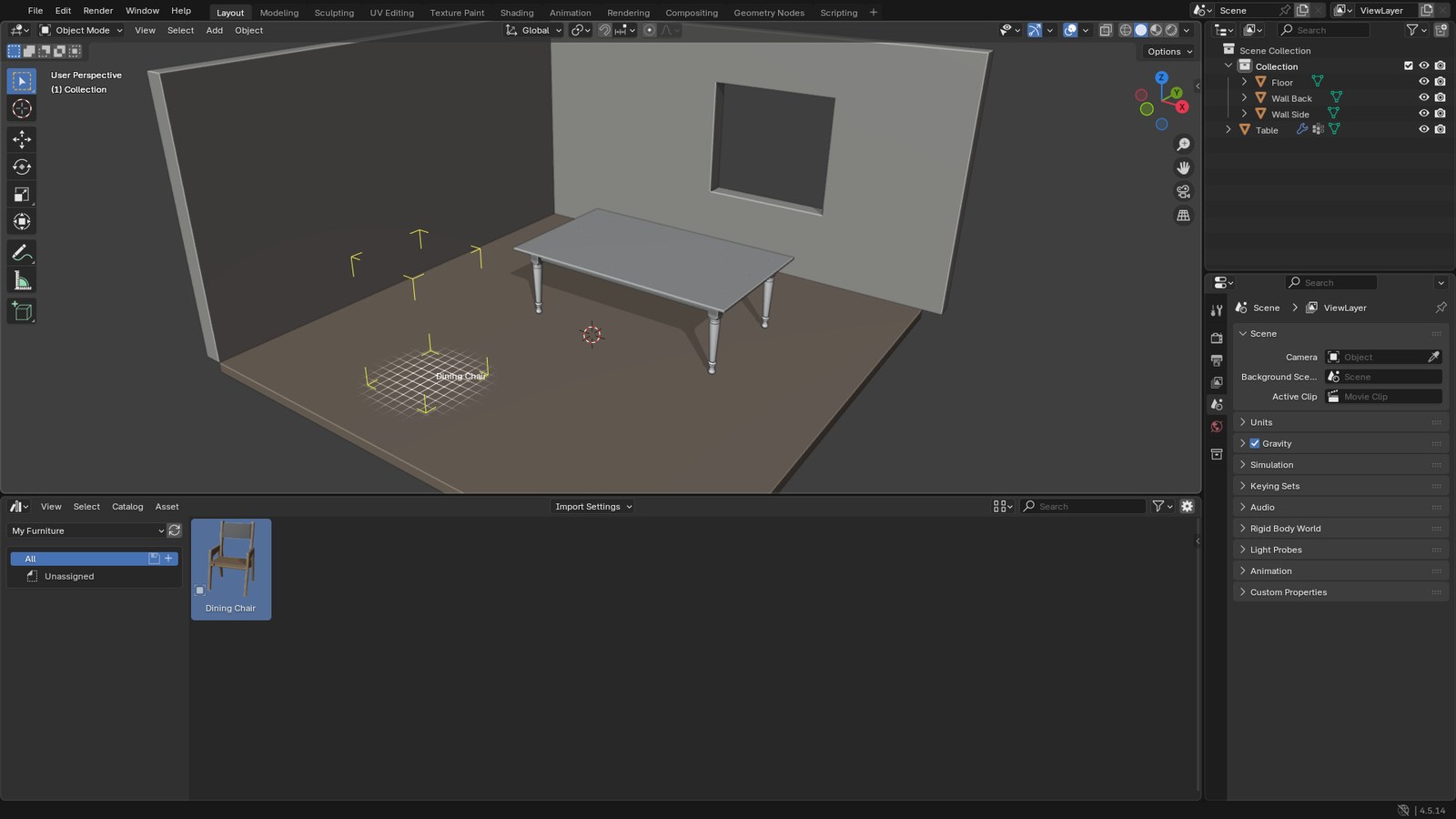
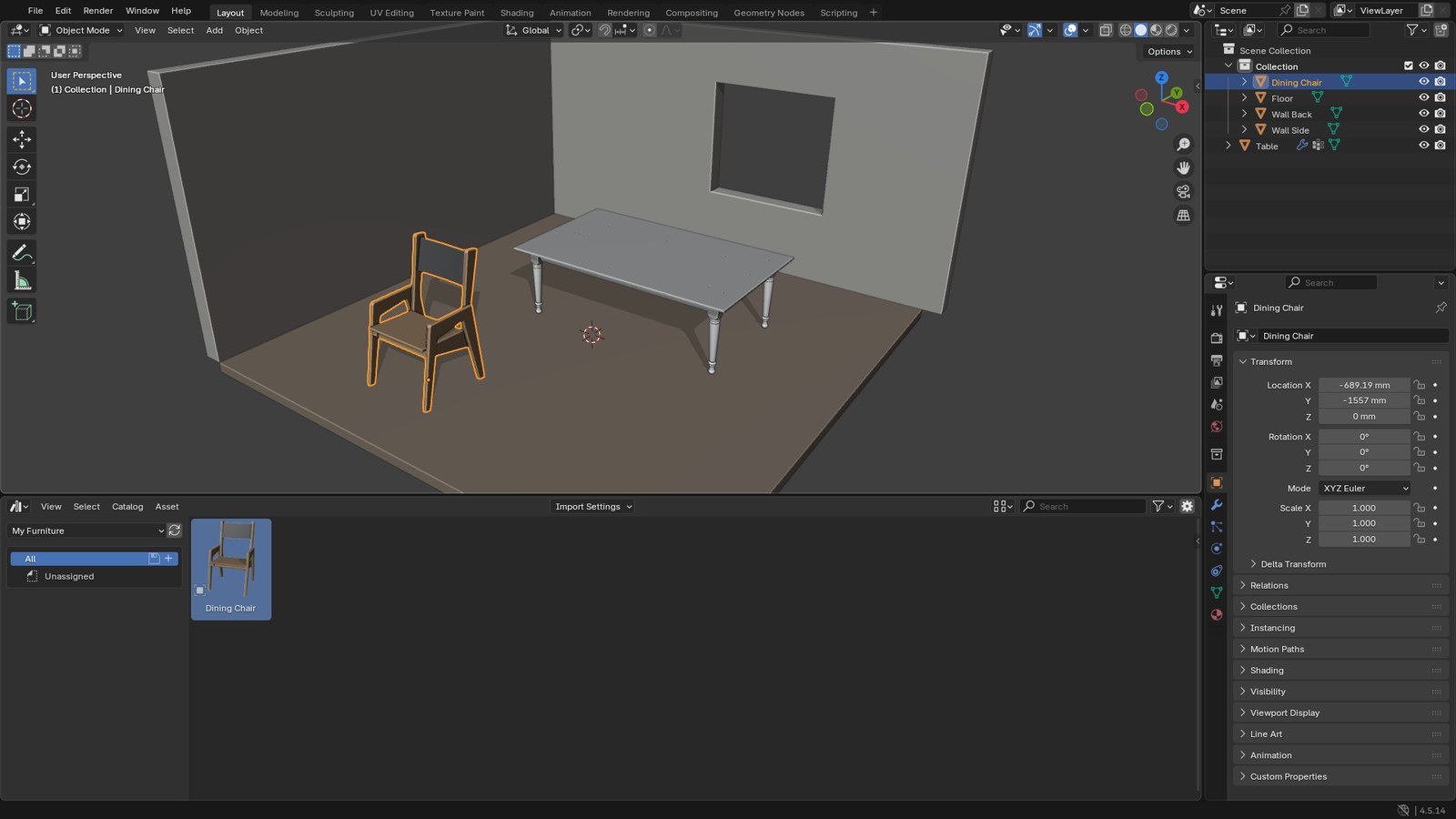
Drag the chair into the viewport and drop it on the floor.
6. Pick append, not link, for room work
In the Asset Browser header, open Import Settings. For interiors, set Import Method to Append (Reuse Data). You get a normal chair you can move, scale and edit, and if you drop in six chairs they share the same material instead of making six copies.
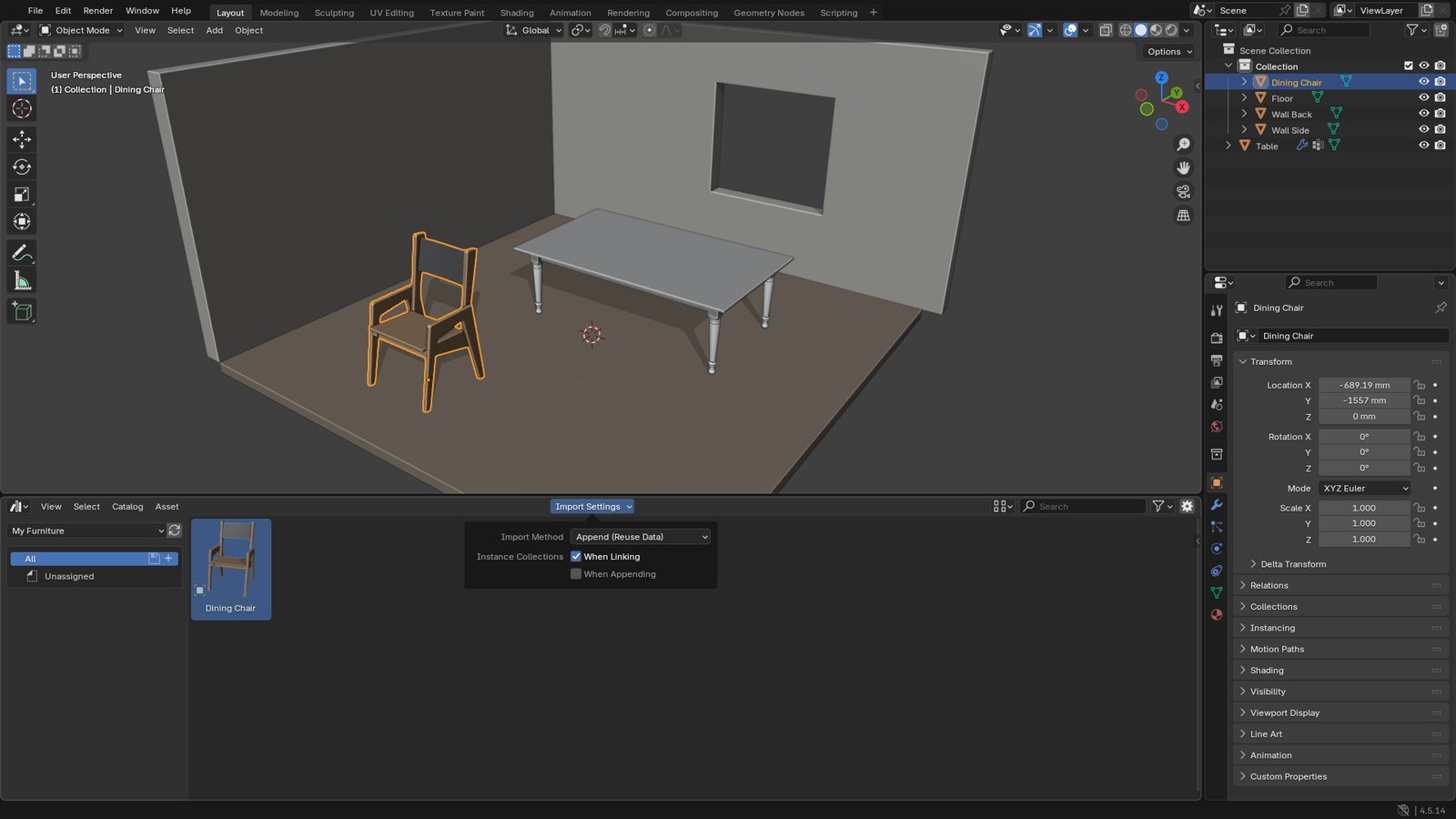
Link keeps the chair tied to chairs.blend. That’s useful in a big studio library, but a linked object can’t be moved freely until you make a library override, which is why a linked chair seems frozen in place.
The test
Drop one chair into one room. Save, close Blender, reopen the room. If the chair is still there with its materials, your library works, and every chair, table and lamp you save to that folder from now on is one drag away.
Want to build the whole house, not just furnish it?
My Architectural Design & Animation course on Udemy takes you from floor plan to walls, doors, windows, furniture, lighting and a finished animated walkthrough in Blender.
